Introduction
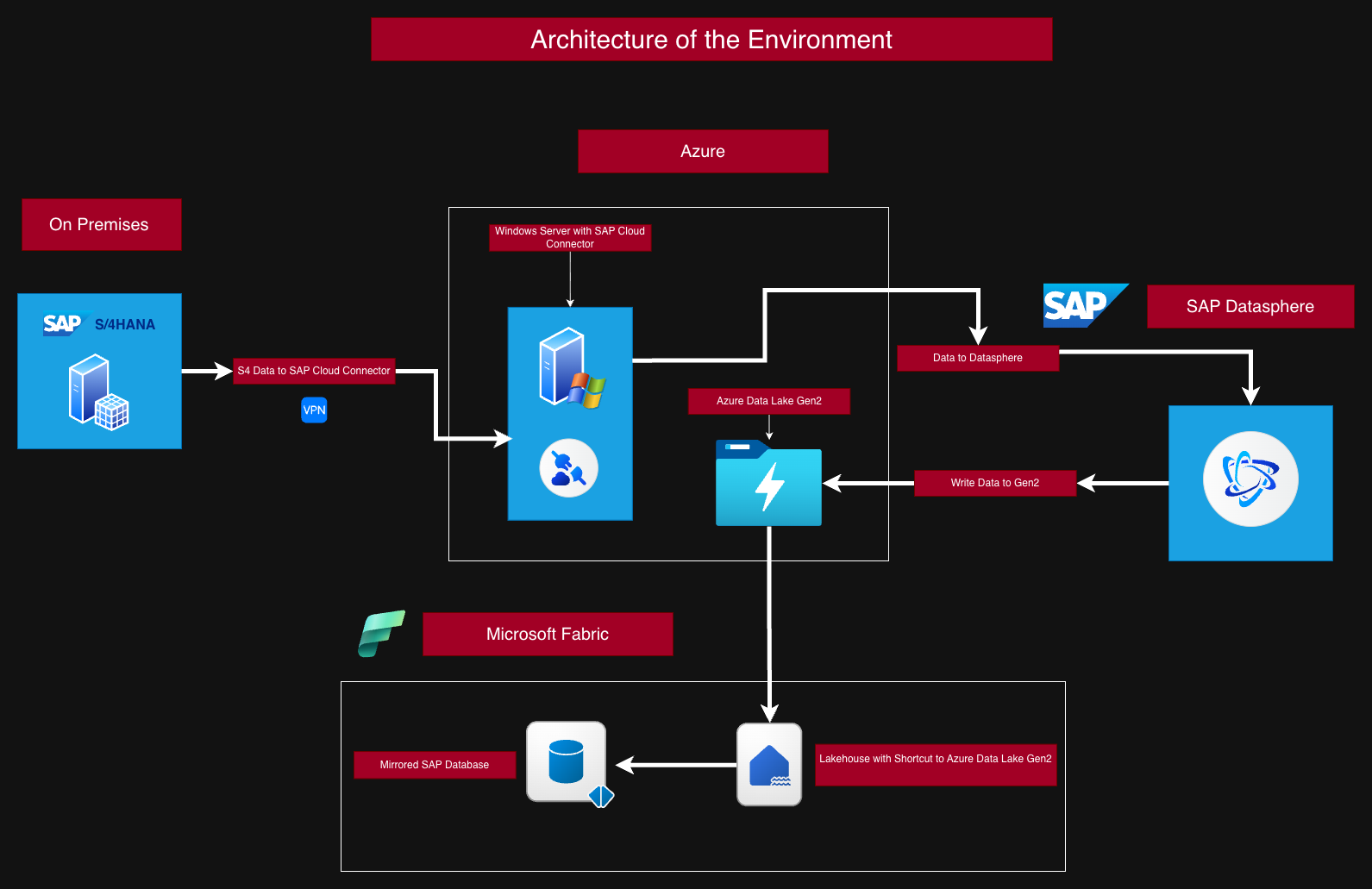
In this article, I walk through the complete process of replicating data from an SAP S/4HANA system into Microsoft Fabric. The goal was to build an end-to-end setup that connects the SAP landscape with modern analytics capabilities in Fabric. To achieve this, I combined several components from both SAP and Microsoft: the SAP Cloud Connector, SAP Datasphere, Azure Data Lake Storage Gen2, and finally the Mirrored SAP Database item inside Microsoft Fabric.
The article is based on the exact steps I carried out in my own environment. Along the way, I encountered a few challenges on the SAP side, especially when configuring the connection through the SAP Cloud Connector. Once this part was working, the remaining setup in Microsoft Fabric was straightforward. In the end, the result is a working replication pipeline that allows SAP data to be used directly in Fabric and prepared for further analytics scenarios.
Requirements
To follow the steps in this guide, the following components are required:
- Microsoft Fabric with capacity
- A Fabric workspace with a Lakehouse and an SAP Mirrored Database item
- A Lakehouse shortcut to Azure Data Lake Storage Gen2
- SAP Cloud Connector (JAVA Jvm follow in the SAP Requirements)
- SAP Datasphere
- SAP S/4HANA (on-premise in my environment)
IMPORTANT:
You need to have the correct server information to establish the connections. In some cases, I’ve replaced these with demo accounts. Further i have install the SAP Cloud Connector on Windows Server in Azure there have a connection to the SAP System On Premises.
Here is an overview of how the article is structured:
- Parts 1 to 7 cover the setup of the SAP environment.
- Parts 8 and 9 cover the Microsoft Fabric part.
First, you will see an overview of the system architecture and the corresponding data flow.
SAP 1- Requirements for the SAP Cloud Connector
Before we can install the SAP Cloud Connector, we must download and set up the Java JVM.
You can download these files from the SAP site.
Here are the steps for installing the Java JVM:
Unzip the downloaded Java files and copy the sapjvm_8 folder to a directory of your choice.
I copied the folder to the root directory of a different drive. You will select this directory later during the installation of the SAP Cloud Connector.Set up the environment variables:
Replace the JAVA_HOME entry in the System Variables section with the directory where you copied the sapjvm_8 folder.
Example:G:\sapjvm_8In the System Variables section, locate the Path variable and add the following entry:
G:\sapjvm_8\binVerify the installation:
Open the command line and type:java --version
If you see the path to the sapjvm_8 folder, everything is set up correctly.
Now you can continue with SAP Part 2.
SAP Part 2 - Install the SAP Cloud Connector
In the first step, you need to install the SAP Cloud Connector on a system that can establish a connection to SAP S/4HANA. It must also be able to connect to SAP Datasphere. In my case, I install it on a Windows Server.
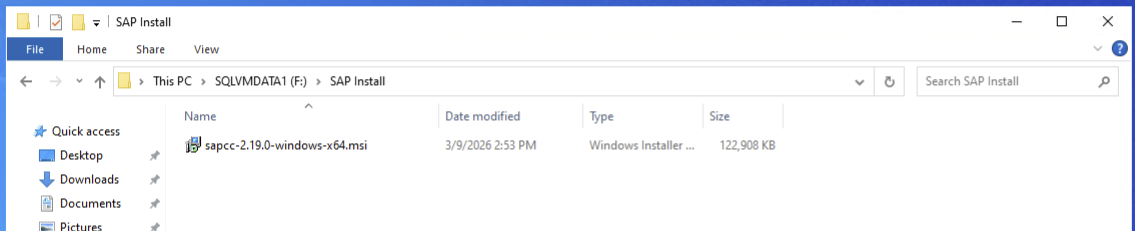
To do this, download the installation package from the SAP Download Portal.
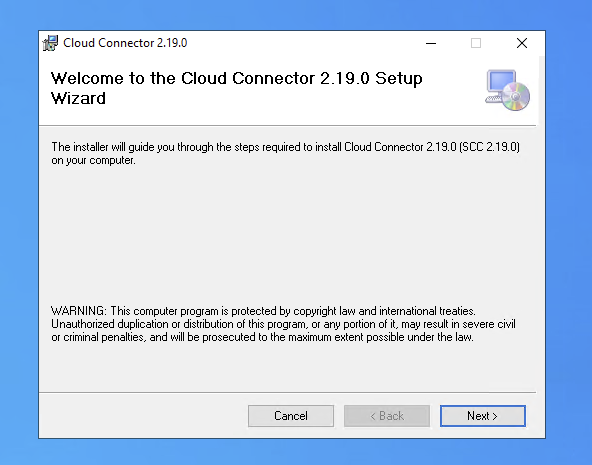
I used version 2.19.0.
Steps:
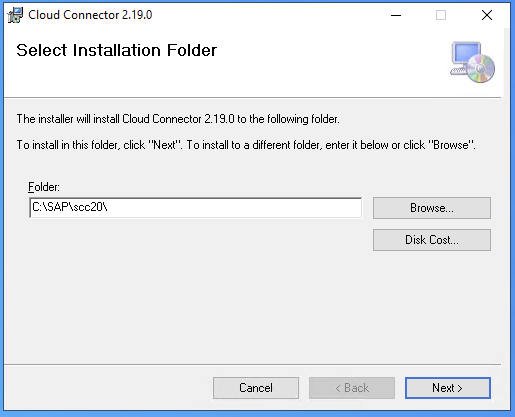
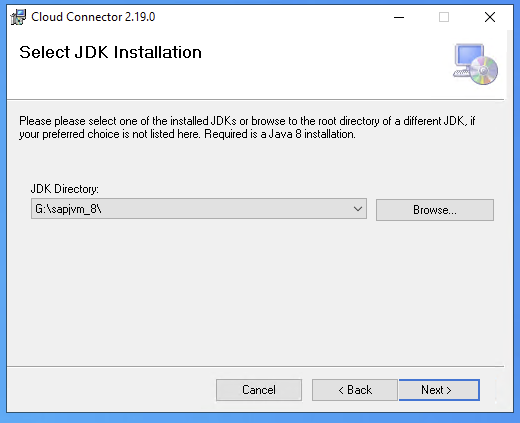
- Start the installation file
- Choose the installation directory
- Navigate to the Java directory (this must be set up beforehand)
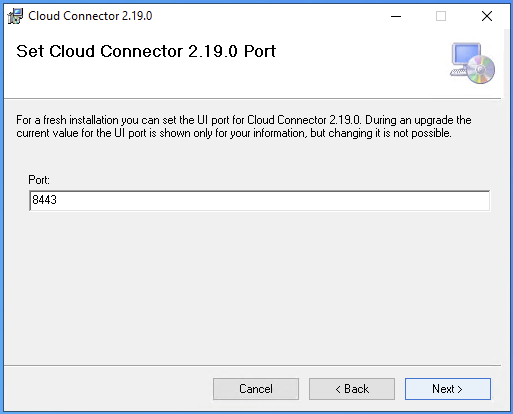
- Select a port; I keep the default port
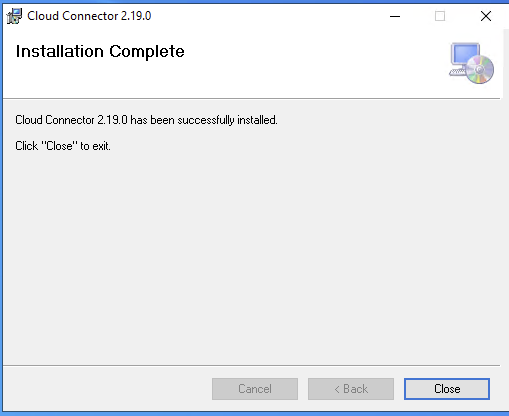
- Complete the setup
If the service has not started automatically, start the SAP Cloud Connector service manually.
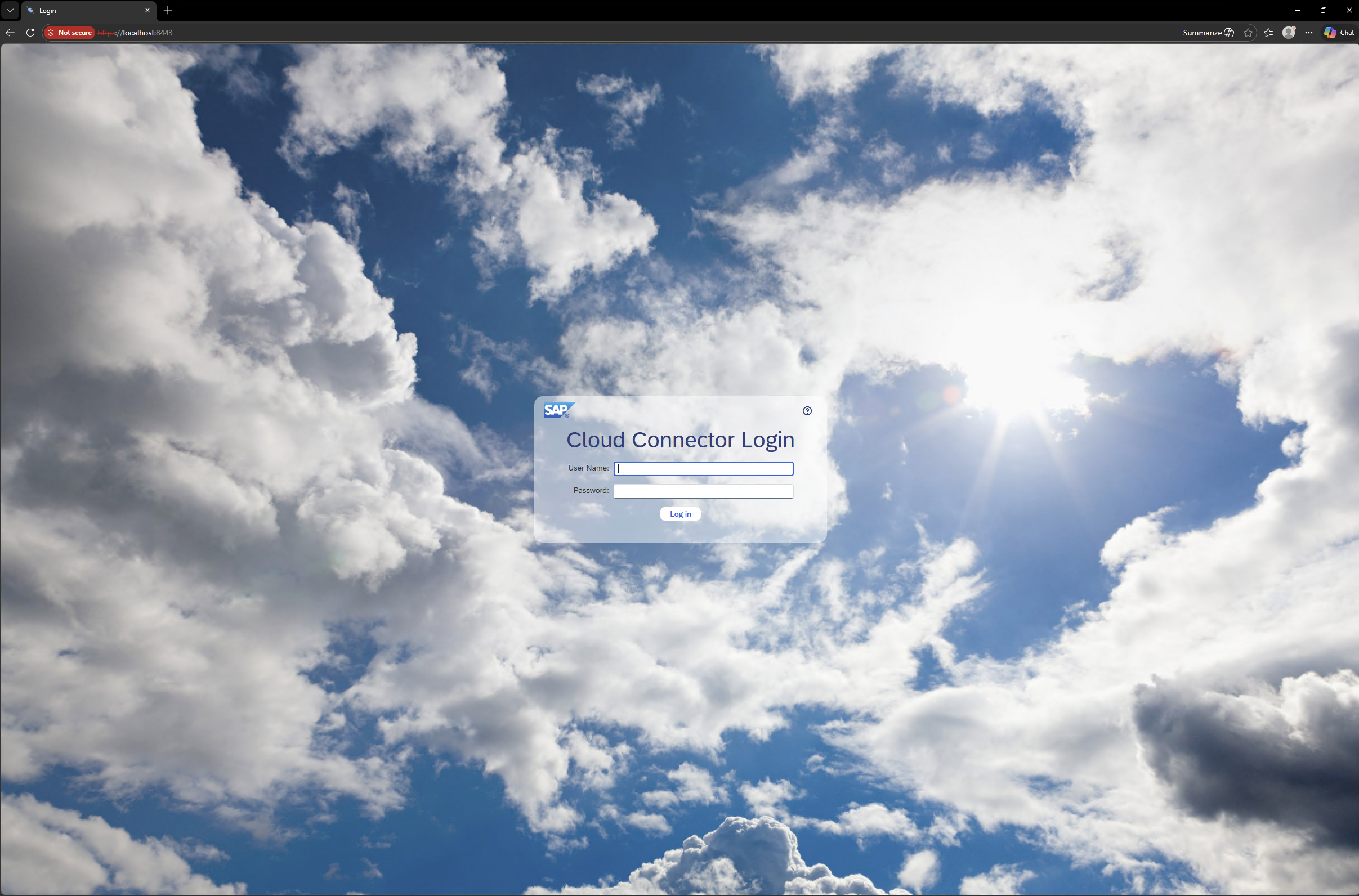
You can access the SAP Cloud Connector at: https://localhost:8443
SAP Part 3 - Set up the SAP Cloud Connector to connect to SAP Datasphere
Now we can connect to the SAP Cloud Connector using any web browser.
Here is the URL again:
https://localhost:8443
If the port was changed during the installation, it must be adjusted accordingly.
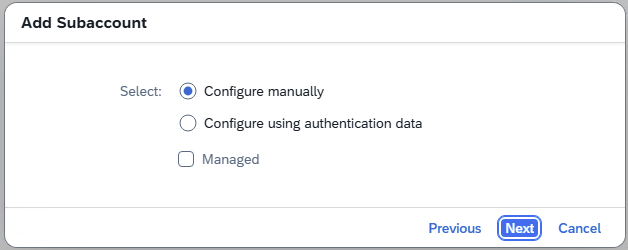
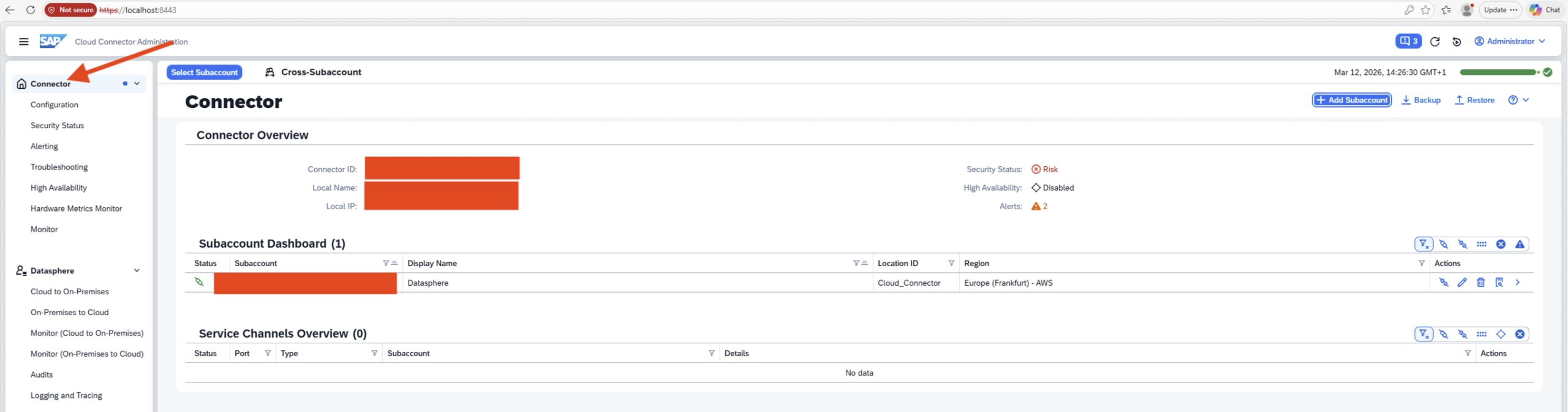
I performed the following steps (you can also follow them in the screenshots):
- Open the SAP Cloud Connector webpage.
- The default user is Administrator and the default password is manage.
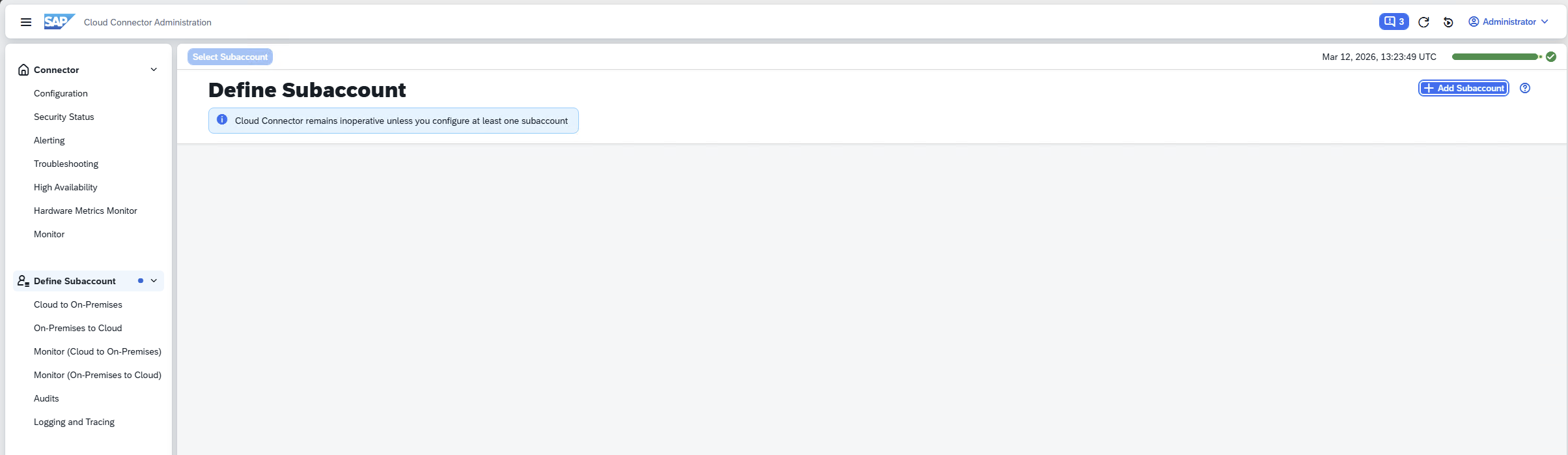
You will be prompted to change the password immediately afterward. - Add a subaccount.
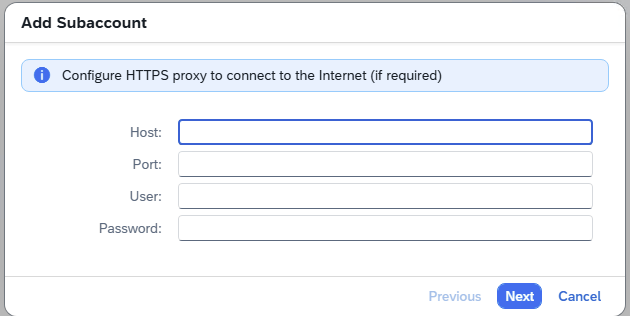
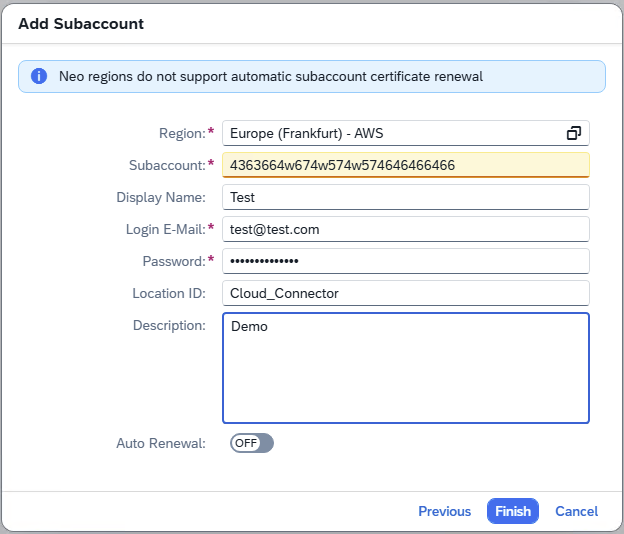
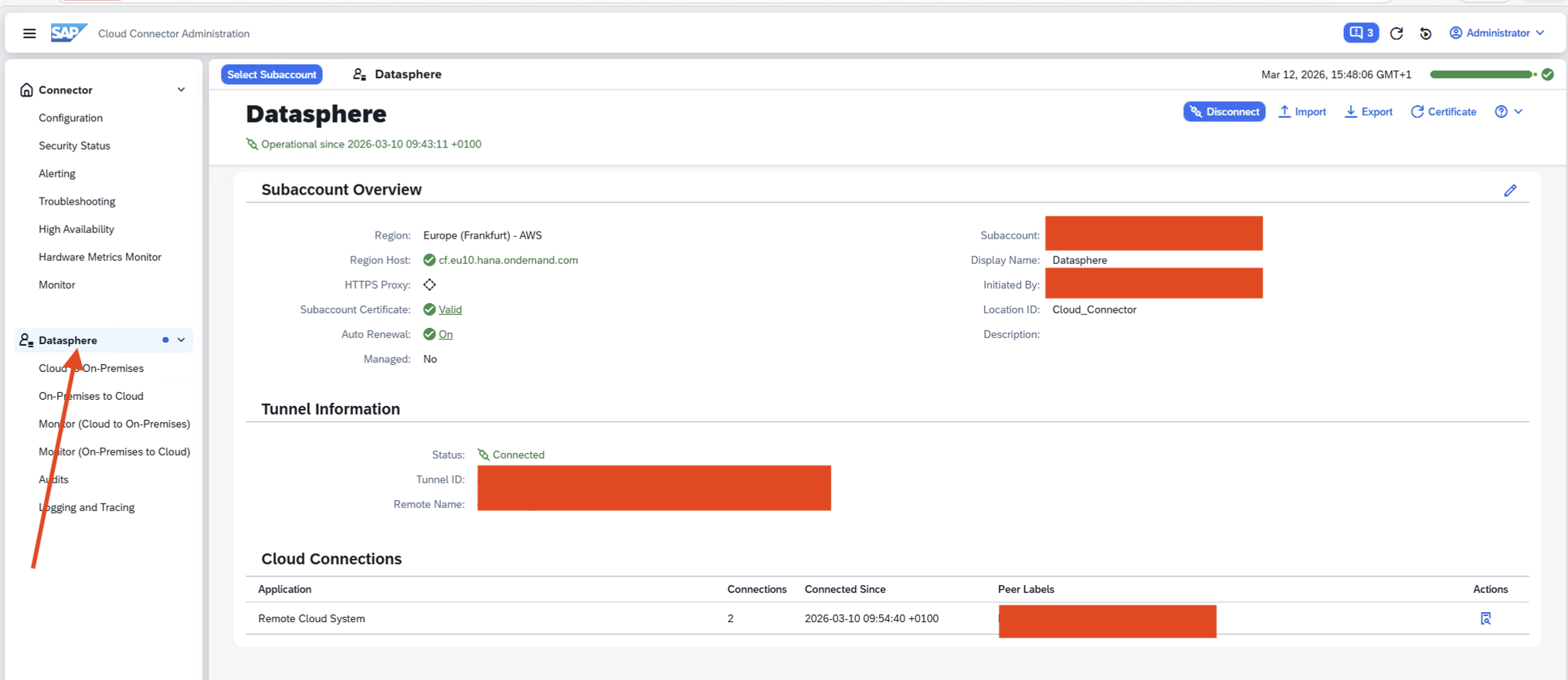
- Follow the steps until the final screen and enter the subaccount details.
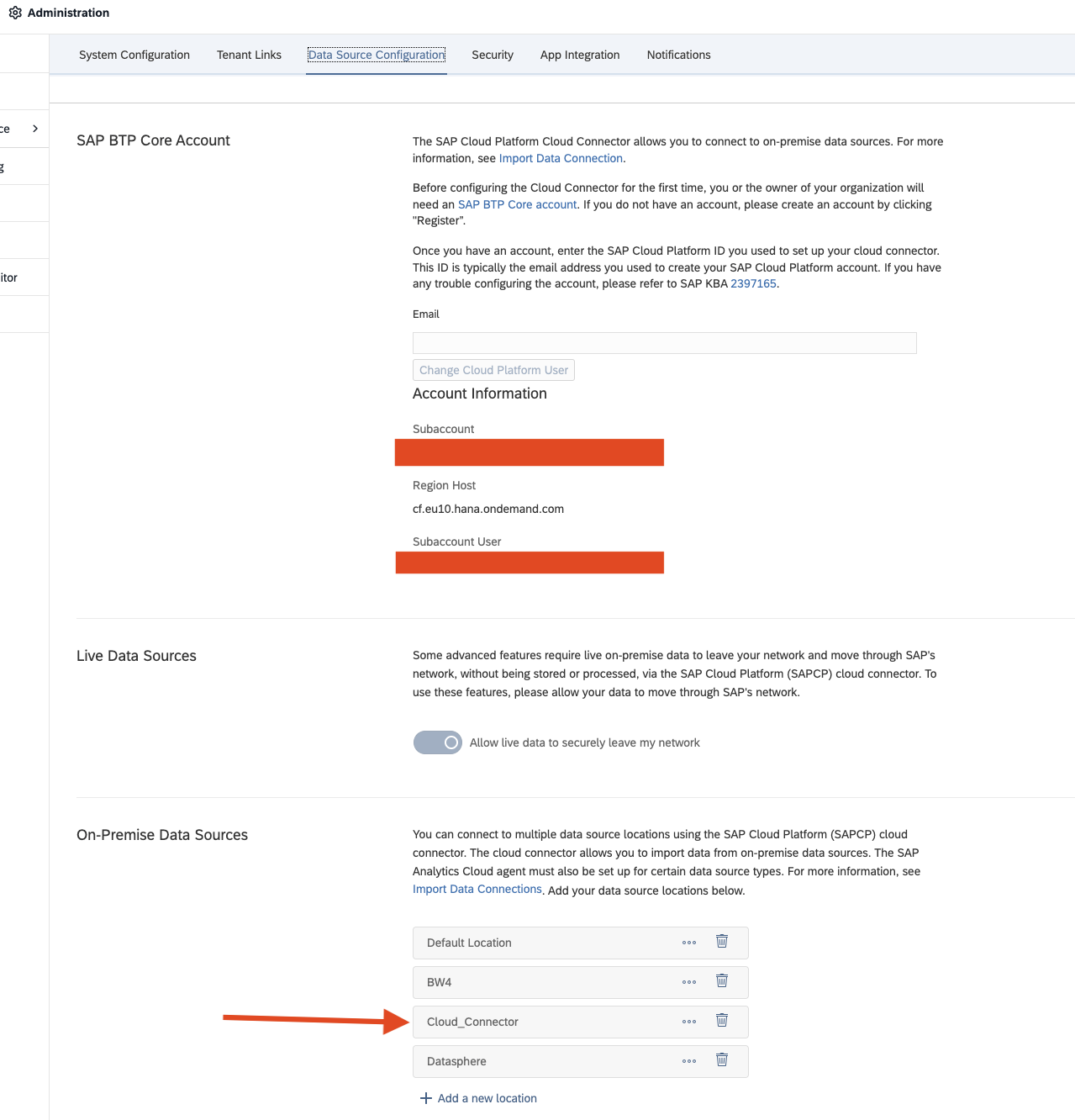
Important: The Location ID must match the one configured in SAP Datasphere.
In SAP Datasphere, under System → Administration → Data Source Configuration, you can add a new location (see screenshot SAP Datasphere Administrator Cloud Connector).
It is also important to add the IP address of the system where the SAP Cloud Connector is running under System → Configuration → IP Allowlist.
SAP Part 4 - Add Internal SAP System
In the next step, we need to connect the internal systems that we want to access later through SAP Datasphere.
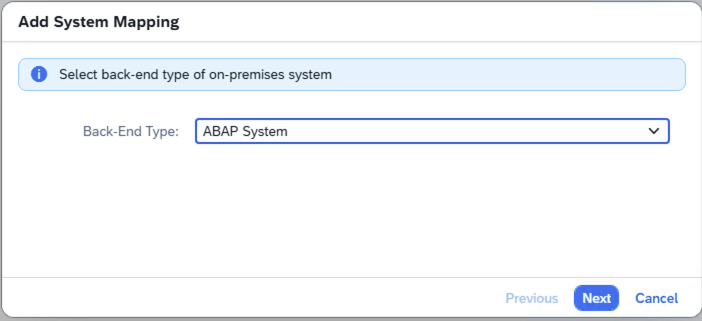
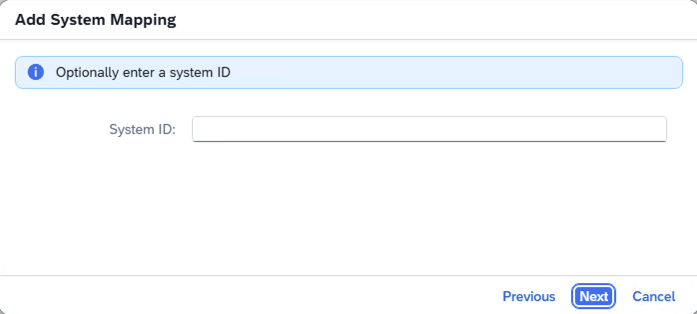
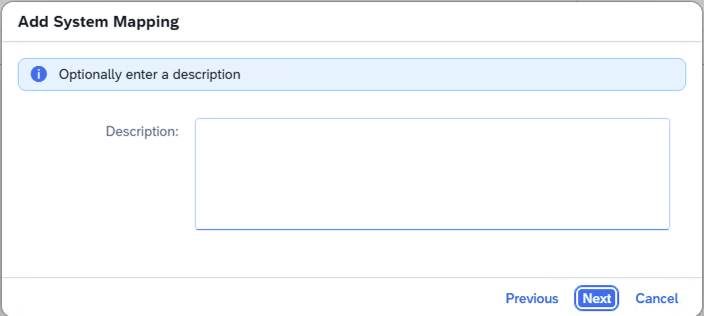
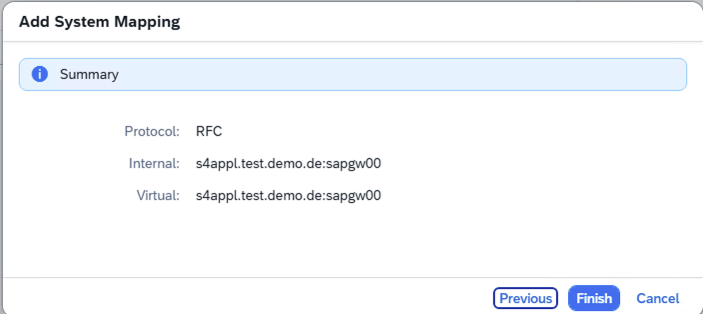
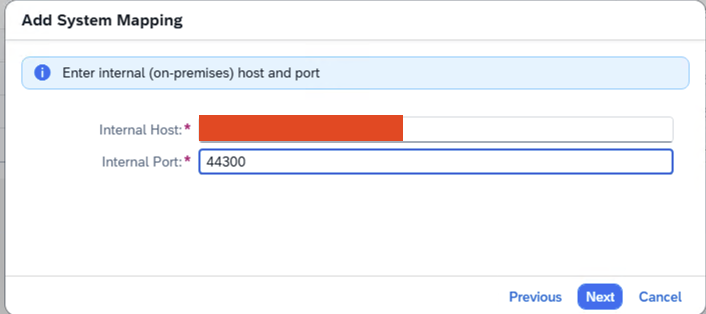
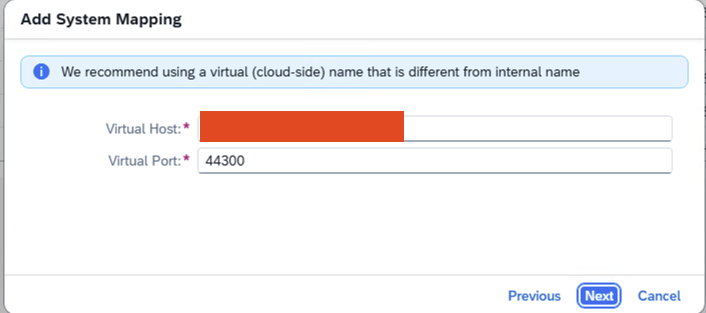
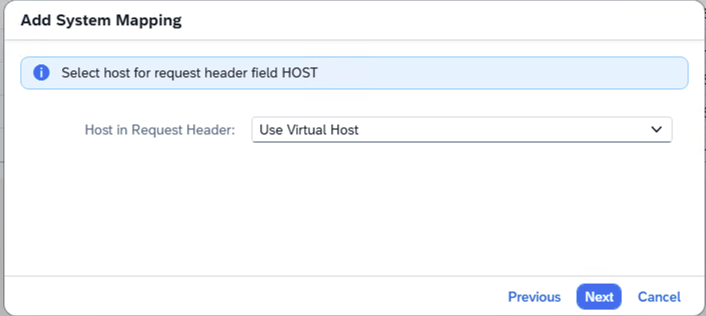
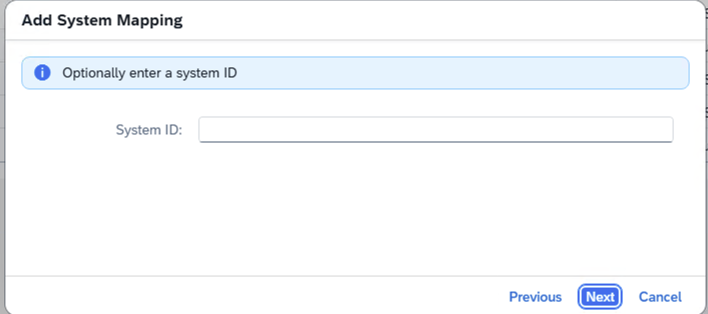
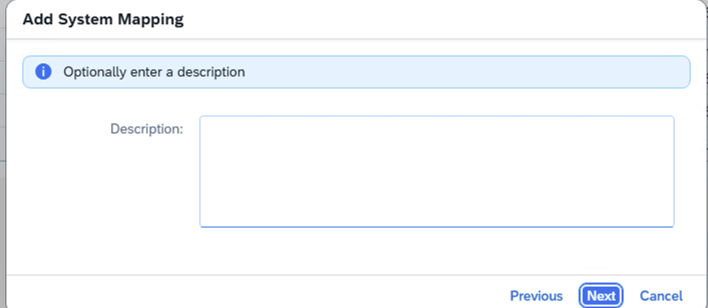
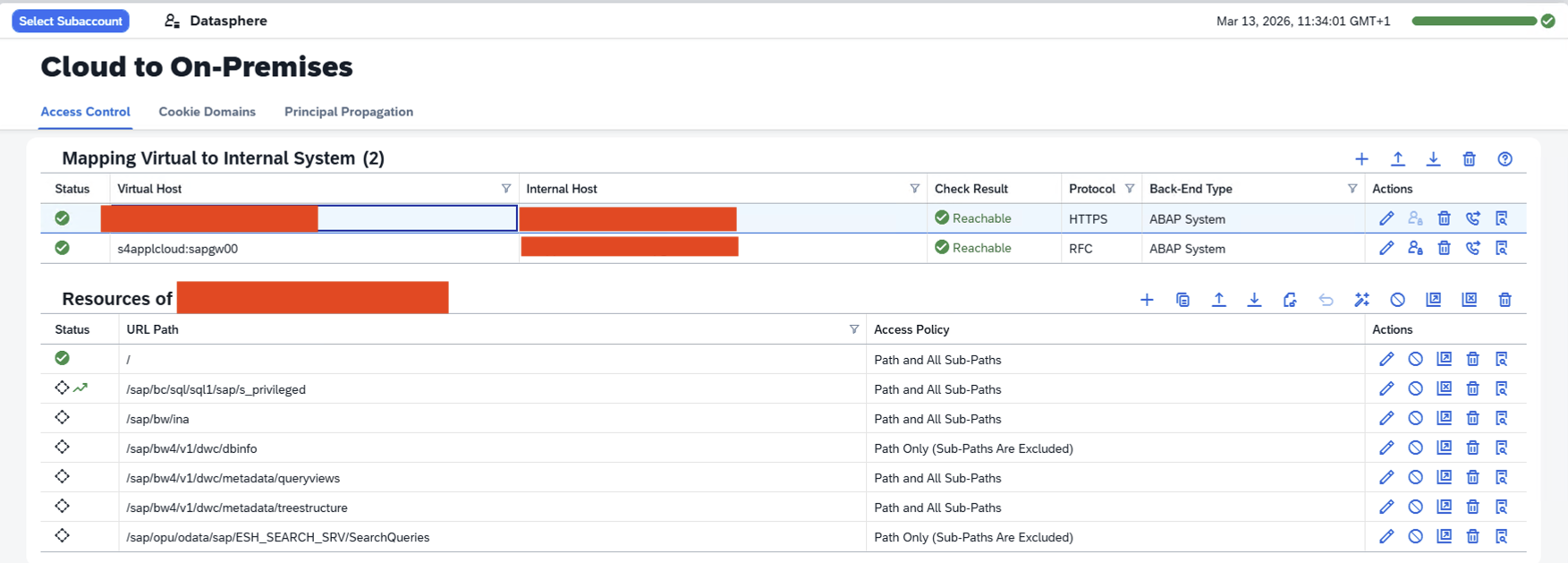
To do this, go to the Cloud to On‑Premises tab and click Add.
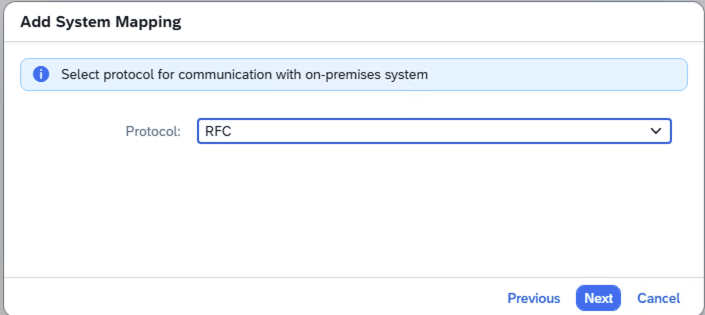
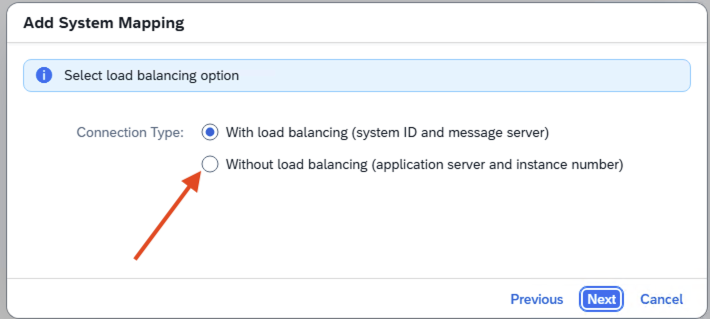
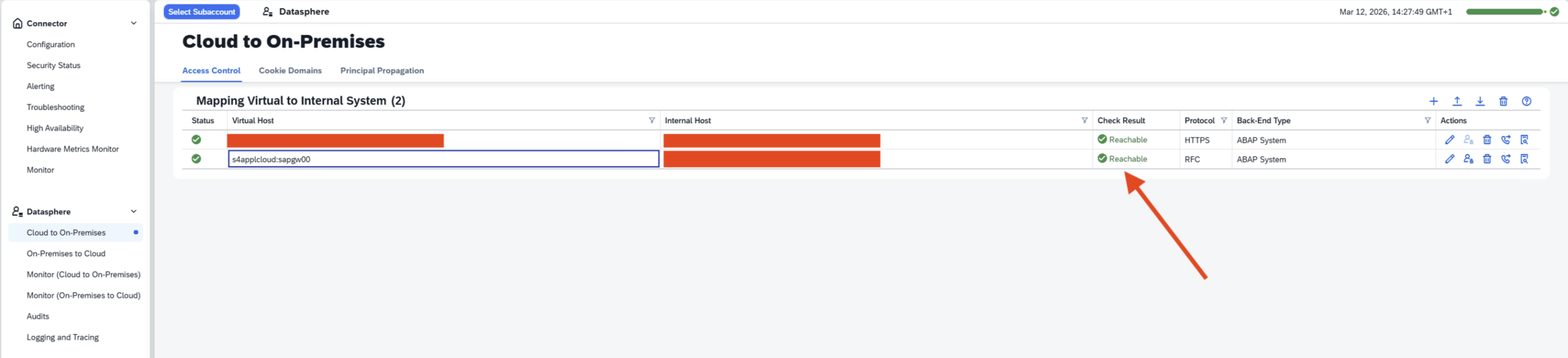
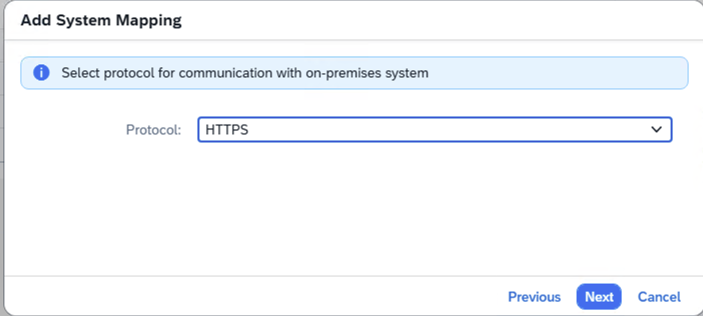
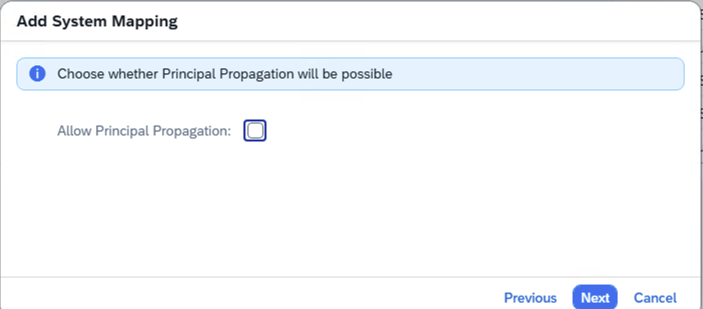
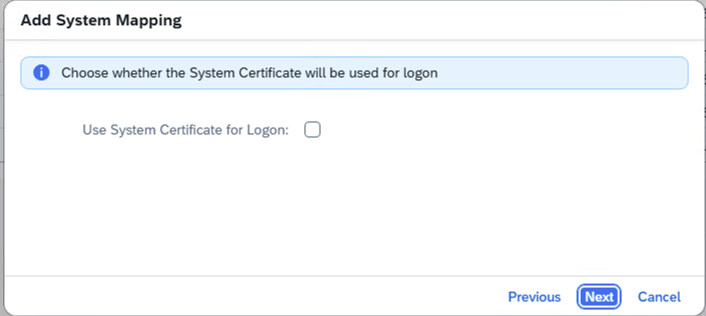
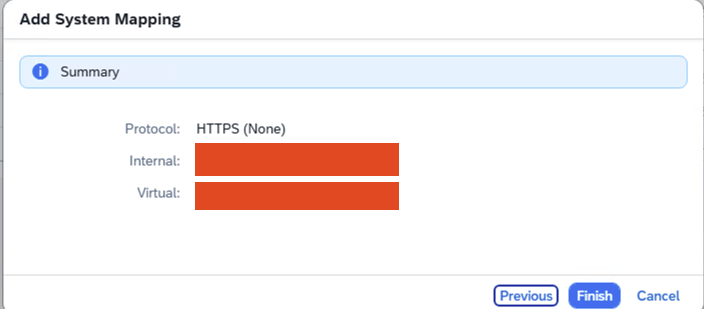
The Screenshots Step 1 to Step 8 show the path for RFC and Screenshots Step 9 to Step 17 the way for HTTPS.
Perform the following steps:
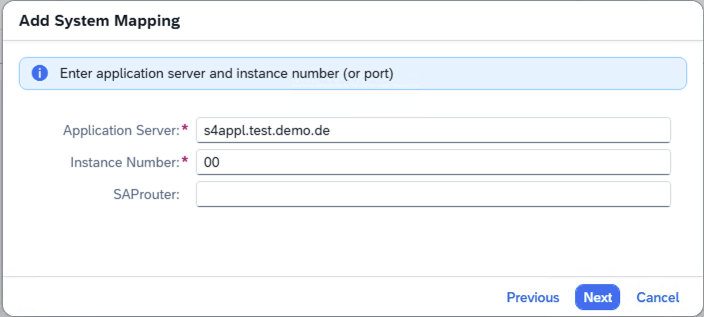
- In Add System Mapping, keep the option ABAP System.
- Select RFC as the protocol.
- Set the Connection Type to Without load balancing (application server and instance number).
- Enter the Application Server and Instance Number.
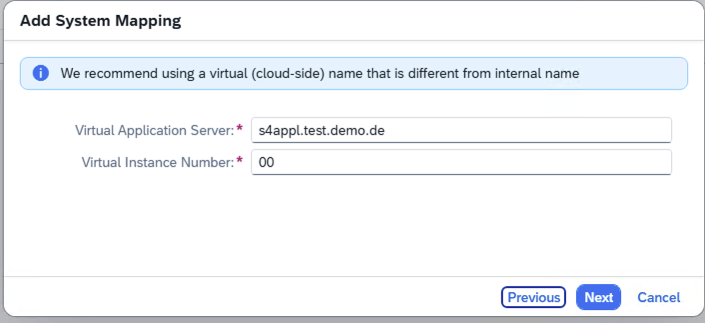
- Adjust the Virtual Application Server and Virtual Instance Number if necessary.
- Follow the remaining steps.
- Done.
The Check Result should turn green.
If it does not, check the configuration settings.
For HTTPS i do exact the same way and choose ABAP also for HTTPS.
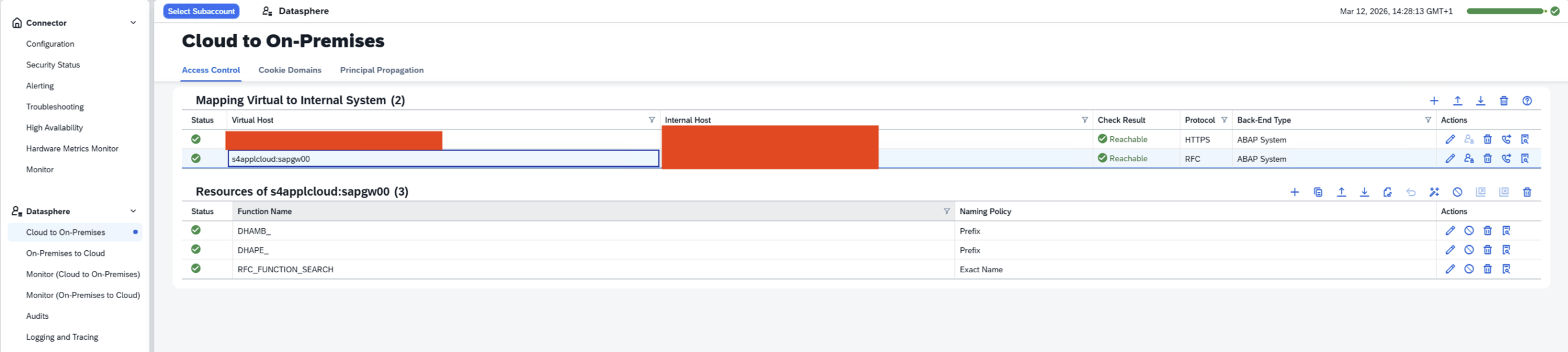
SAP Part 5 - Add Internal Resources
Next, we need to connect the internal resources that we want to access later in SAP Datasphere.
I configure this for RFC and HTTPS.
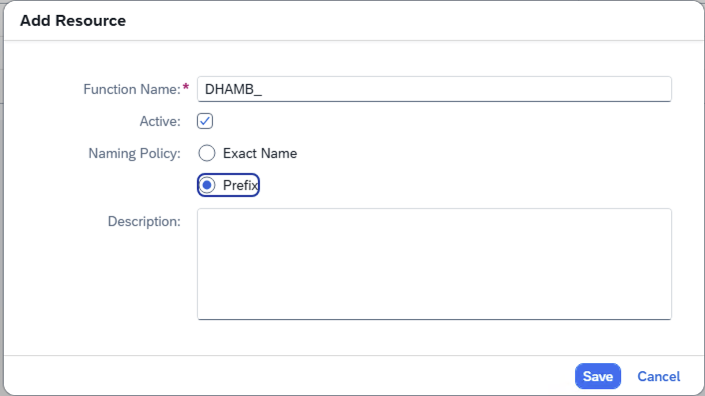
The following steps must be performed, and they need to be repeated for each resource. These steps are also shown in the screenshots:
- Click the plus icon and enter the Function Name, then select the required checkboxes.
- Click Save.
Now repeat this process to connect all remaining resources.
Here the RFC Resources:
- DHAMP_ = PREFIX
- DHAPE_ = PREFIX
- RFC_FUNCTION_SEARCH = Exact Name
Here the HTTPS Resources
- URL Path = / and Path and All Sub-Paths
- URL Path = /sap/bc/sql/sql1/sap/s_privileged and Upgrade Allows and Path and All Sub-Paths
- URL Path = /sap/bw/ina and Path and All Sub-Paths
- URL Path = /sap/bw4/v1/dwc/dbinfo and Path Only
- URL Path = /sap/bw4/v1/dwc/metadata/queryviews and Path and All Sub-Paths
- URL Path = /sap/bw4/v1/dwc/metadata/treestructure and Path and All Sub-Paths
- URL Path = /sap/opu/odata/sap/ESH_SEARCH_SRV/SearchQueries and Path Only
SAP Part 6a - Configuration of SAP Datasphere source
Once all connections are in place, we can continue working in Datasphere.
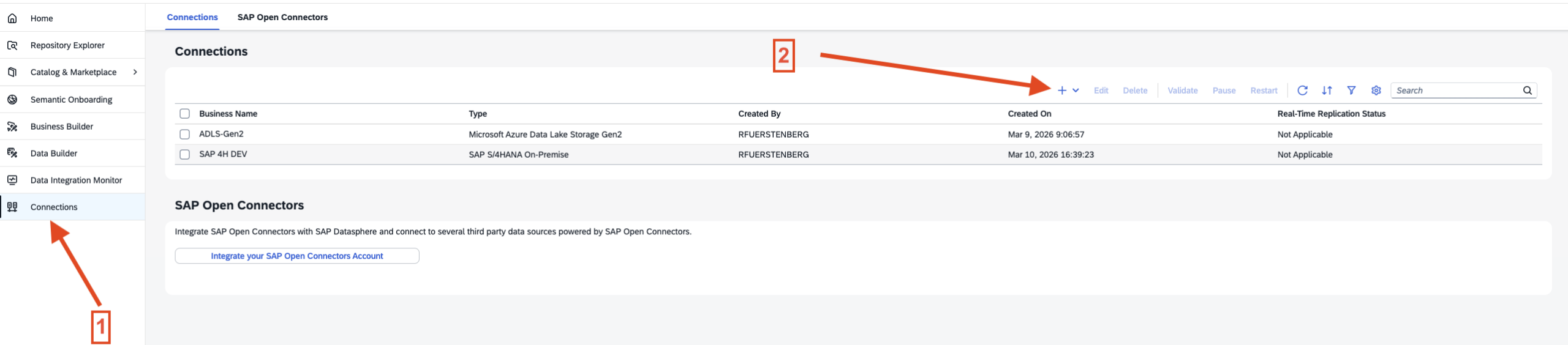
To do this, go to Connections. Here we need to add the source and, later on, the target.
The source, as described earlier, will be an SAP S/4HANA on‑premise environment. To make the source data available for Microsoft Fabric later, I will create an Azure Data Lake Gen2 storage account, where we will write the data using a Replication Flow.
After that, we can access the source through Shortcuts and then set up Mirroring.
But first, let’s take care of the connections.
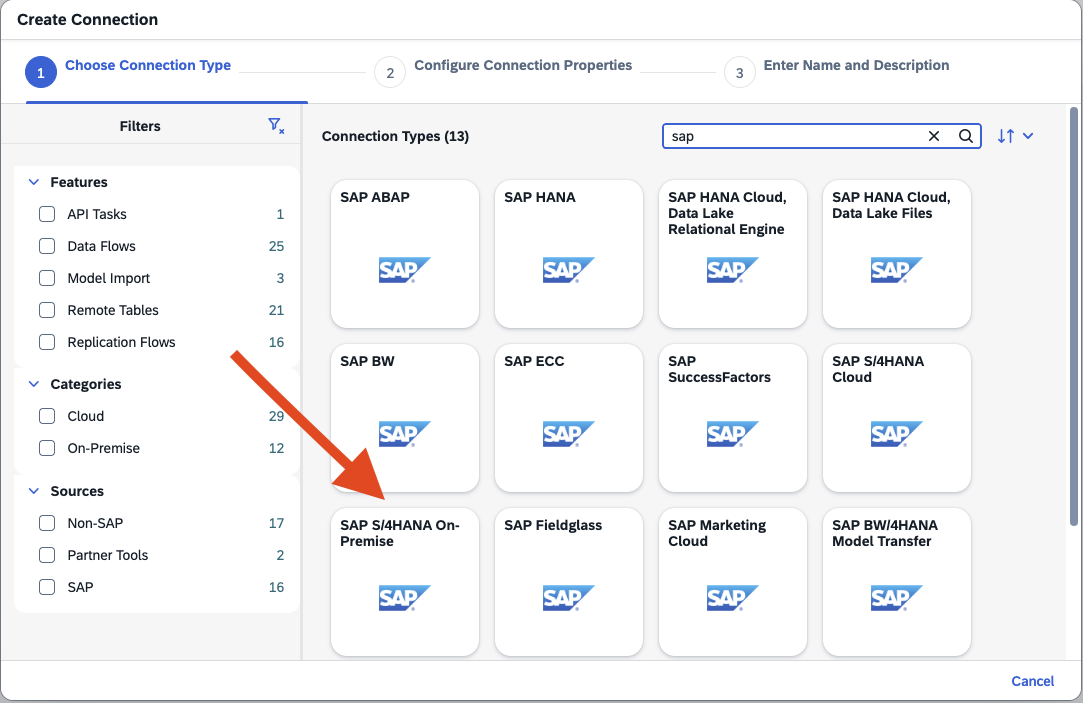
Follow these steps:
- Click the plus icon to add a new connection.
- Search for SAP S/4HANA On‑Premise or select the source system you want to add.
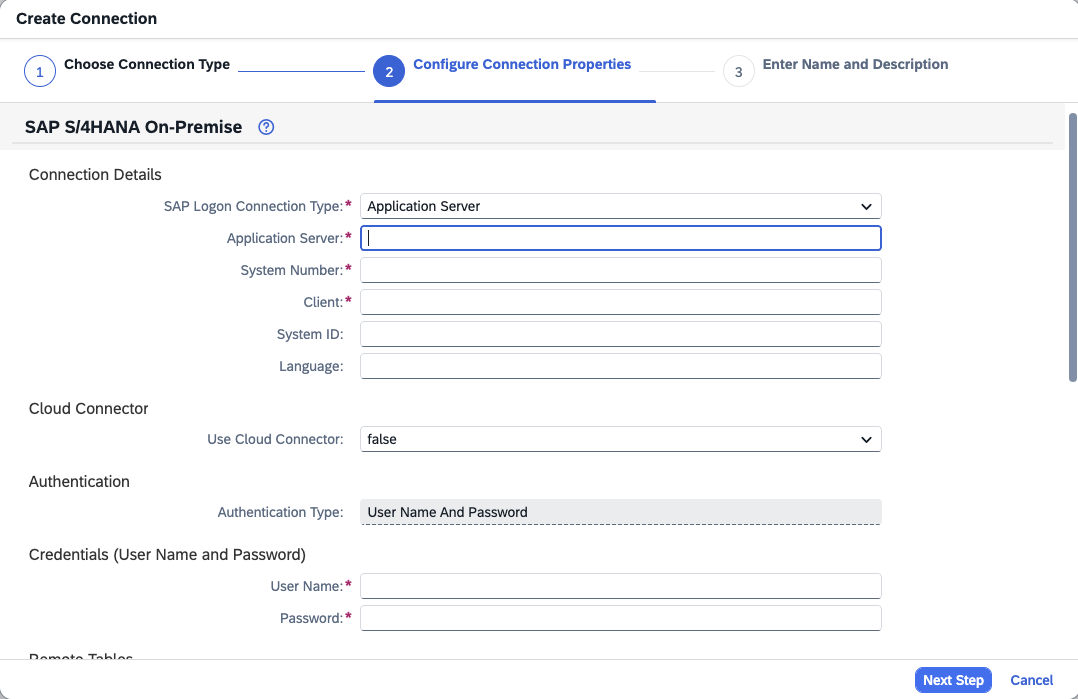
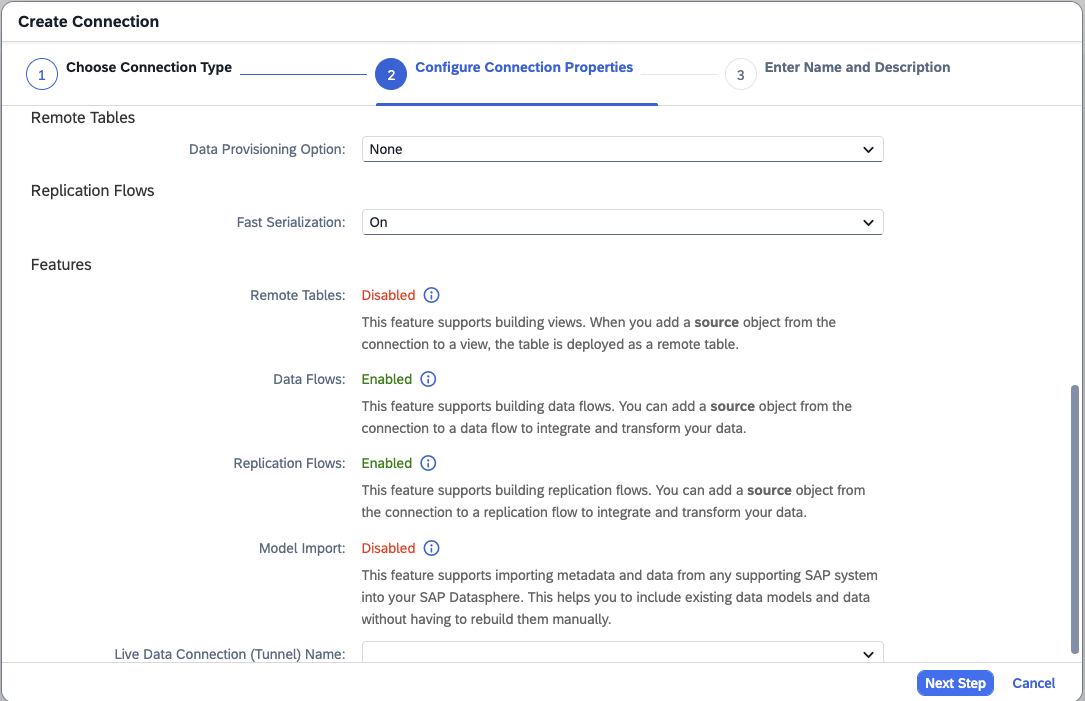
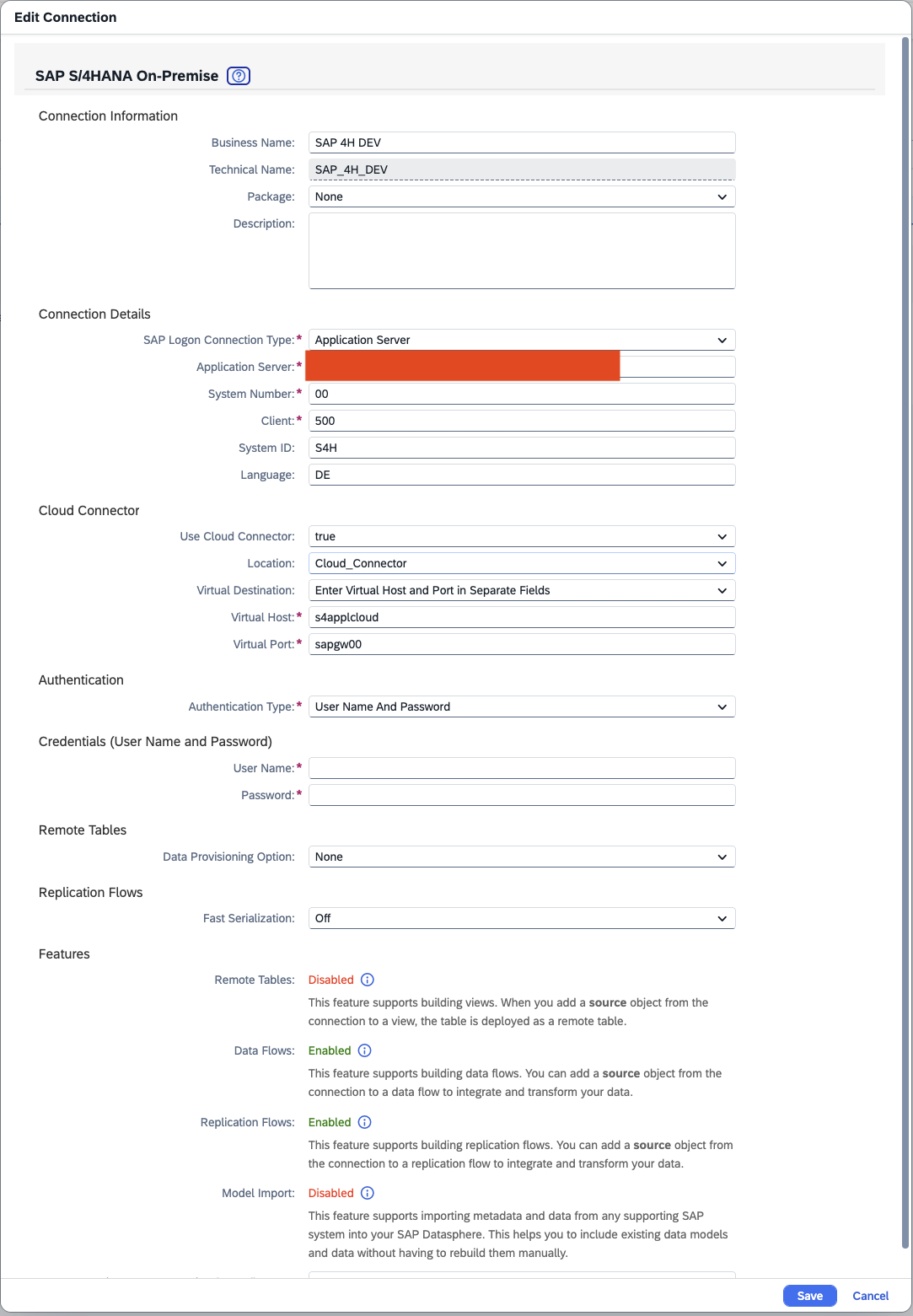
- Fill in the required fields:
- Application Server – this can be an IP address or a DNS name
- System Number
- Set Use Cloud Connector to true and select the Cloud Connector that was configured for this purpose
- Enter the User Name and Password
- Configure the remaining settings as needed.
In the screenshot Step 4 – Show the Connection Details, you can see what I configured.
In the next step, we will configure a target.
SAP Part 6b SAP Datasphere create target
Now let’s move on to the target system.
For this, I created an Azure Data Lake Gen2 in Microsoft Azure.
Below is the Microsoft documentation that explains how to set it up.
Create Azure Data Lake Storage Gen2
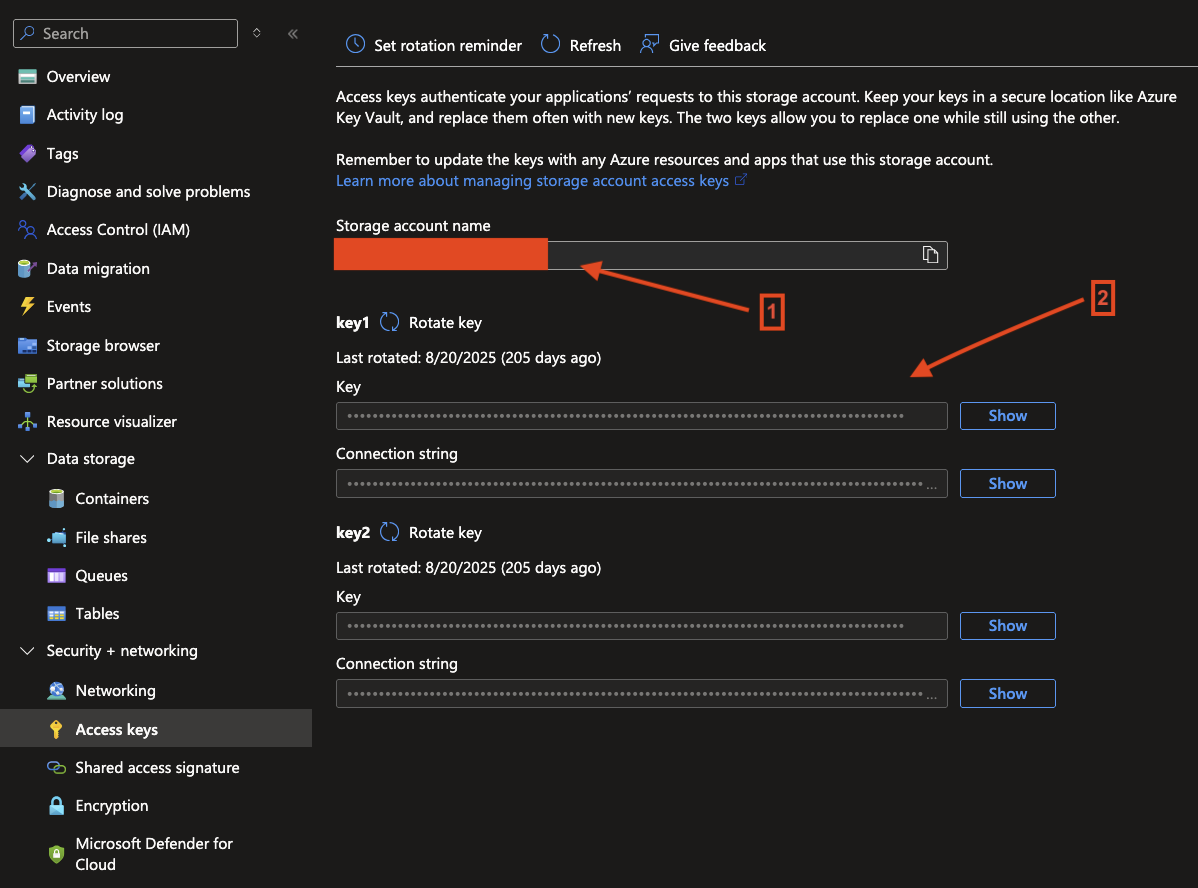
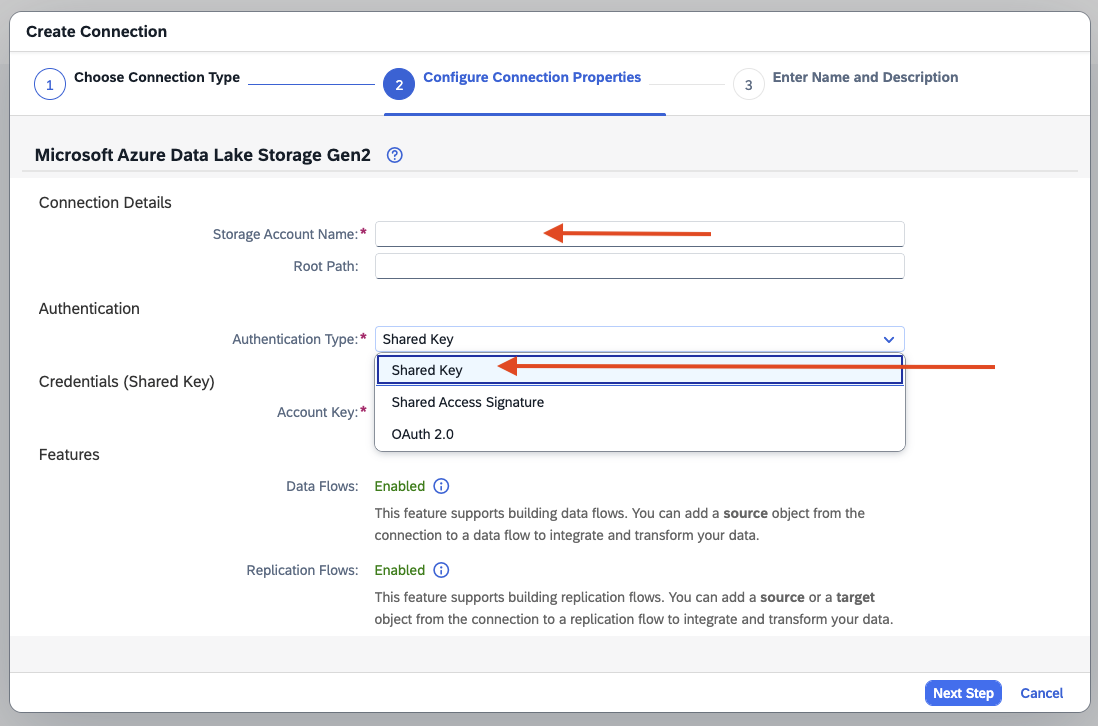
Additionally, you need to assign the required permissions so that SAP Datasphere can access it. In my case, I used the Shared Key (Account Key) to establish the connection from SAP Datasphere. However, the recommended approach is to use a more granular permission model and only grant the minimum permissions required.
The following steps need to be performed here as well:
- Copy the Storage Account Name and Account Key from the Storage Account in Azure.
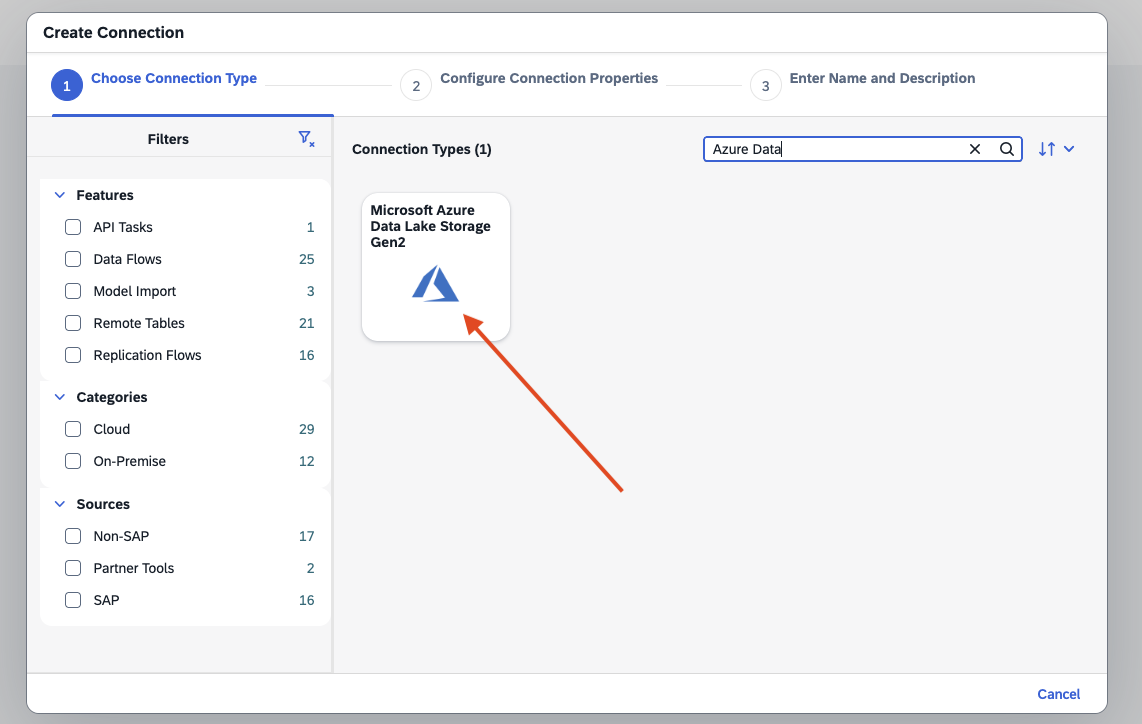
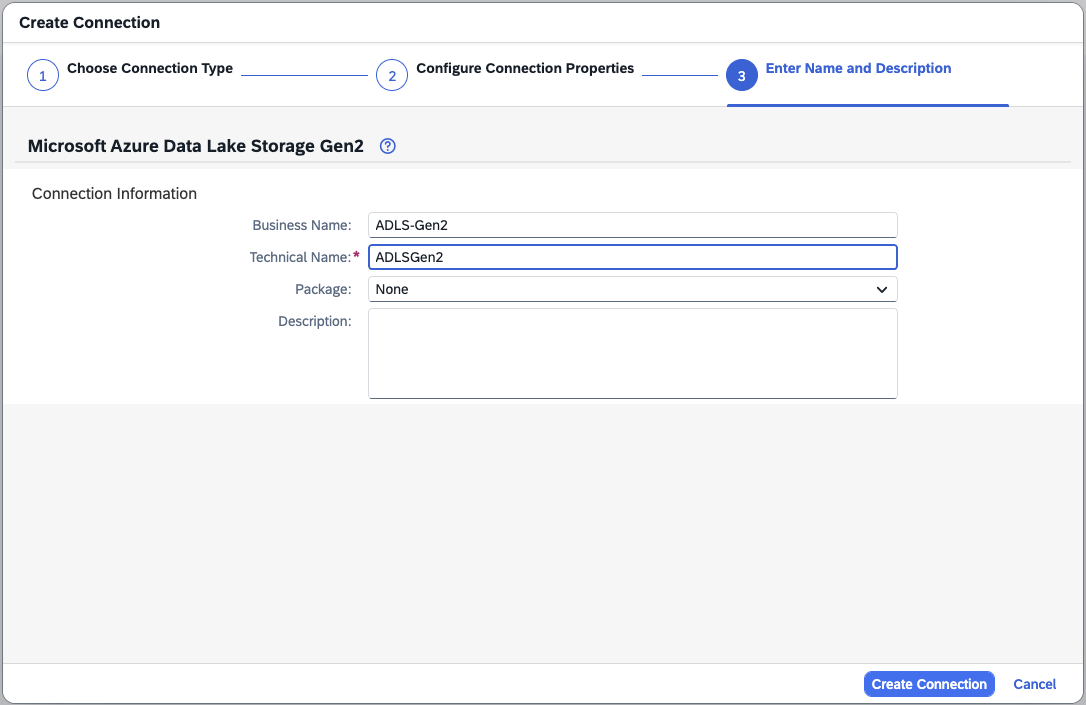
- Click Create Connection.
- Search for Data Lake.
- Enter the copied Storage Account Name.
- Paste the Account Key that you copied earlier.
- In the next step, enter a Business Name only.
The Technical Name will be generated automatically. - Finally, click Create Connection.
- Finish.
With this, we have now configured both the source and the target.
Let’s move on to the final step in SAP Datasphere.
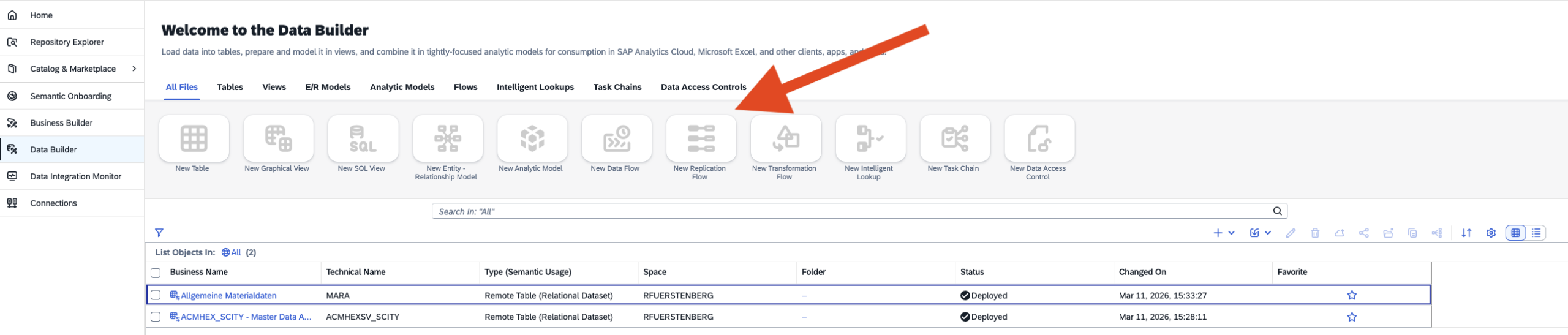
We will now use the Data Builder to create a Replication Flow that writes SAP data into the Storage Account.
Now we move on to the final step in SAP before we continue with Microsoft Fabric.
We still need to create a Replication Flow that writes the data into the Storage Account. You can assign a schedule to this flow and later configure it to copy only the deltas. It is important to set all tables in the Replication Flow settings to Initial and Delta. This must also be enabled in the SAP system.
The screenshot Additional Settings in Replication Flow shows this configuration. Otherwise, it would always copy all data. For testing purposes, however, this would not be an issue.

Alright, so what needs to be done?
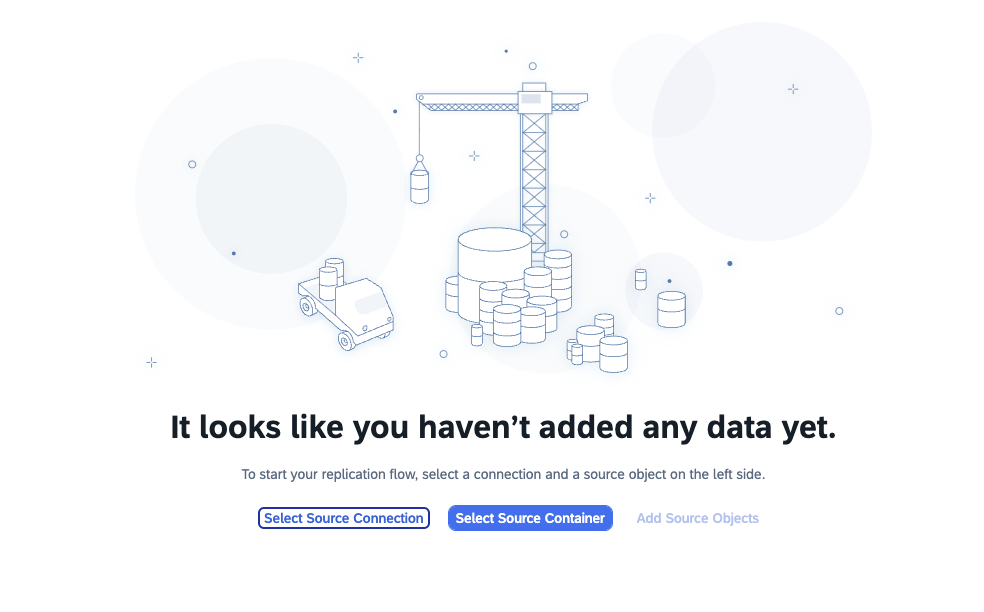
- In the Data Builder, select Replication Flows.
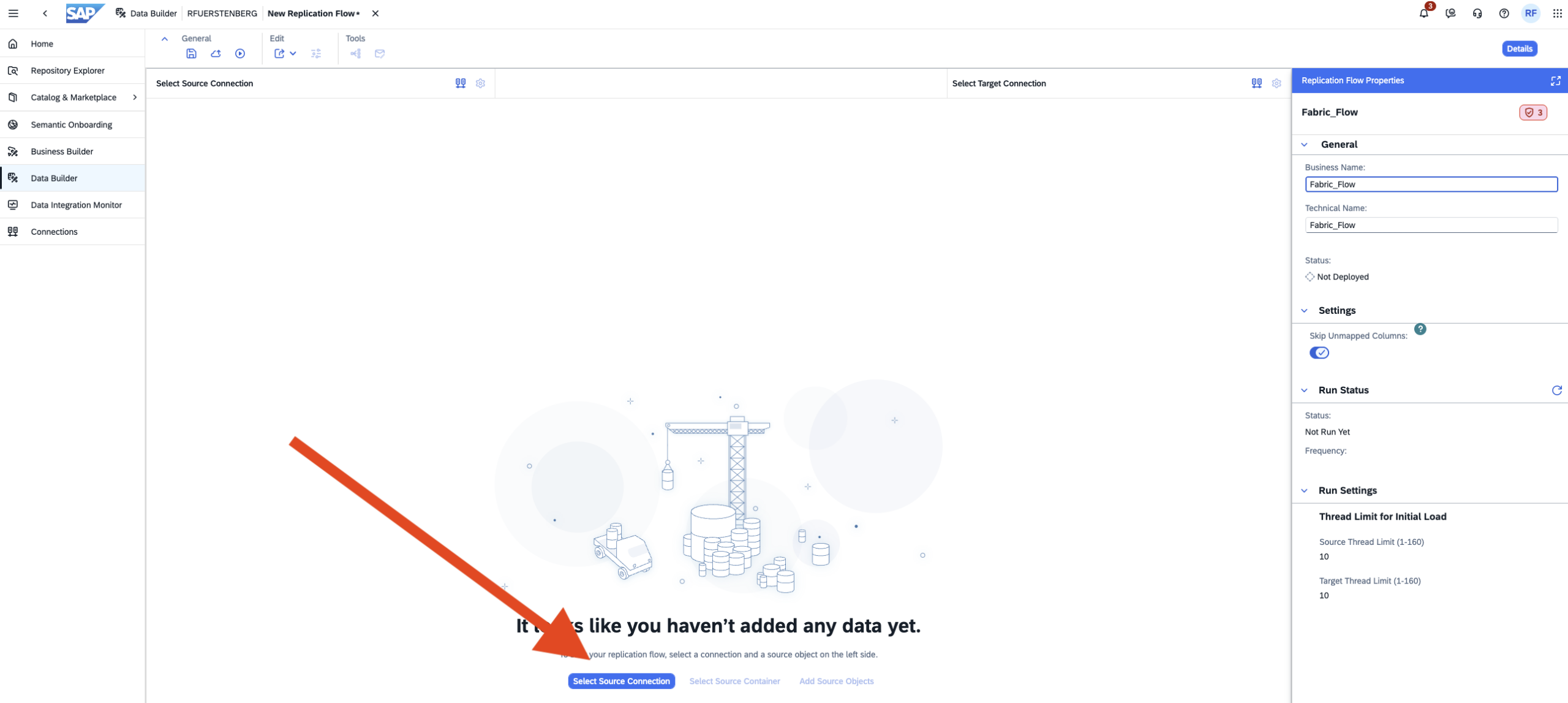
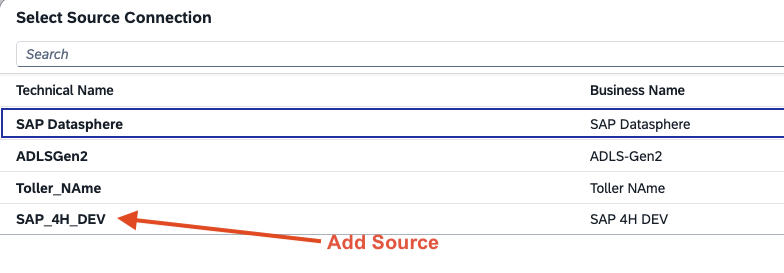
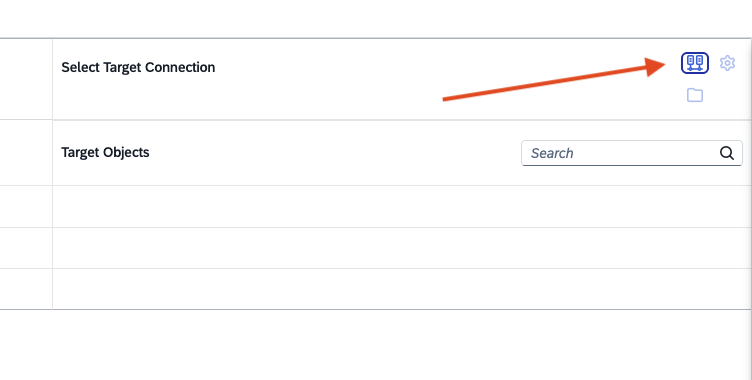
- Choose Select Source Connection and select the previously created S/4HANA source.
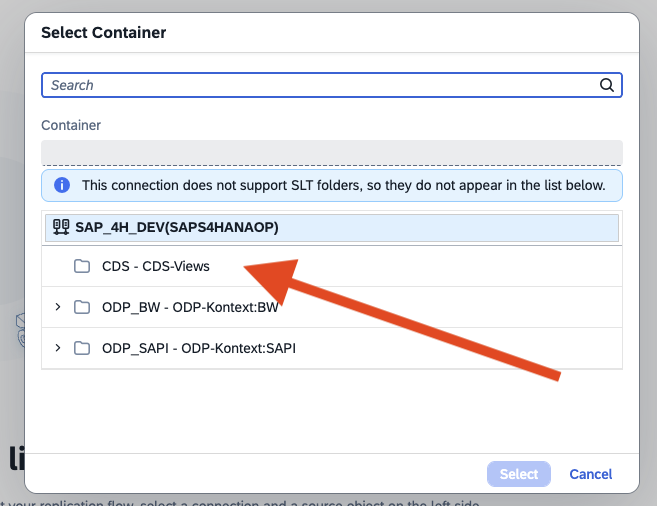
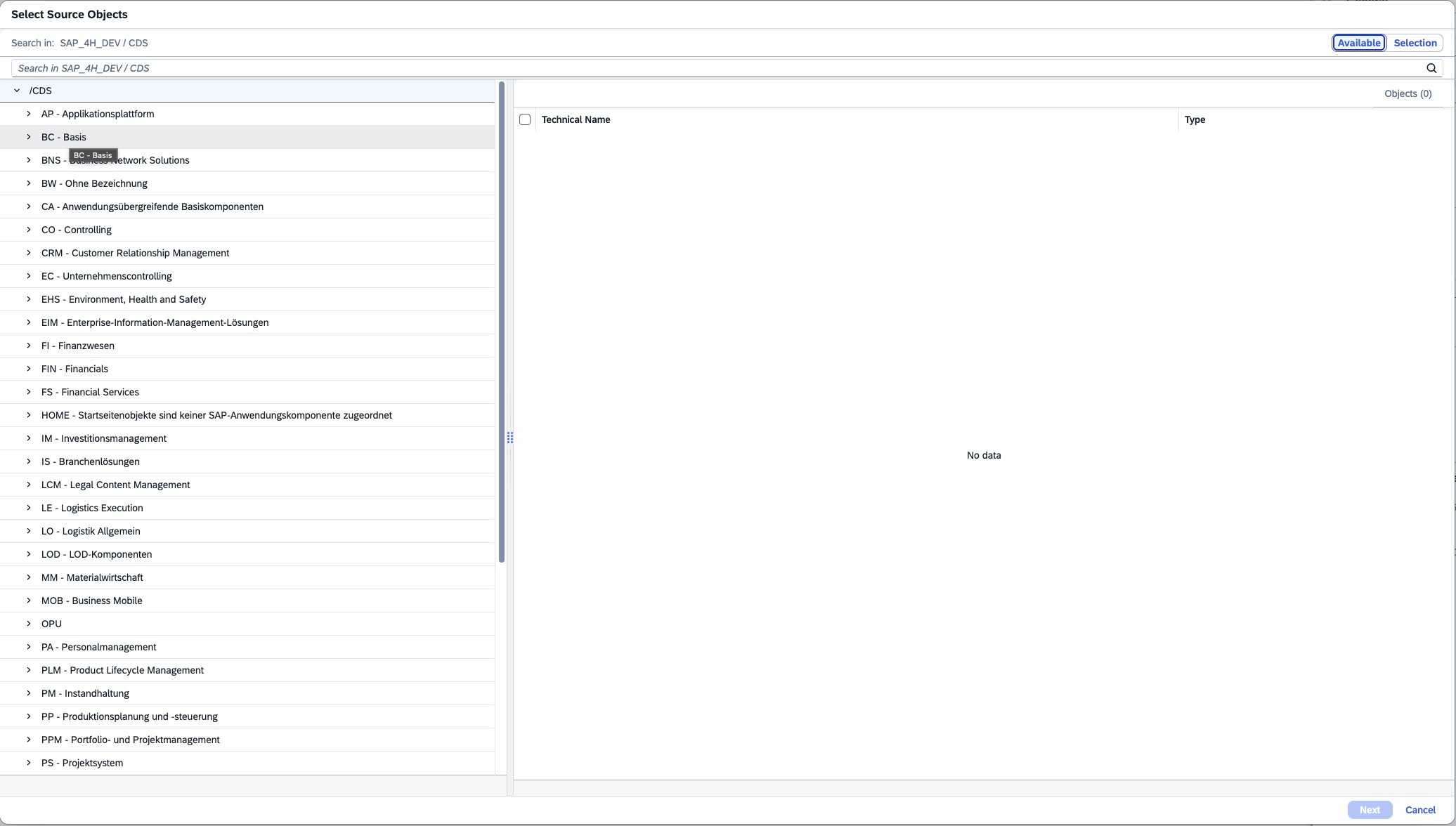
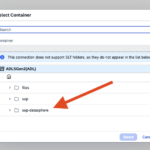
- Choose Select Source Container; here, I select the CDS views.
- Next, you will see the list of objects and can select the ones you need.
If errors occur when adding them, you may need to adjust settings in the SAP system to make the CDS views usable. - Confirm your selection, and the system will perform the checks as described in the previous steps.
If any errors appear, fix them accordingly. - Then choose the target and follow the steps.
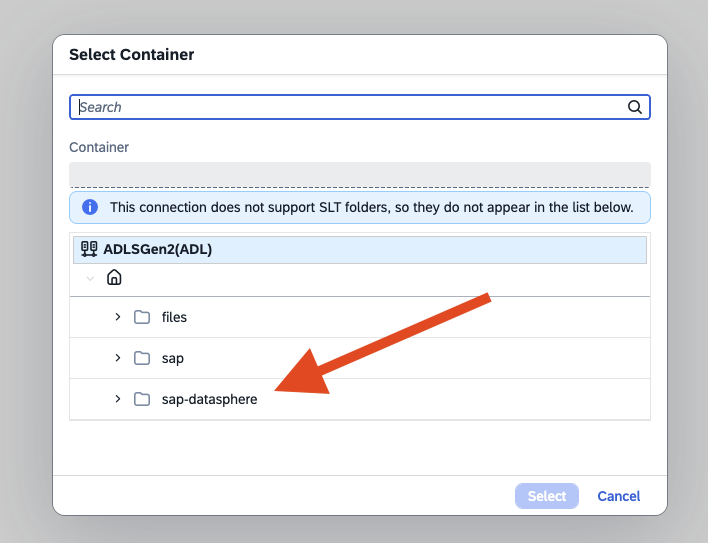
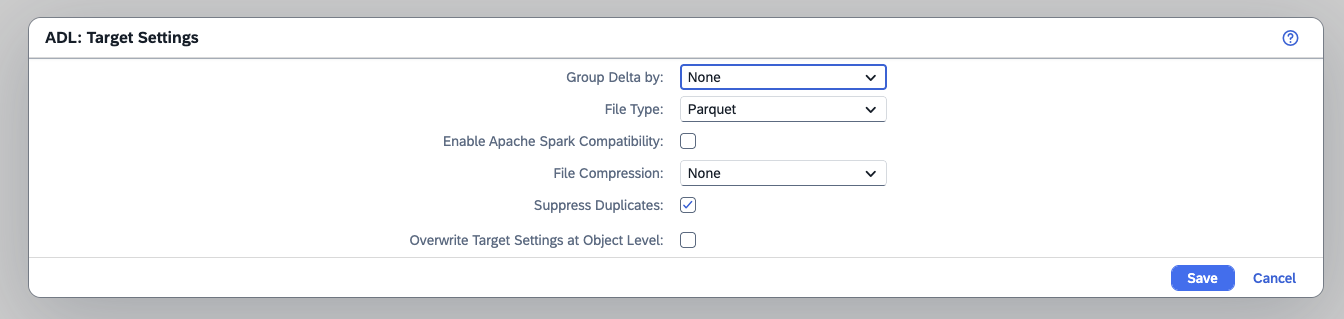
- In the Storage Settings, keep the default configuration.
- As already mentioned, under Settings → Load Type, set Initial and Delta for each table.
- Now you can save, then deploy, and finally run the flow.
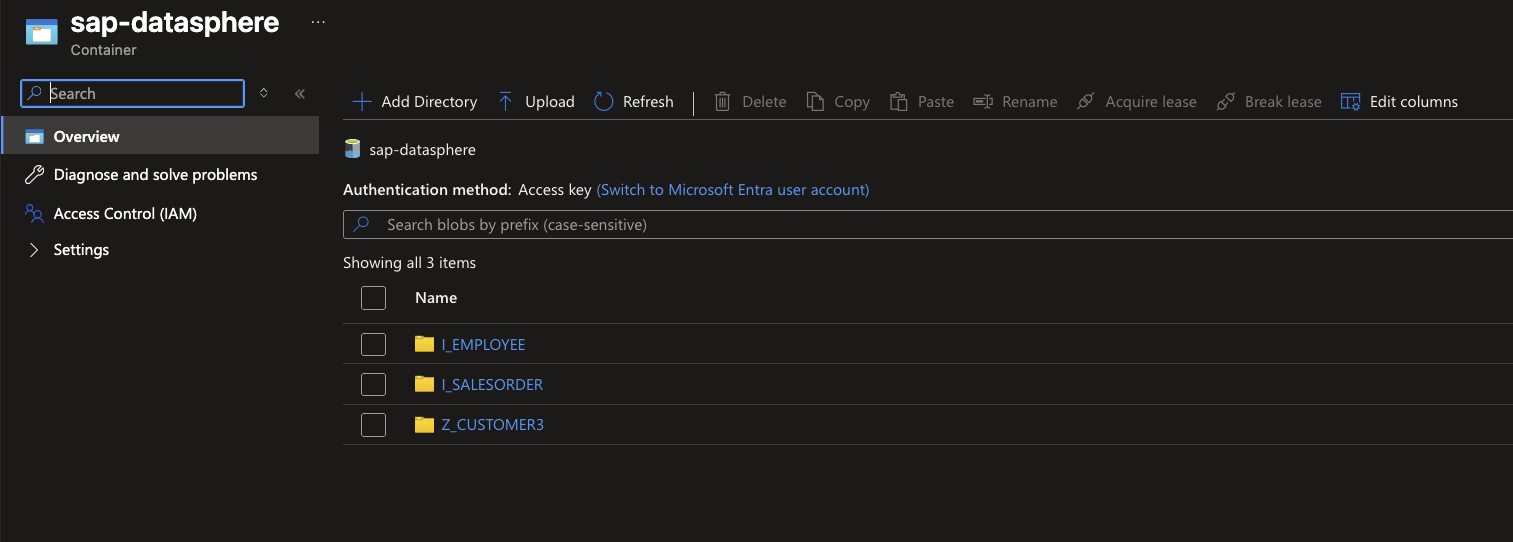
If everything is configured correctly, the data from the SAP system will now be loaded into the Storage Account.
See the screenshot Data in Storage Account.
In my case, I loaded three tables.
A short summary of the SAP Part
With this, we have completed the SAP part and can move on to Microsoft Fabric. Before we do that, here is a short conclusion.
There are quite a few steps involved when you want to replicate data from SAP. In my case, the biggest challenge was getting the connection from the SAP Cloud Connector to SAP Datasphere up and running. During the demo, I had to overcome a couple of hurdles in this area. If errors come up, it’s important to carefully check the SAP documentation.
Alright, let’s move on to Microsoft Fabric.
Microsoft Fabric Part 8 - Create the Items
So, let’s move on to Microsoft Fabric and set up the replication.
The following items are required for the replication:
- Workspace with Fabric Capacity
- Lakehouse
- Mirrored SAP Database
The Mirrored SAP Database will be created after the other items are set up.
Here are the steps I carried out:
- Create a workspace in Fabric and give it a name, for example “WS SAP Mirroring”, and assign the Fabric capacity.
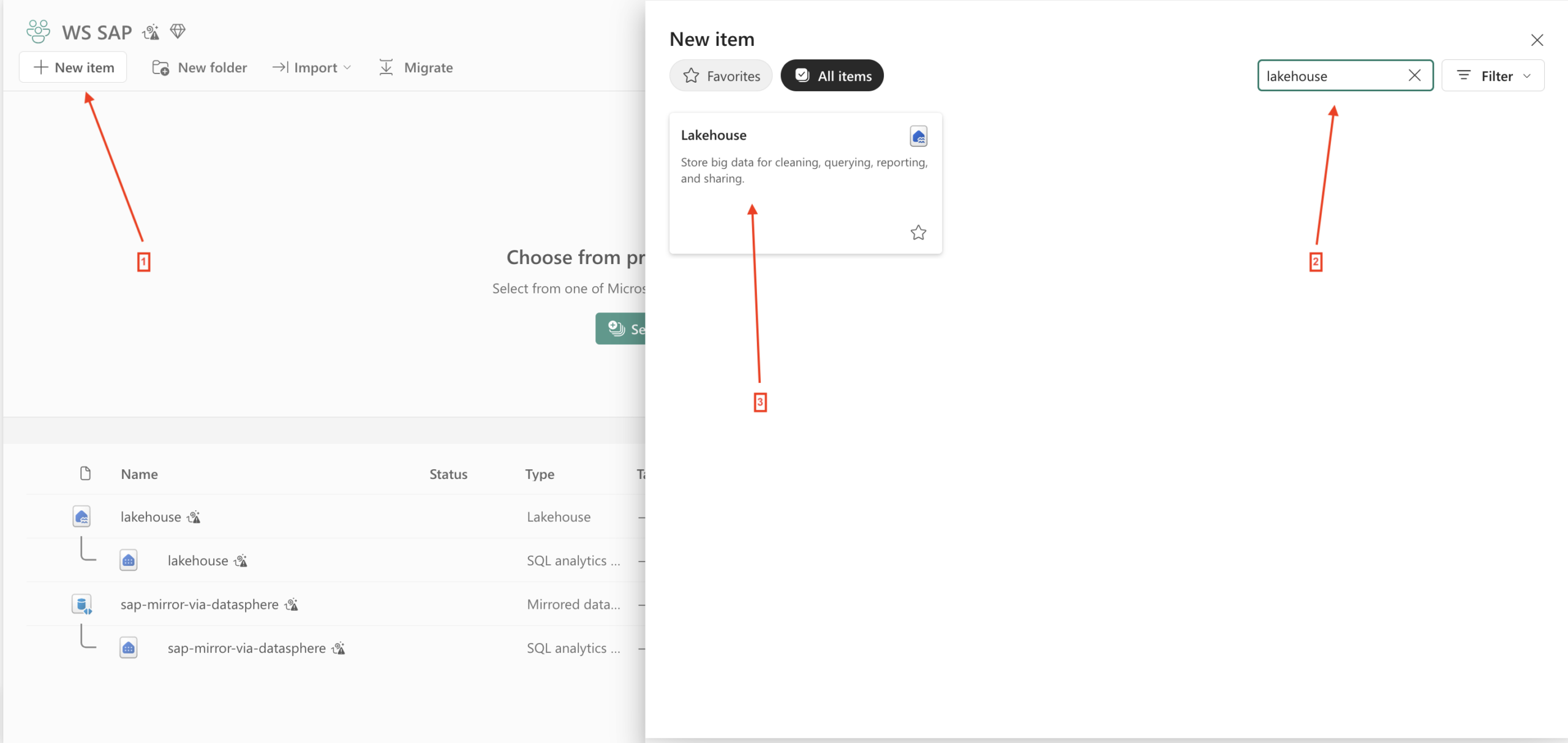
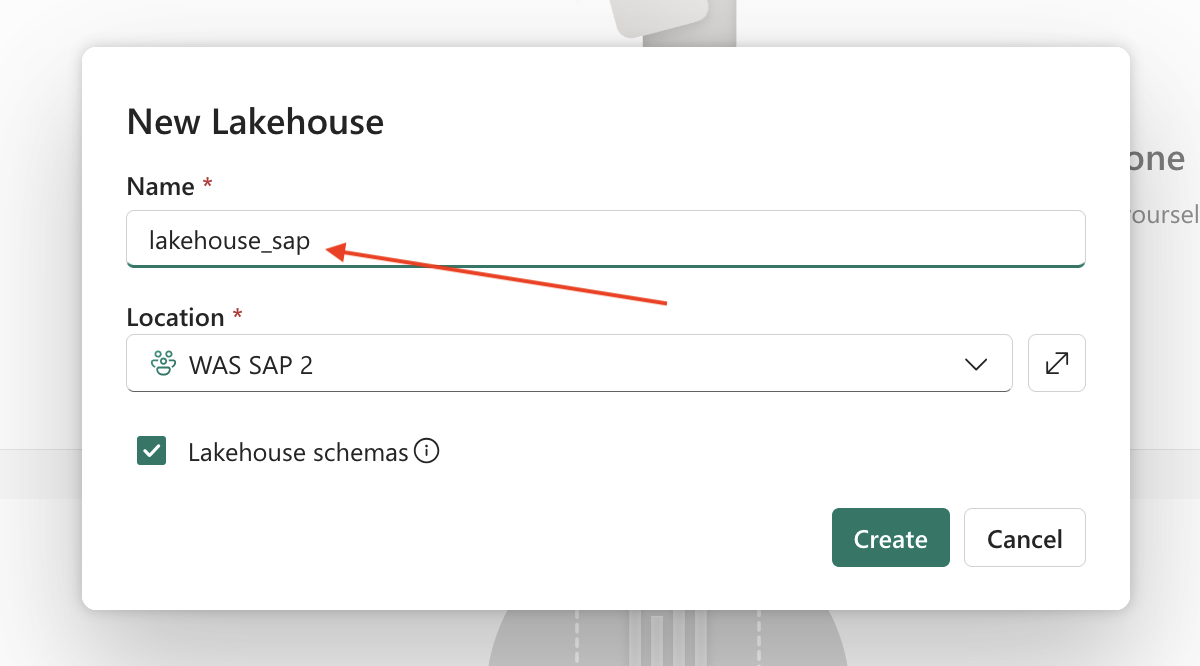
- In the workspace, go to New item, search for Lakehouse, and create a new Lakehouse. Give it a name as well.
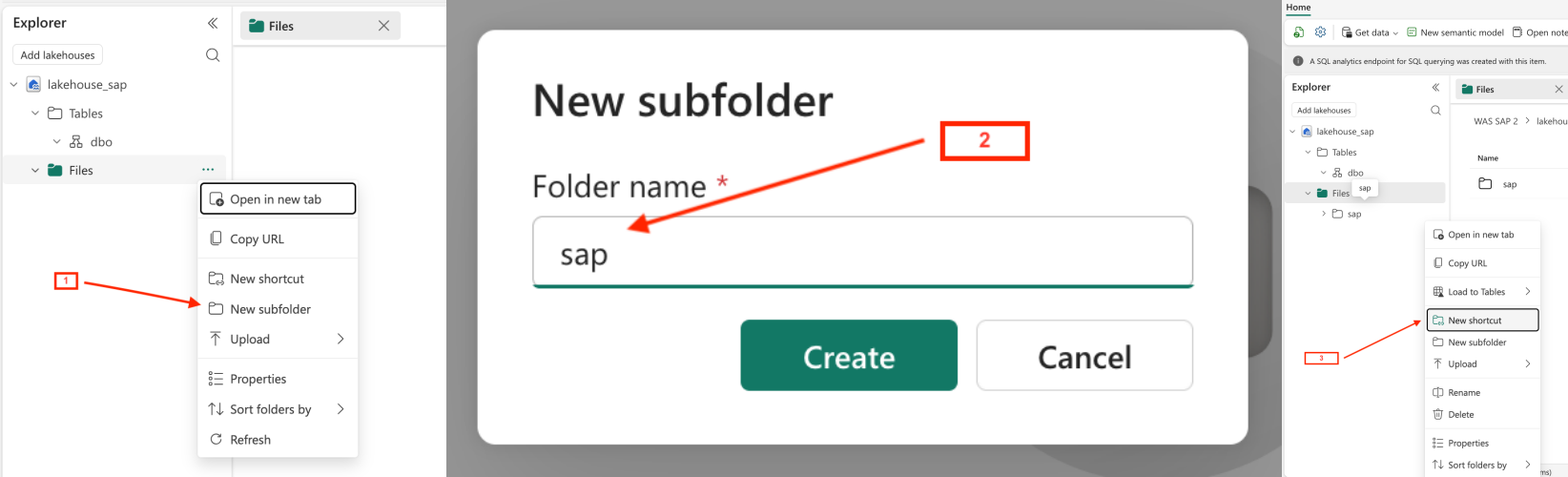
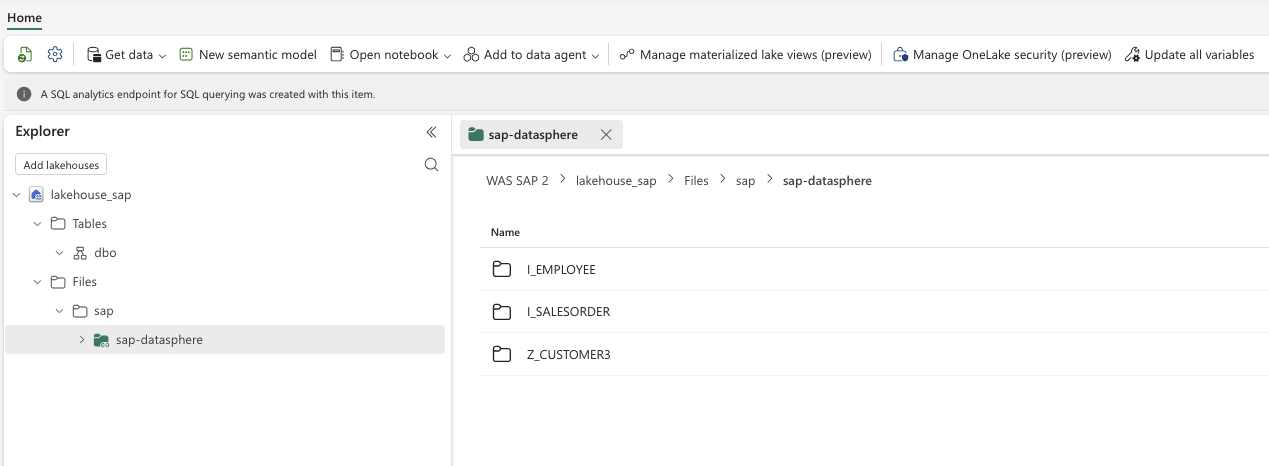
- Open the Lakehouse, go to Files, create a new folder and give it a name, for example “sap”.
- In the next step, open the meatball menu (three dots) of the sap folder and select New Shortcut.
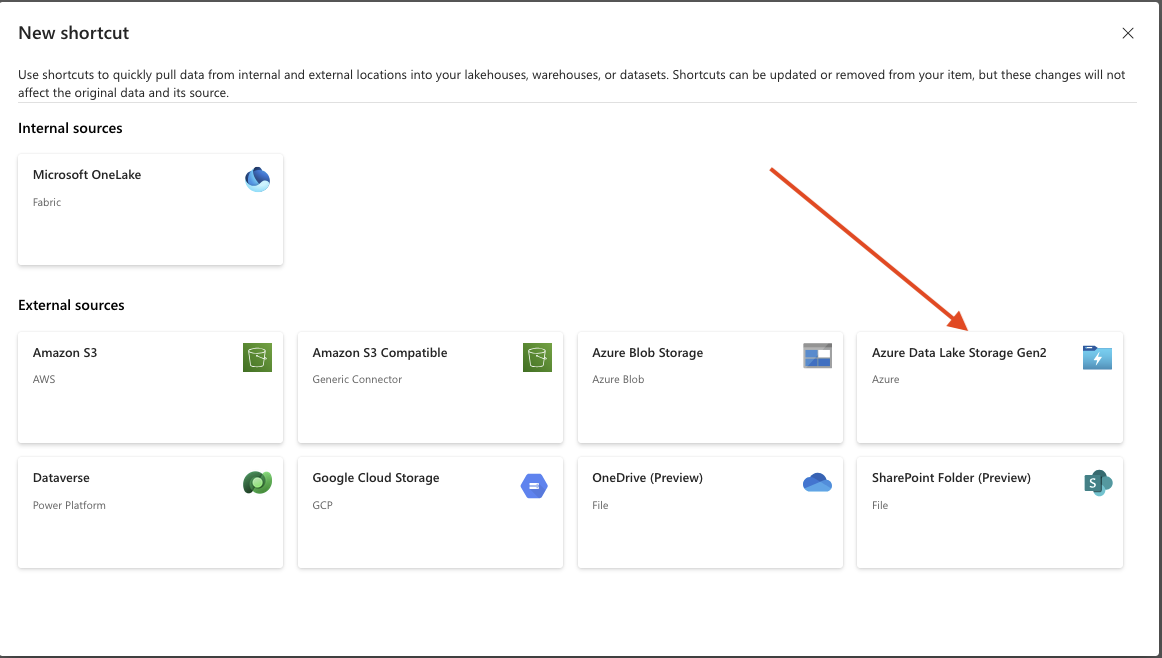
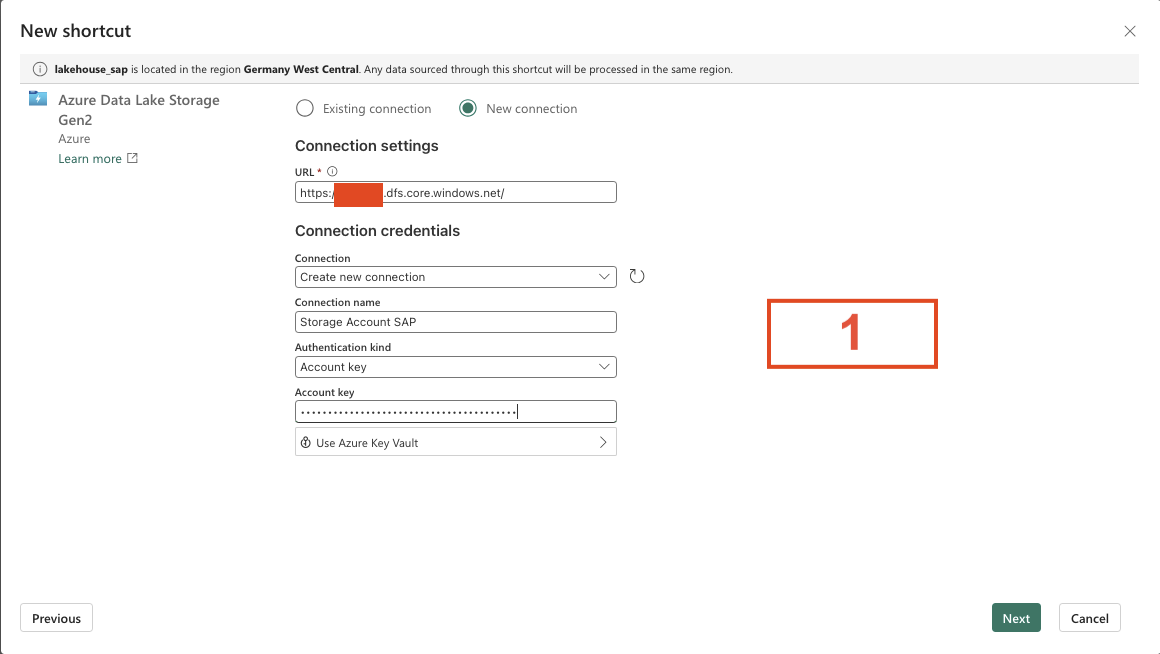
- In the Shortcut menu, choose Azure Data Lake Storage Gen2.
- Now create a new connection to the Storage Account that we created in the SAP section.
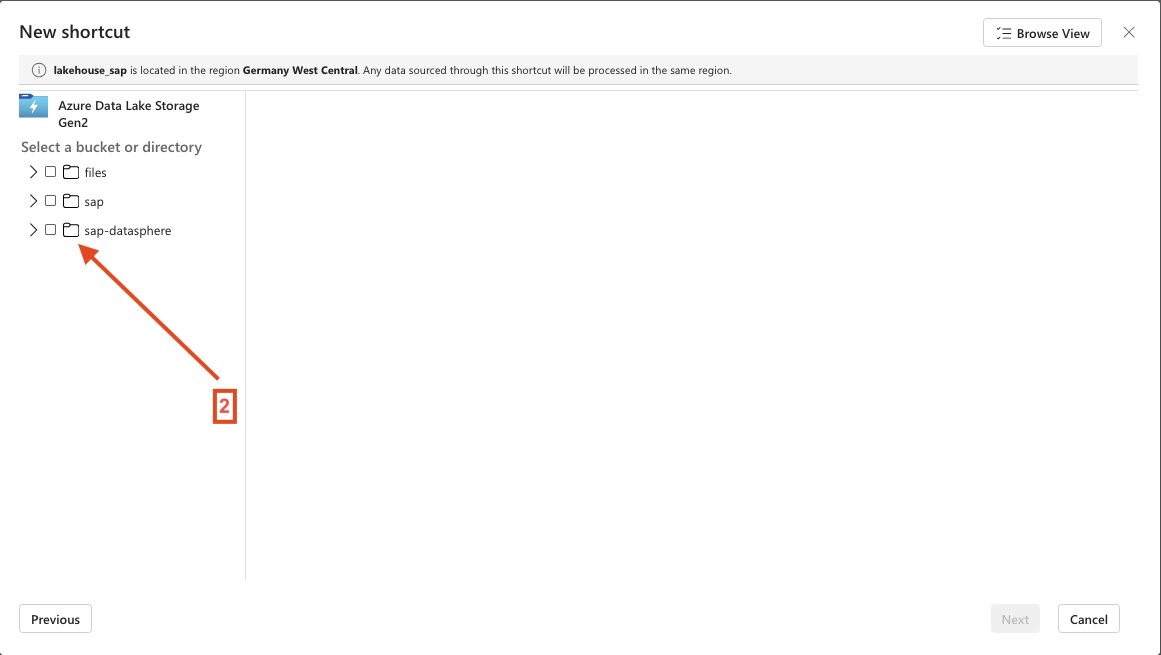
- Click Next and choose the SAP DATASPHERE container. This is the container we selected in the SAP part.
- Click Next, and you will see a summary of the shortcut. In this window, you can change the name of the shortcut.
- Once you finish, the shortcut will be created.
Microsoft Fabric Part 9 - Create and add the Mirrored SAP Database
Now we come to the final step.
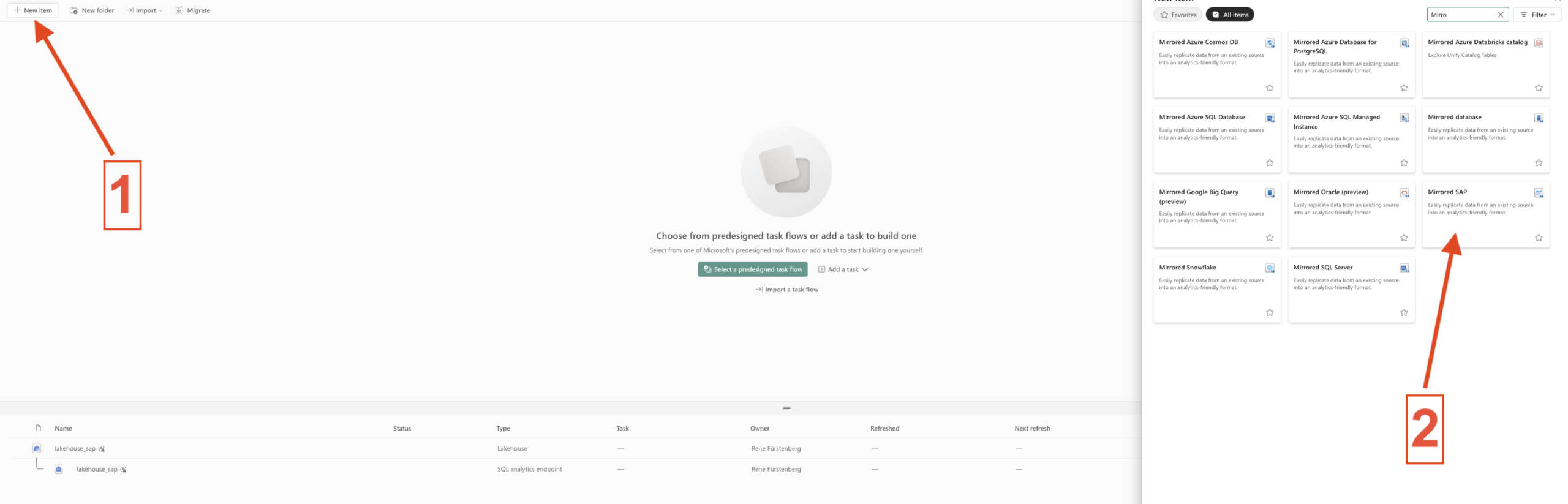
In this last step, we need to create the Mirrored SAP item and select the folder in Azure Data Lake Storage Gen2 inside the Lakehouse that we created in the previous step.
Here are the final steps:
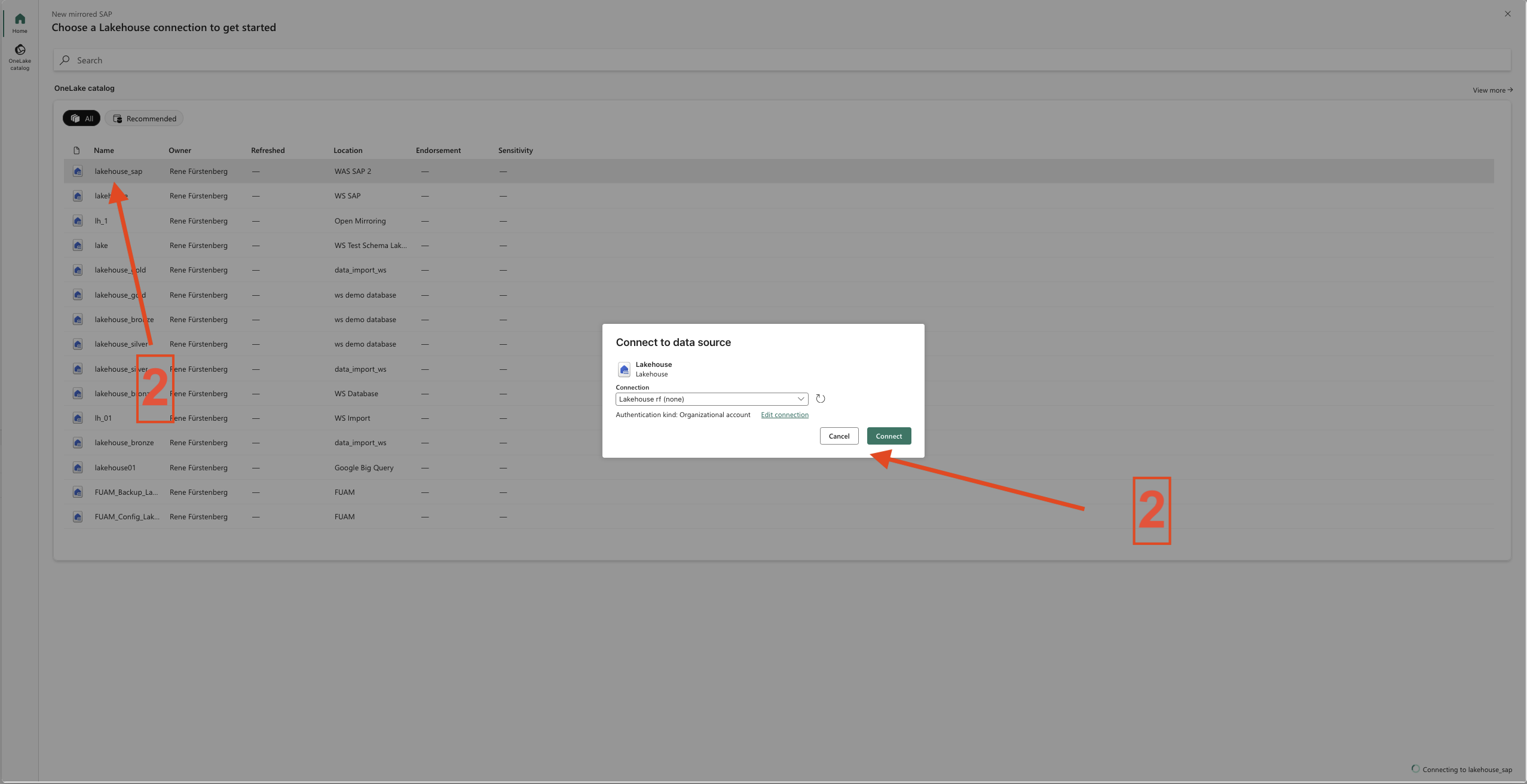
- Create a new item in the workspace called Mirrored SAP and connect it to the Lakehouse.
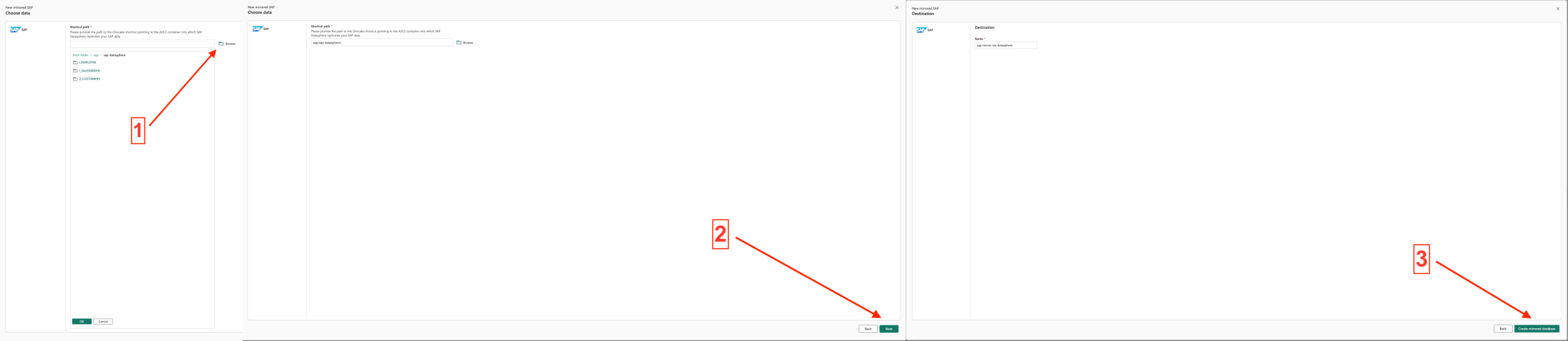
- In the next step, select the folder that we created in the Data Lake. This folder contains the SAP data. Then follow the remaining steps.
- Finished.
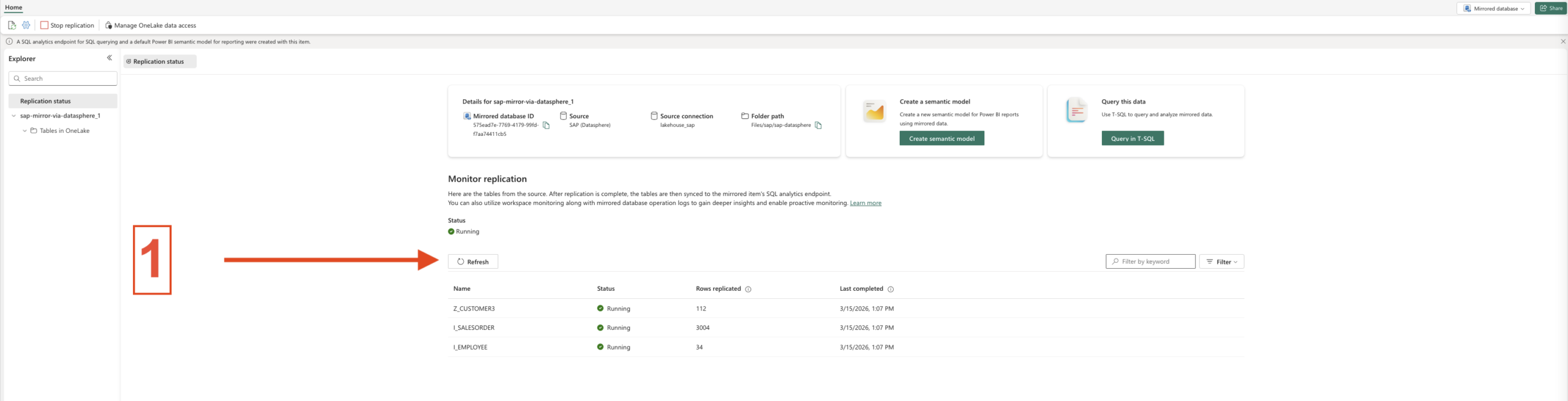
Now click Refresh, and you will see the mirrored tables. It may take a little while before anything appears.
And now we can work with this data.
Summary
As we can see, setting up replication for SAP is not as complicated as it might seem at first. Most of the challenges were on the SAP side. If something doesn’t work as expected, it’s worth going back to the SAP documentation and reviewing the steps carefully.
The Microsoft Fabric part, on the other hand, was much easier to set up.
With everything in place, we can now start working with the data and prepare it for analysis.
Here are a few links for further reading.
SAP
How to install SAP Cloud Connector in Windows
How to setup SAP Cloud Connector connect to SAP Datasphere
How to setup mapping (RFC connection) in Cloud Connector for a SAP S/4HANA On-Premise connection
How to setup mapping (HTTPS connection) in Cloud Connector for an SAP S/4HANA On-Premise connection
MICROSOFT