Introduction

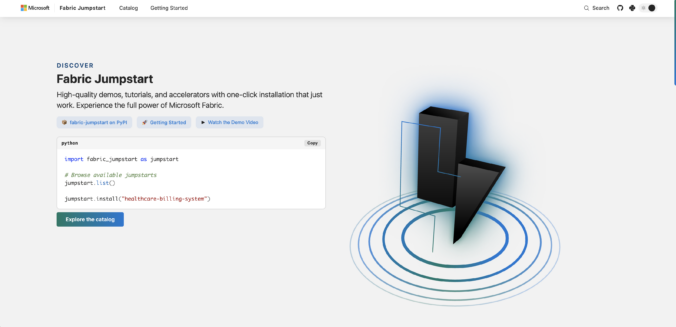
In this article, I write about Fabric Jumpstart, a website where you can find demos and tutorials to get started with Fabric. However, you can also find solutions there that are perfectly suitable for use in production environments. In this article, I will show you how to use Fabric Jumpstart and deploy solutions in a workspace.

In my example, I will deploy a Real-Time Intelligence workload, focusing on Capacity Events. We can use this solution to monitor the utilization of one or more capacities. This is extremely helpful. We can also extend the solution to receive notifications using Fabric Activator. I will describe this in more detail later in the article.

The solution does the following:
Monitor your Fabric capacity usage in real time using Capacity Events. Telemetry data is streamed into an Eventhouse via Eventstream and analyzed through live KQL dashboards. This helps you identify usage trends early and manage your resources proactively.

What are the Requirements?

  • You must be have Admin, Contributor, Member permissions to a existing Workspace or have the possibility to create a new Workspace.
  • A Fabric Capacity (F or P) assigned to the Workspace.

Preparations and rollout the Solution

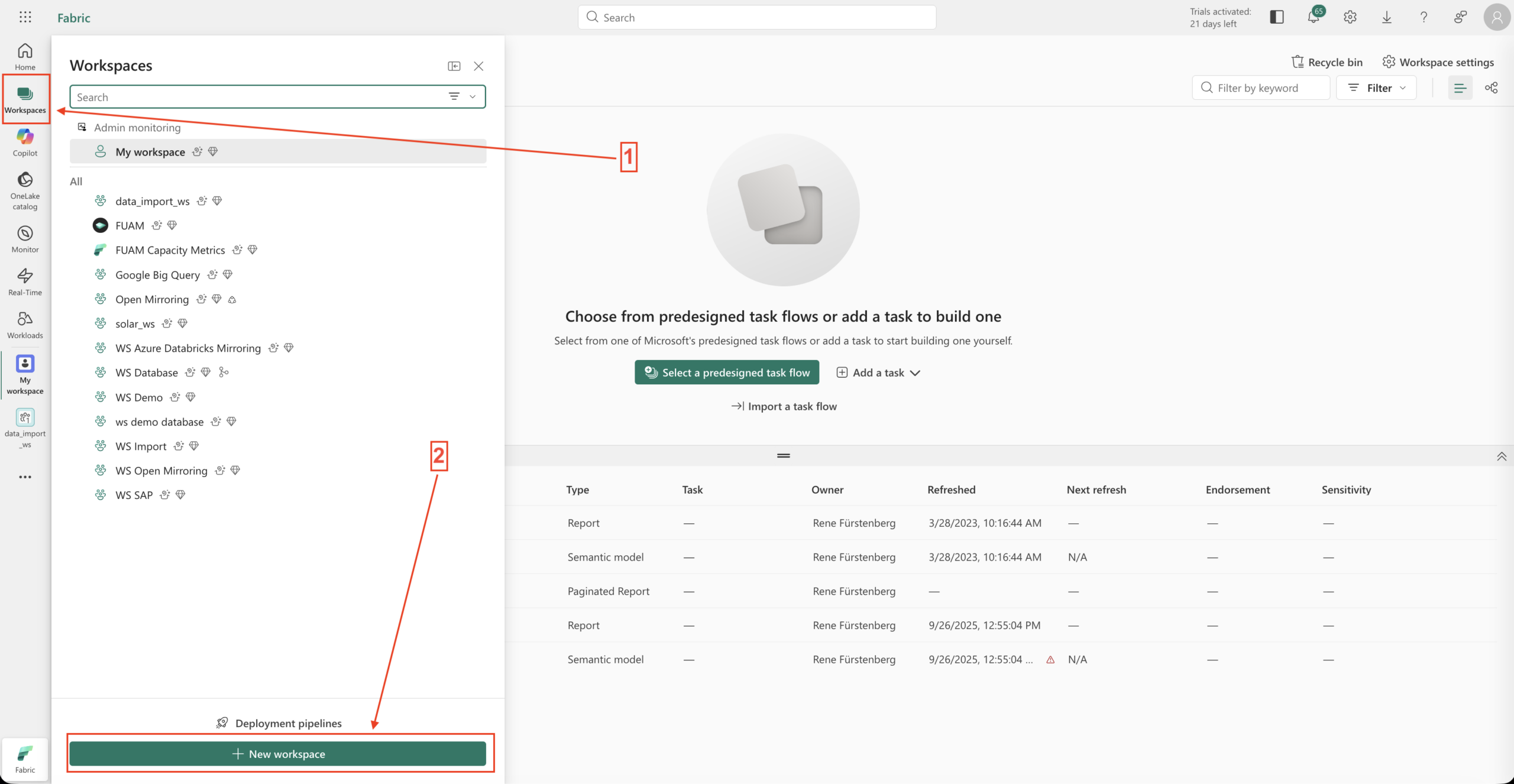
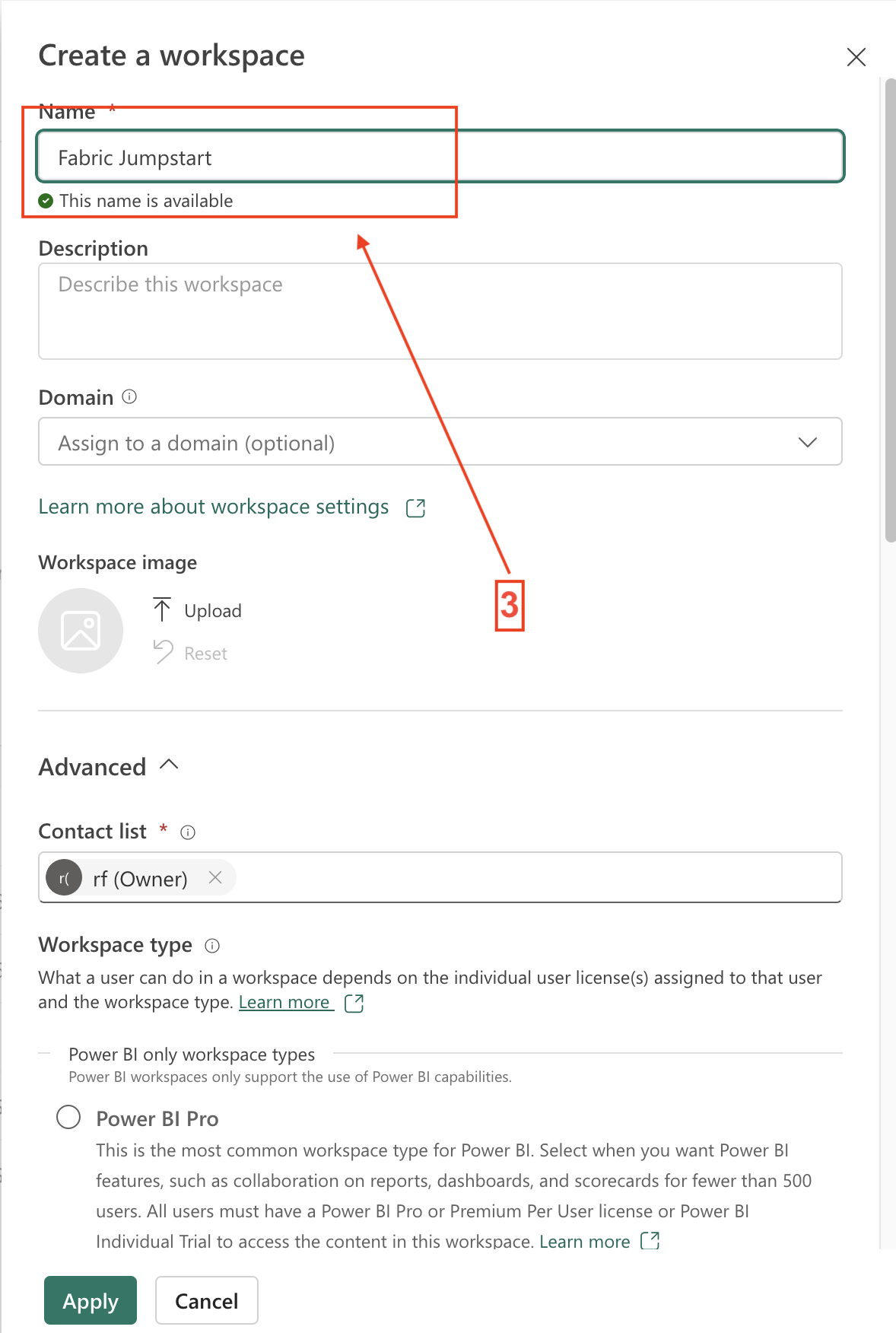
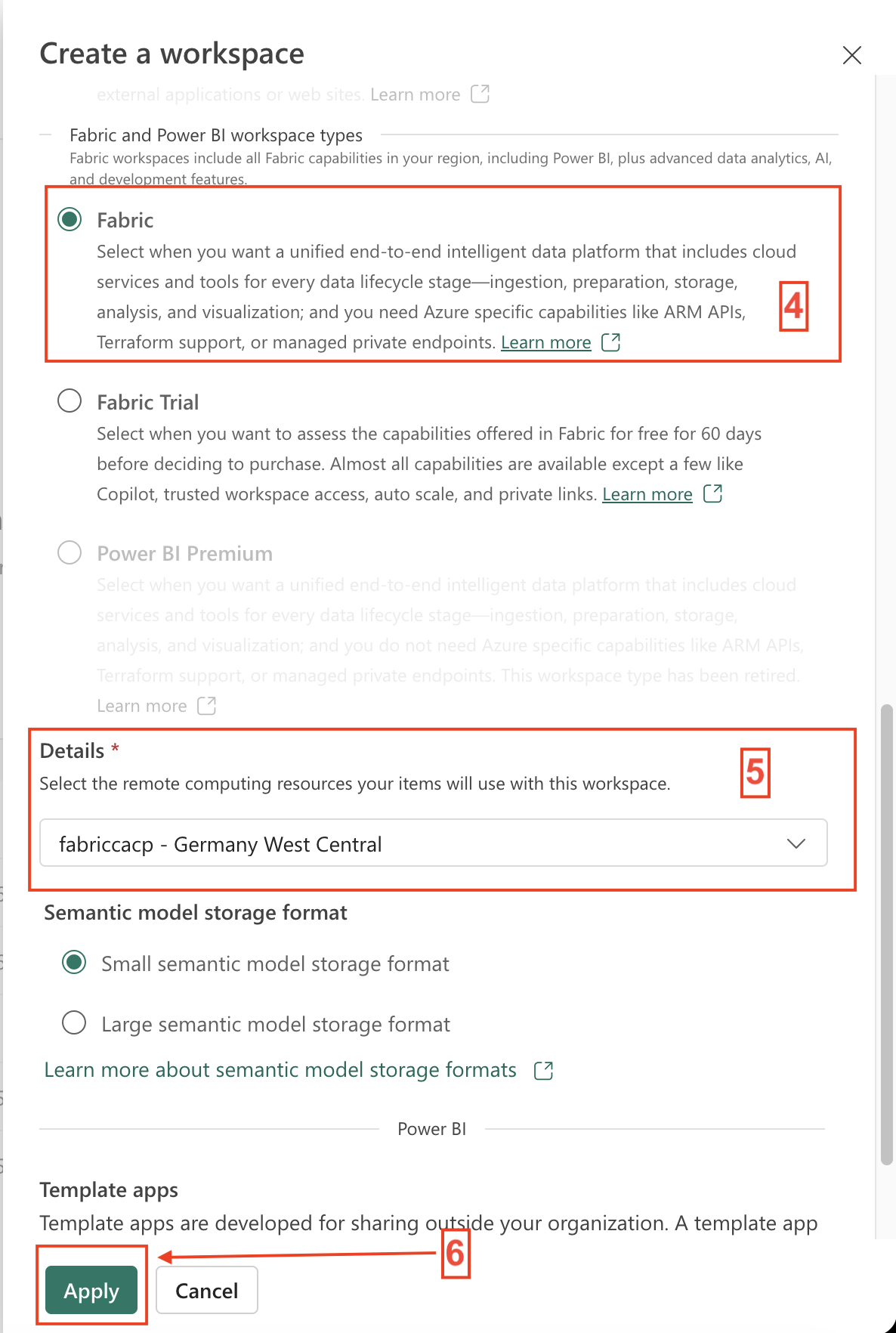
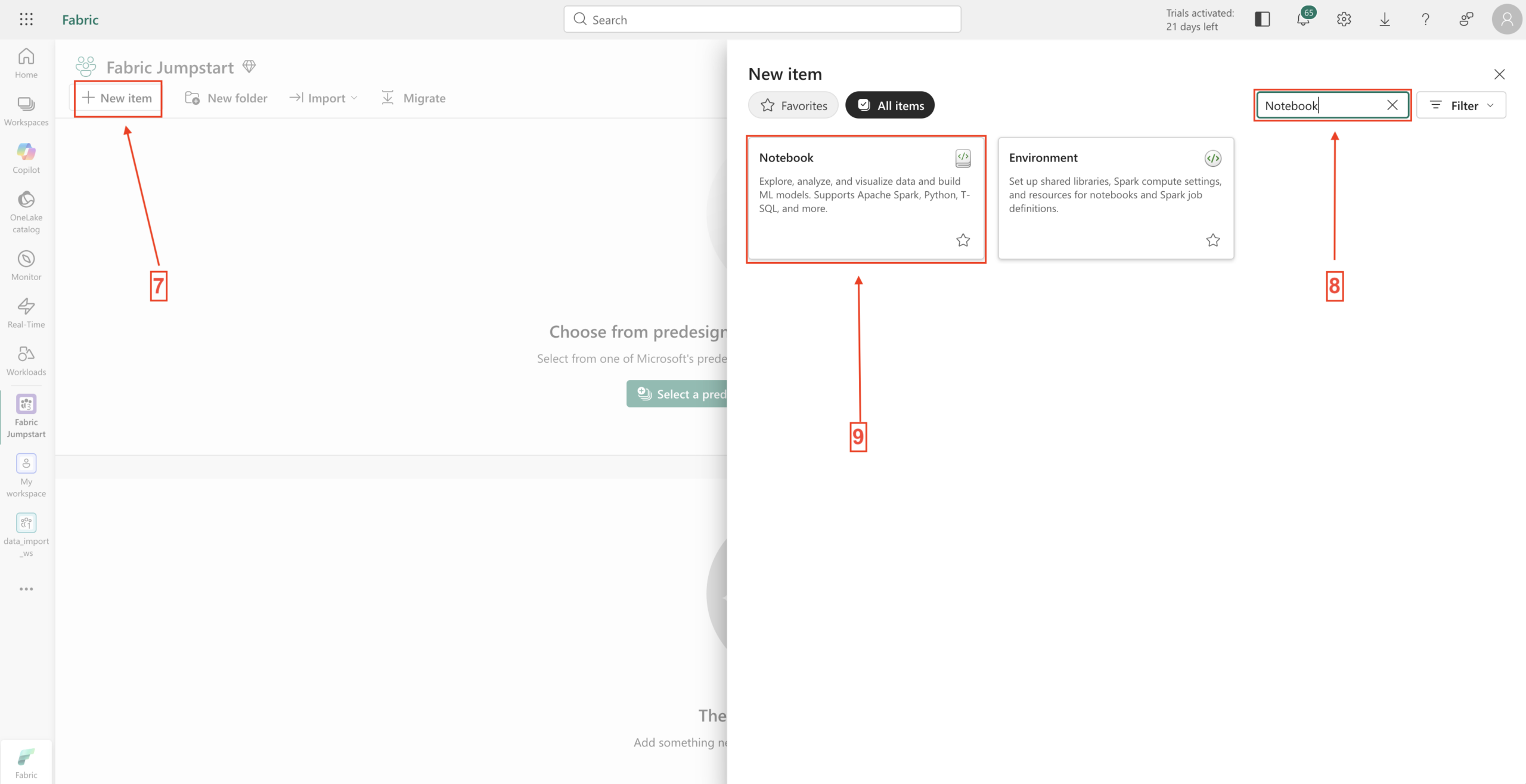
Here are the indivdual Steps and by the way every Steps are described in the Screenshots below.

  1. First we go to the Fabric portal. (app.fabric.microsoft.com) and select the Workspace pane.
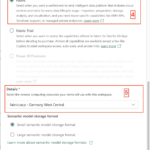
  2. Under New Workspace, we can create a new workspace. Click on it, provide a name, and select a Fabric capacity.  Click Apply to create the workspace.
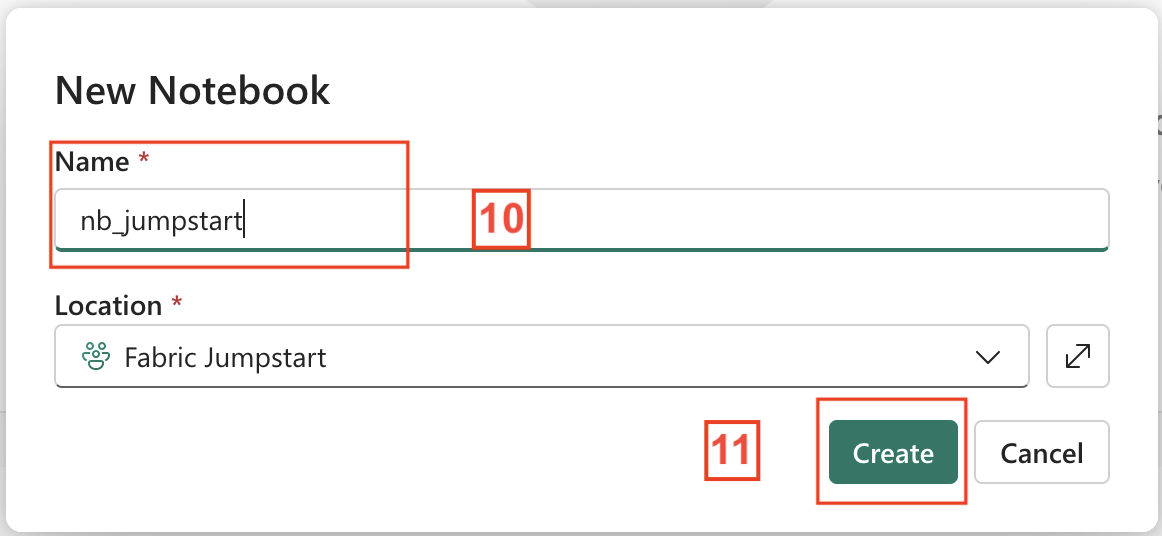
  3. Next, we need a notebook to deploy the solution. In the workspace, click New Item and search for Notebook. Click on it, provide a name, and then click Create.
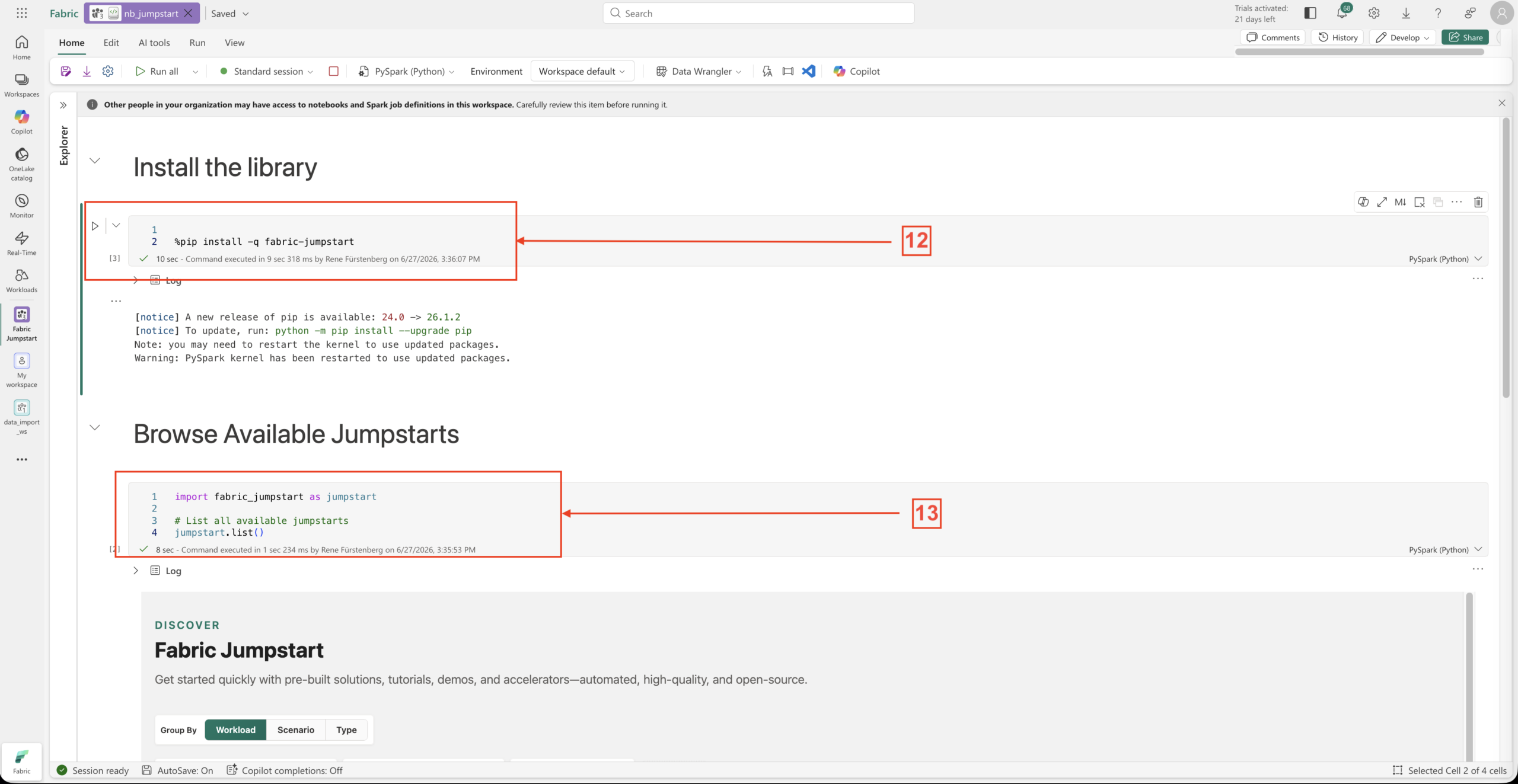
  4. In the notebook, we first install the Fabric Jumpstart library. If a warning or error regarding the Python environment version appears, it can be safely ignored (see Code Block – Cell 1).
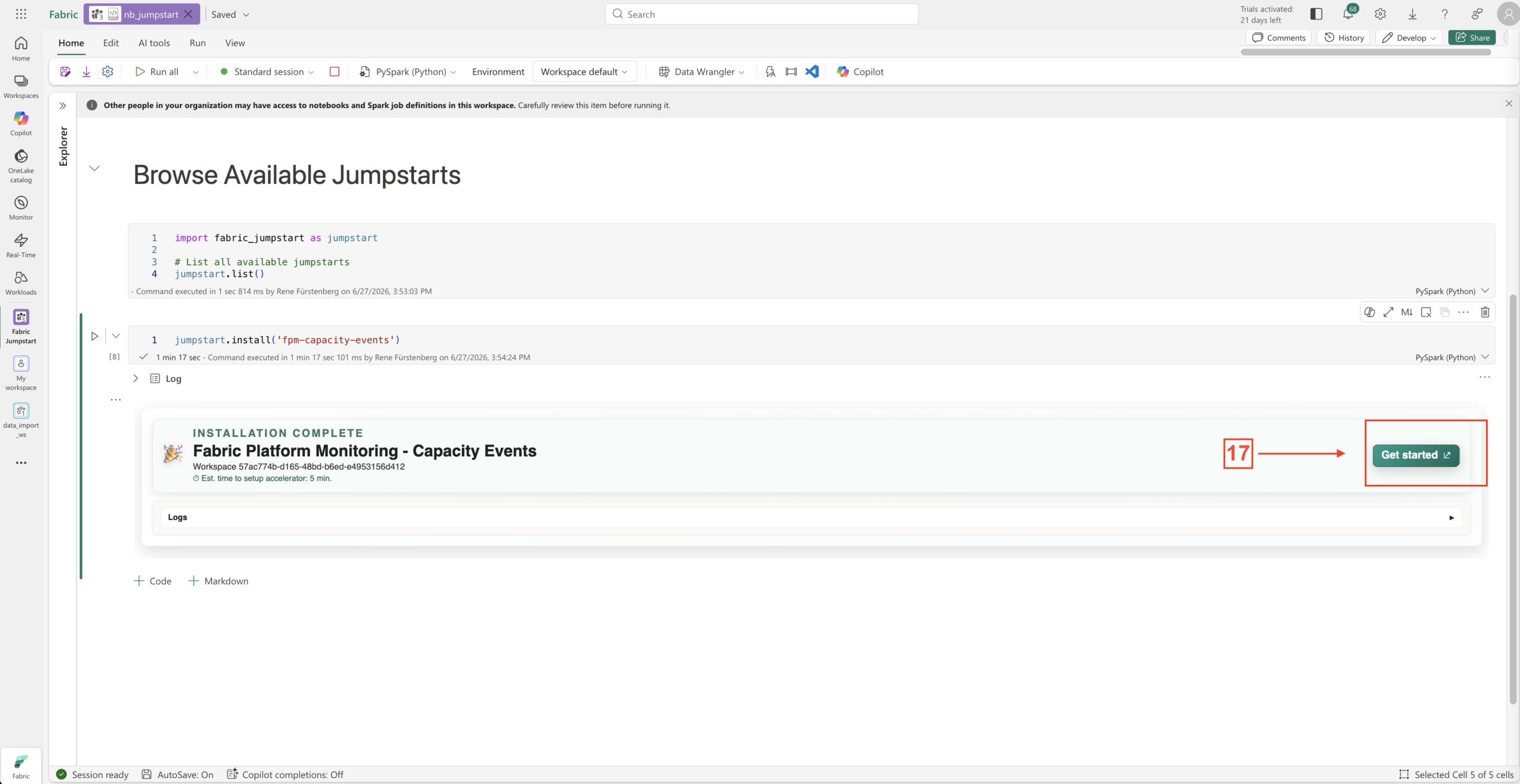
  5. In the next cell, we will display the available Jumpstart solutions. To see all available Fabric Jumpstart solutions, paste the code from Code Block – Cell 2 into the notebook and execute it.
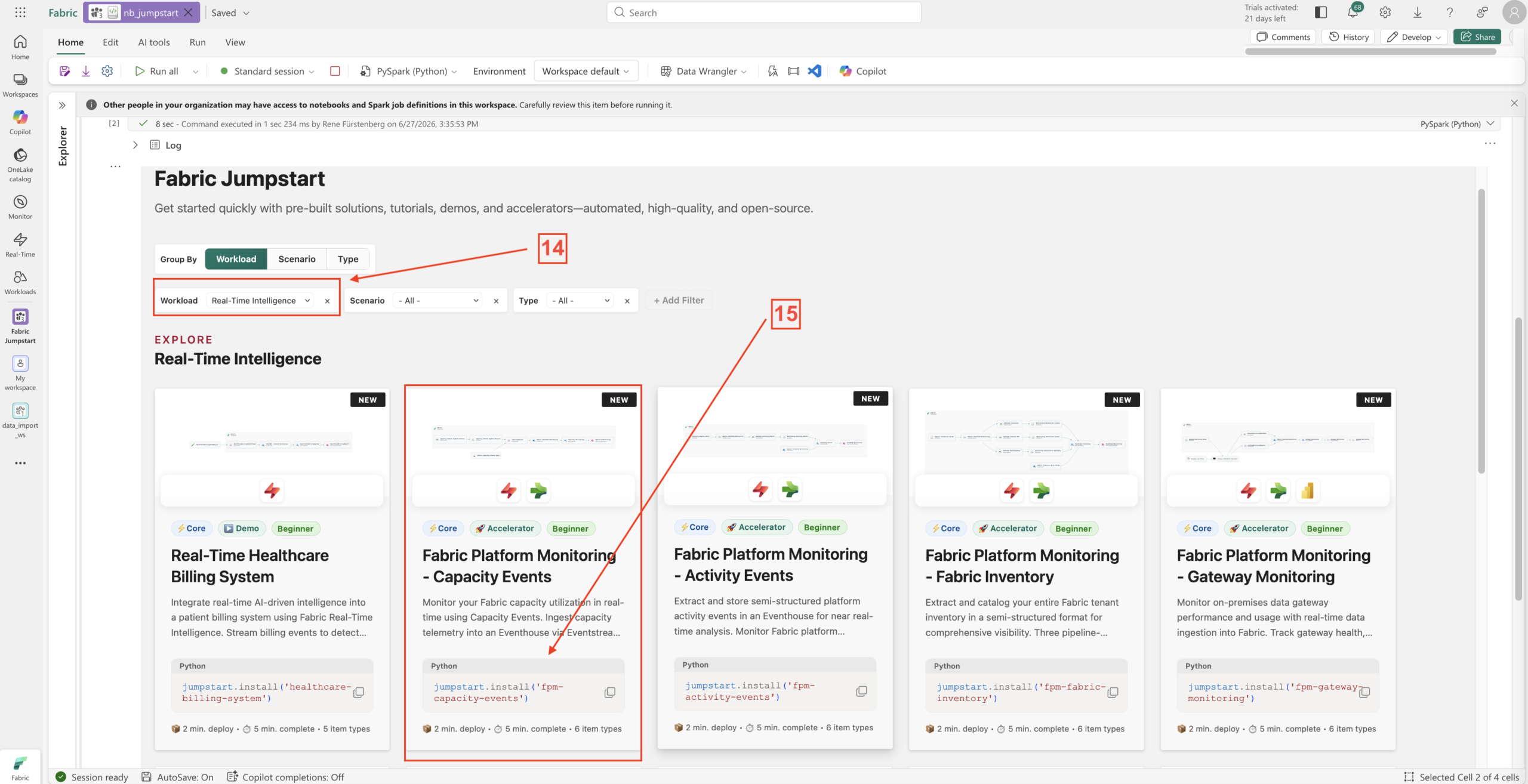
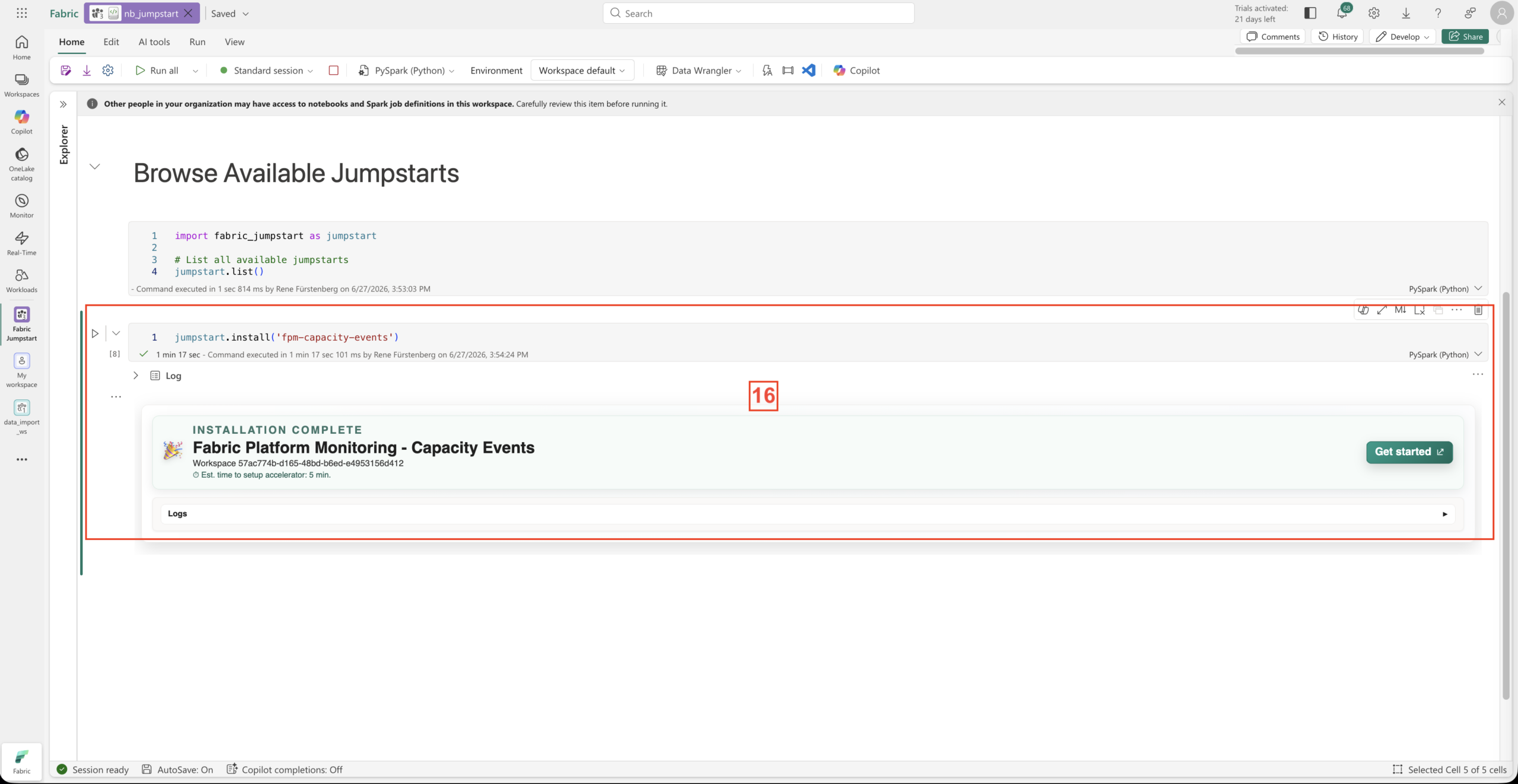
  6. The available Jumpstart solutions will then be displayed. Select the Real-Time Intelligence workload type and copy the corresponding Python command. Paste this command into a new cell below the output and execute it (Code Block – Cell 3).

Run Cell 1 to install fabric-jumpstart:

# Cell 1 #

%pip install -q fabric-jumpstart

Run Cell 2 to list all Jumpstart Solutions:

# Cell 2 #

import fabric_jumpstart as jumpstart

# List all available jumpstarts
jumpstart.list()

Run Cell 3 to install the Real Time Capacity Events Solution

# Cell 3 #

import fabric_jumpstart as jumpstart

# Install this scenario
jumpstart.install("fpm-capacity-events")

Add Capacties to the Real Time Events Solution

Next, we need to complete one more step so that we can view the capacity or capacities later in the Real-Time Dashboard.

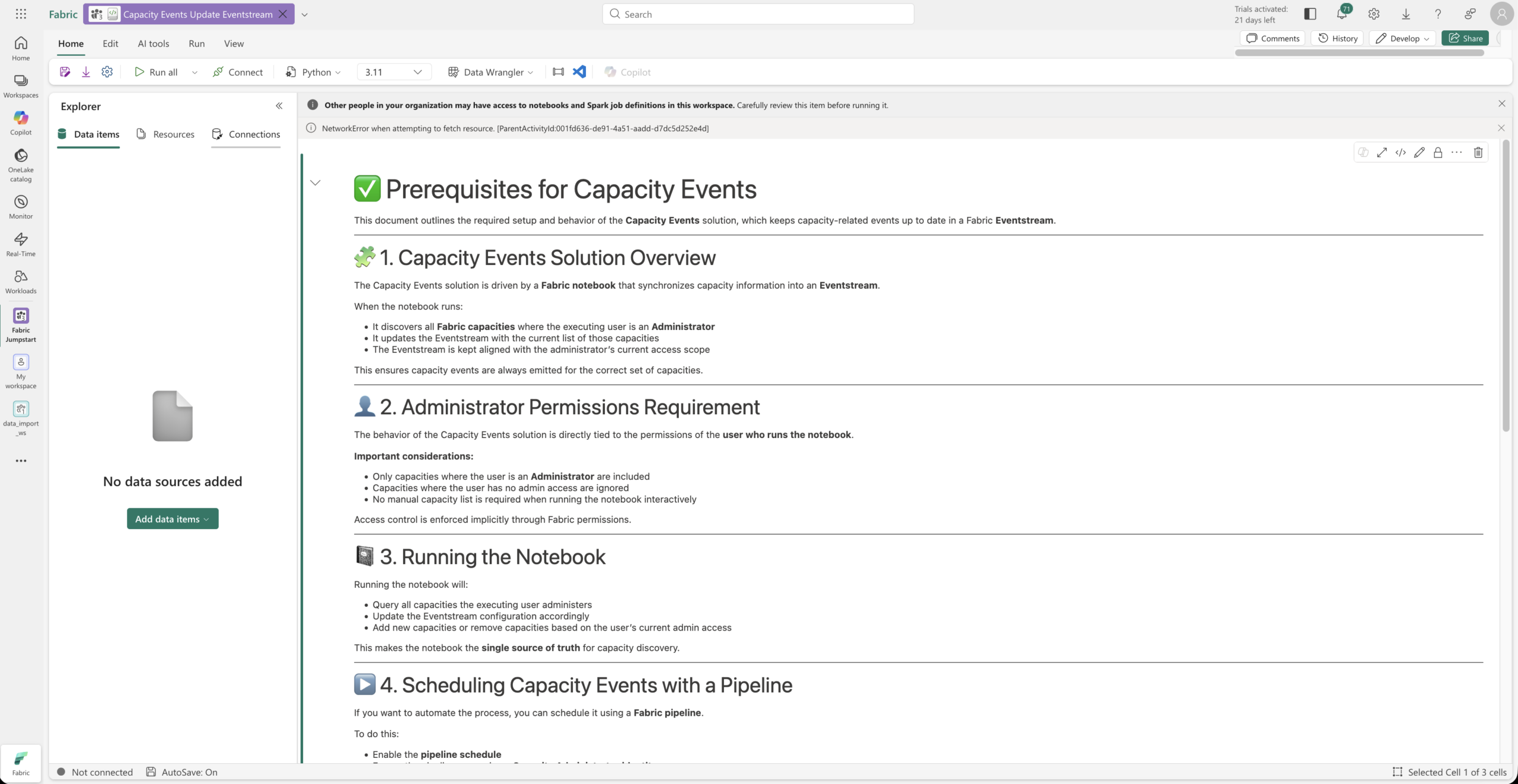
To do this, we can either click „Get Started“ in the existing notebook, which takes us directly to the notebook for the remaining configuration steps, or we can return to the workspace and locate the „Capacity Events Update Eventstream“ notebook in the Setup folder.

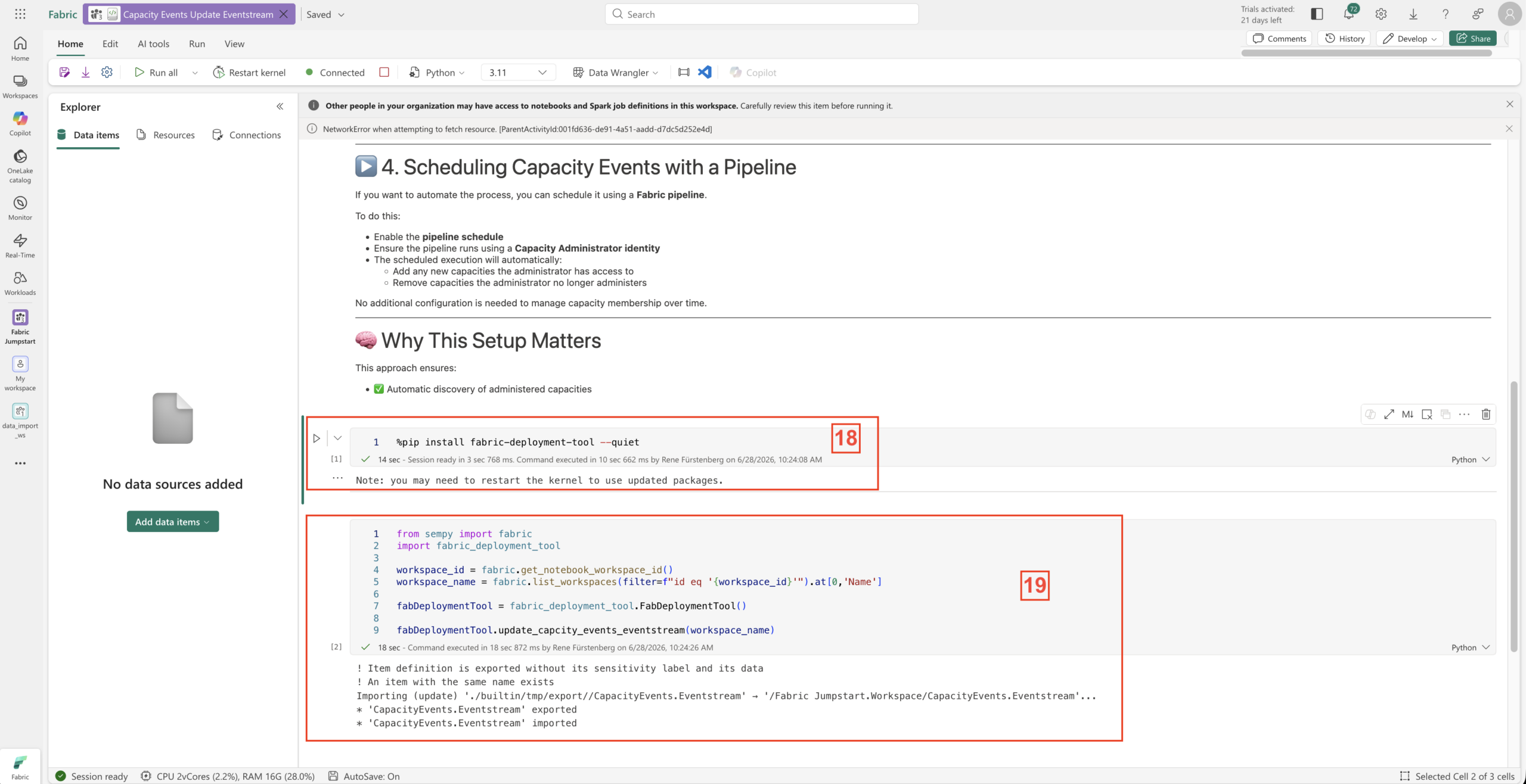
This notebook is used to add one or more Fabric capacities to the Eventstream. You can see this process in Screenshots 10a and 10b.

Important: Capacities are added only if the user executing the notebook is a capacity administrator. All other capacities are skipped.

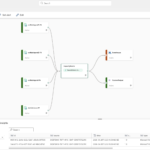
Simply run all cells. If the notebook completes without errors, the capacities should be added to the Eventstream, as shown in Screenshot 11.

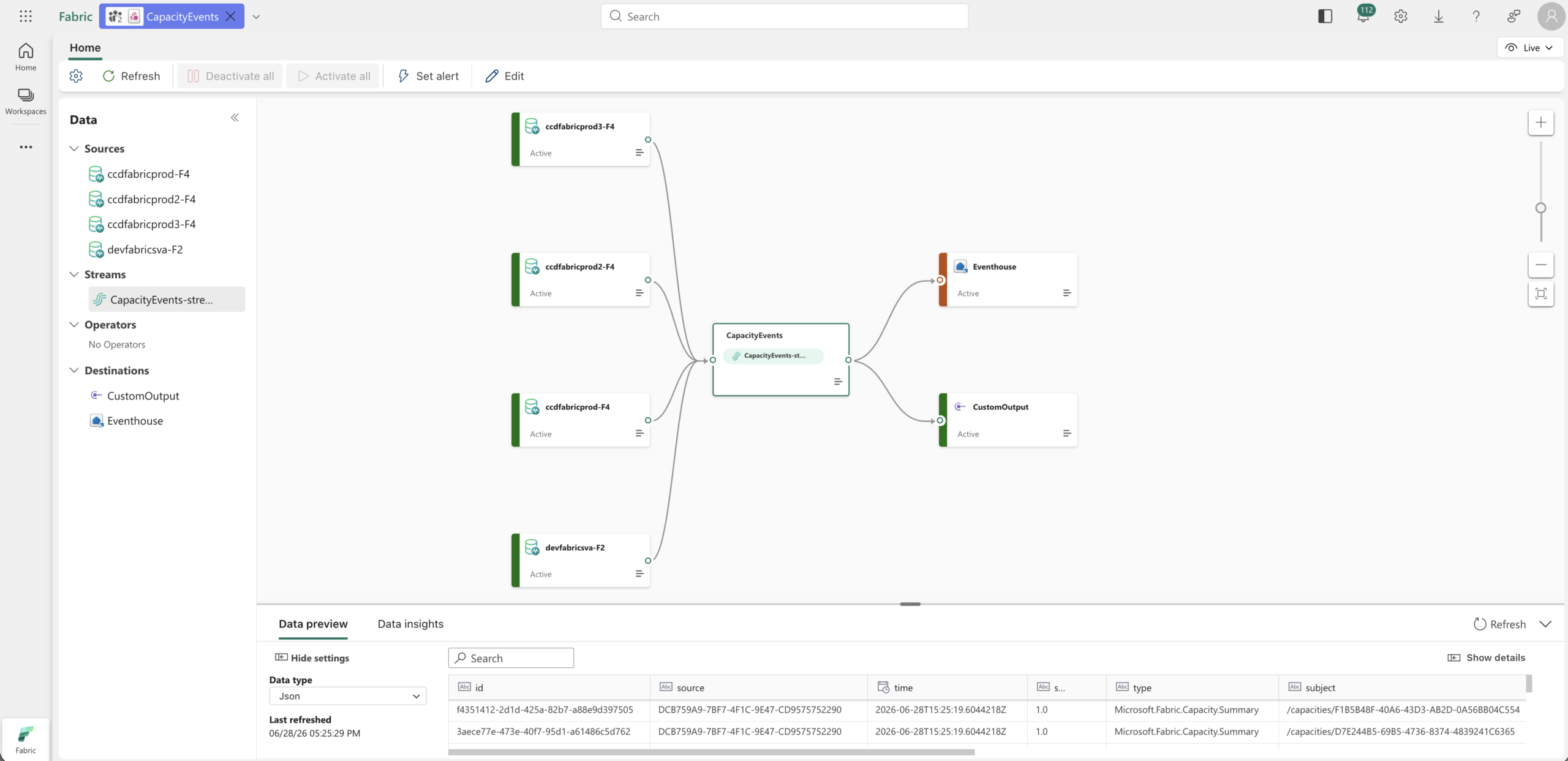
You can find the Eventstream in the fpm-capacity-events / fabric-platform-monitoring / stream folder. The Eventstream is named CapacityEvents.

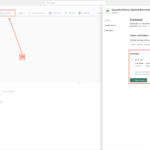
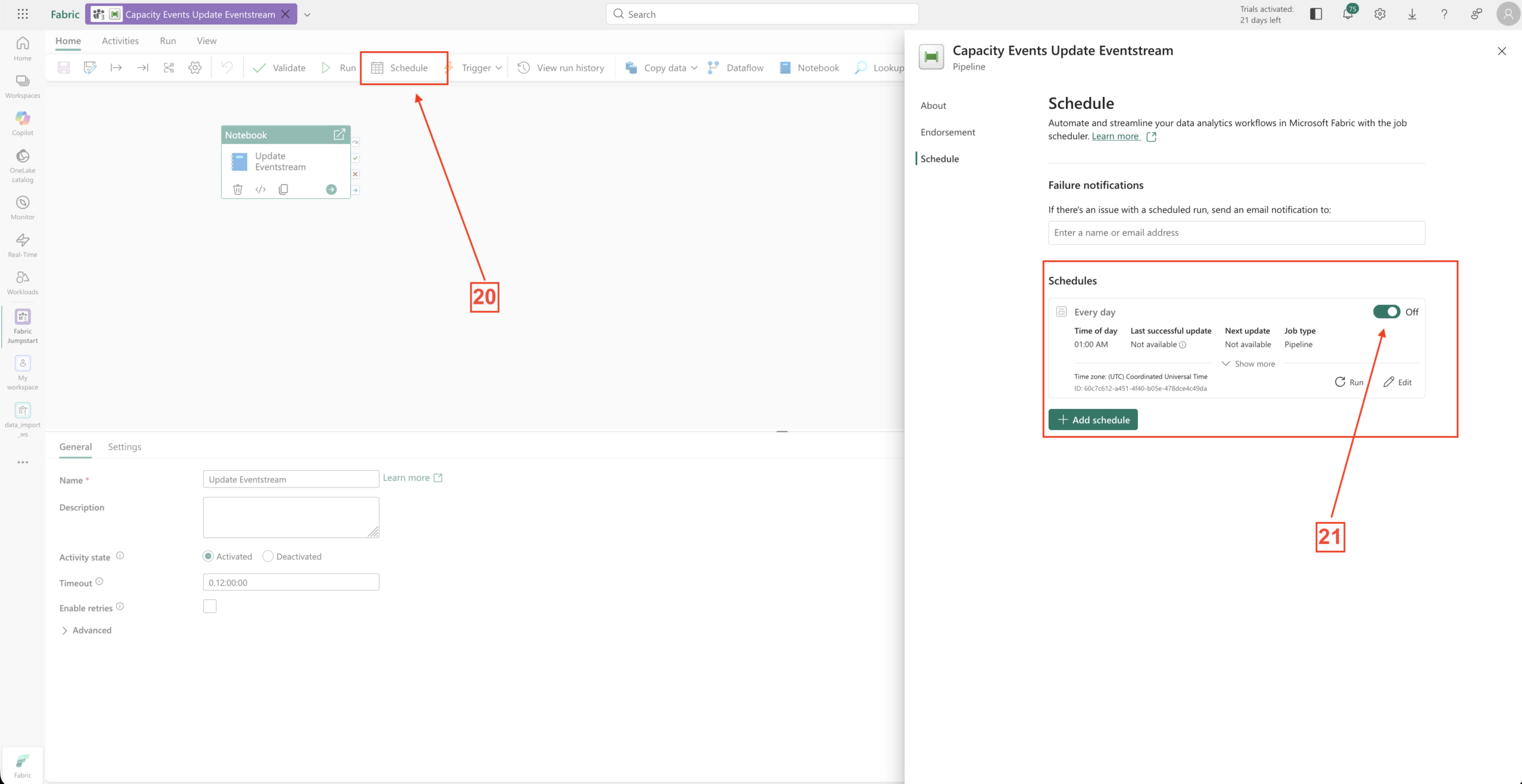
You can also enable a schedule that runs daily at 01:00 UTC. To do this, open the Capacity Events Update Eventstream pipeline and click Schedule. Simply switch the toggle to On. The pipeline can also be found in the Setup folder.
See Screenshot 12.
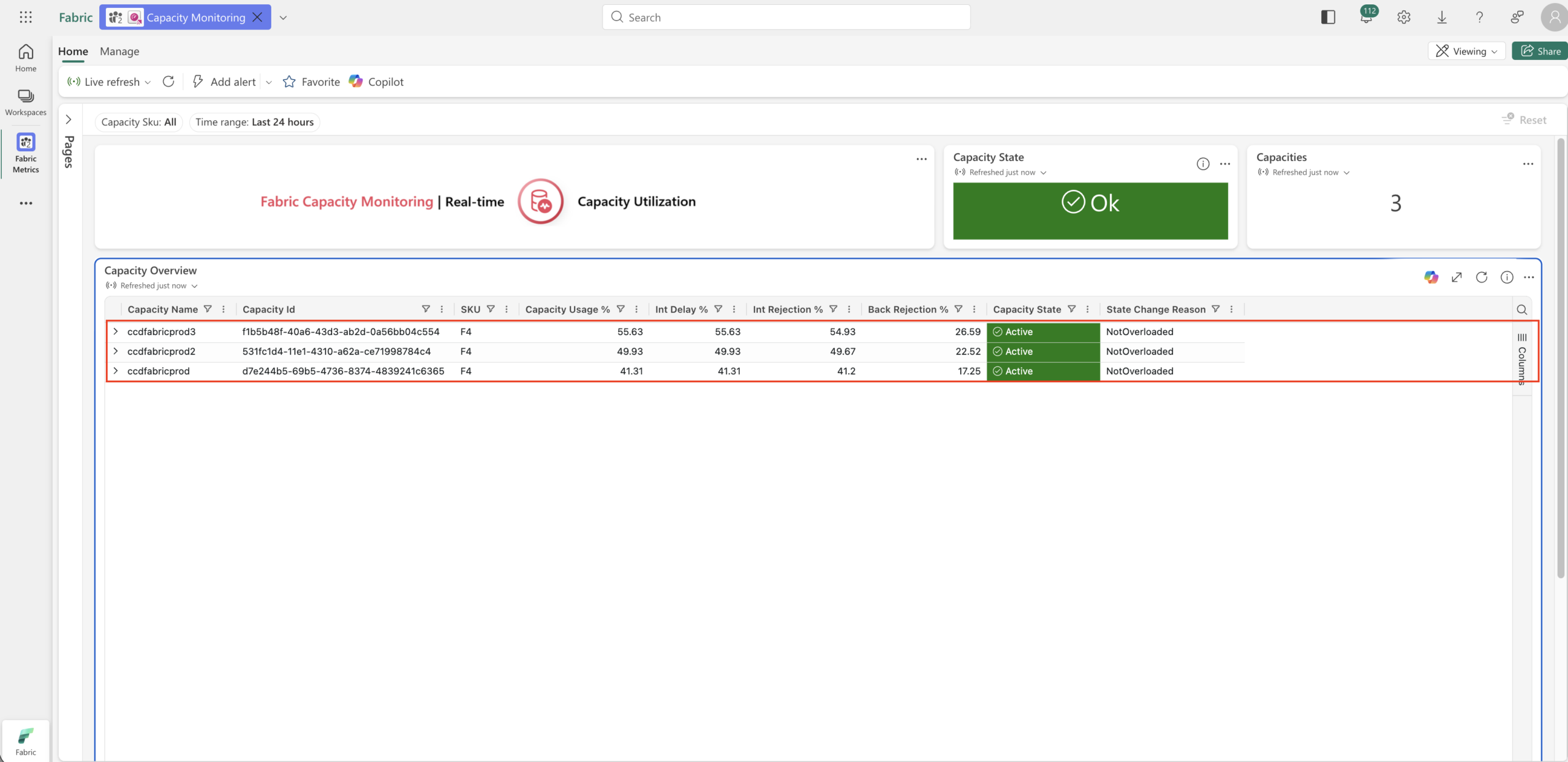
After one or two minutes, the capacities provided by the events should become visible in the Real-Time Dashboard.
See Screenshot 13.
That completes the Capacity Events solution. However, we want to extend it so that we receive a notification whenever one of the capacities reaches a specific threshold. To keep things simple, I will use a straightforward example.

Extend the solution with SQL transformation and Fabric Activator

Next, we want to add the SQL transformation and  Activator and configure notifications. However, before we can do that, we need to perform a transformation. Otherwise, the data would be passed to Activator as raw events.
By transforming the data first, we can create a cleaner and more structured dataset that can then be forwarded to Activator. Within Activator, we can define the required rules, set threshold values, and configure the corresponding notification actions.

Follow the next steps:

  1. Go to the Eventstream folder and open stream
  2. Click on CapacityEvents
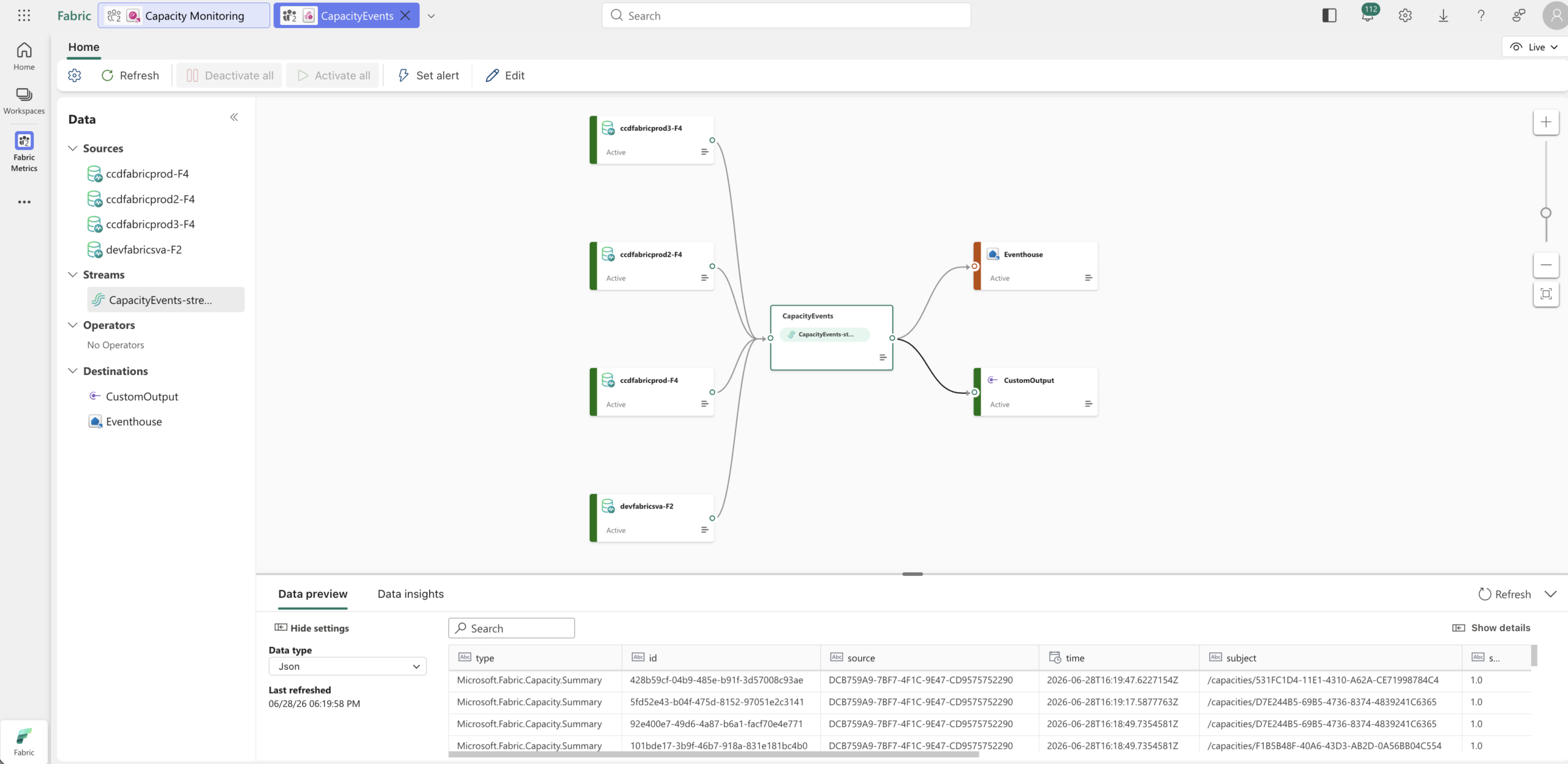
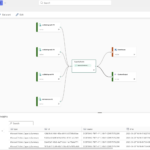
  3. The Eventstream will open automatically, as shown in Screenshot 14. At the bottom, you can see the incoming events. These events must be available so that we can configure Activator in the next step.
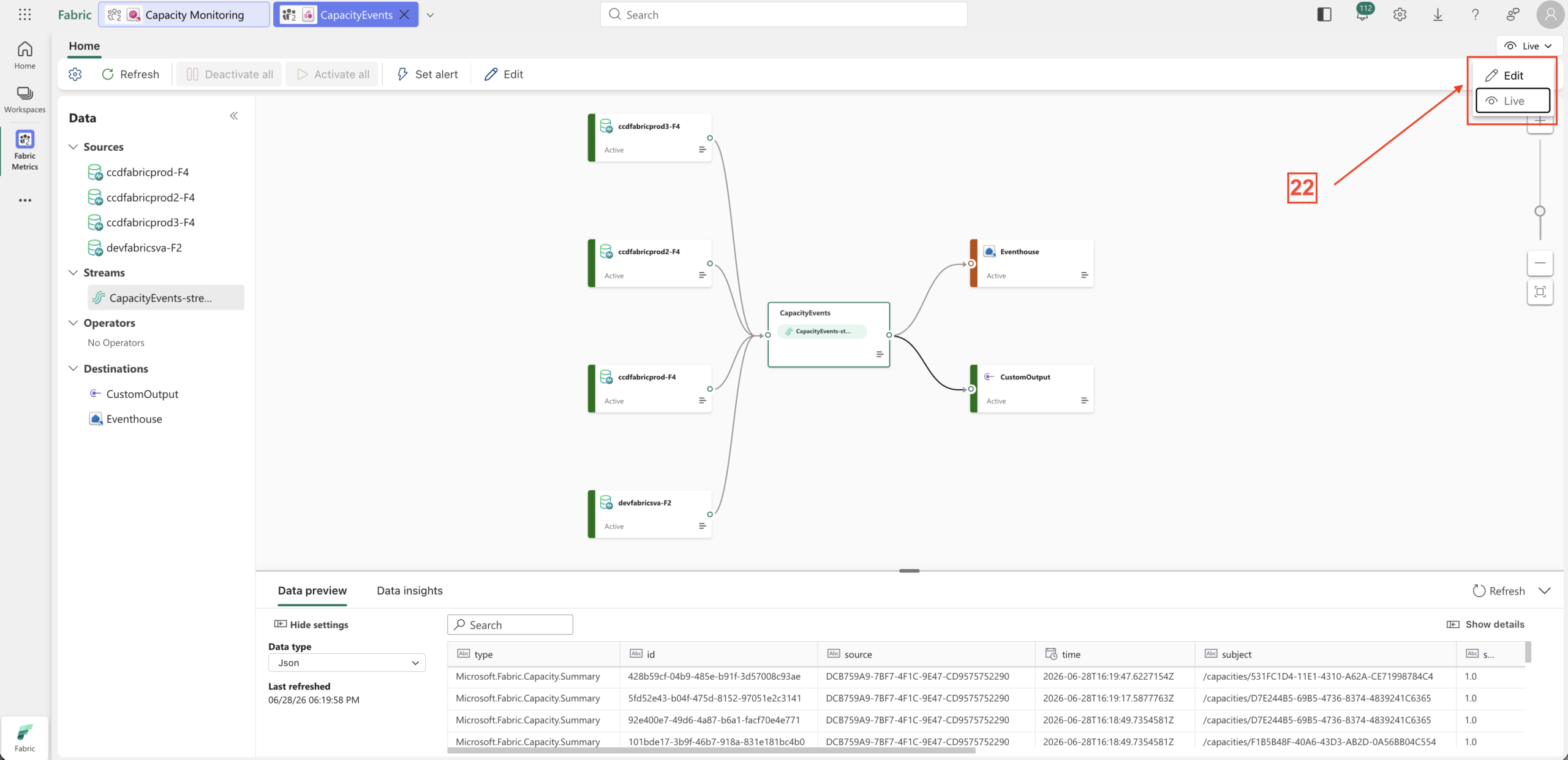
  4. To add the SQL transformation and later the Activator, click Live and then Edit (Screenshot 15).
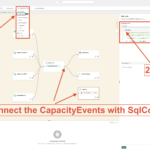
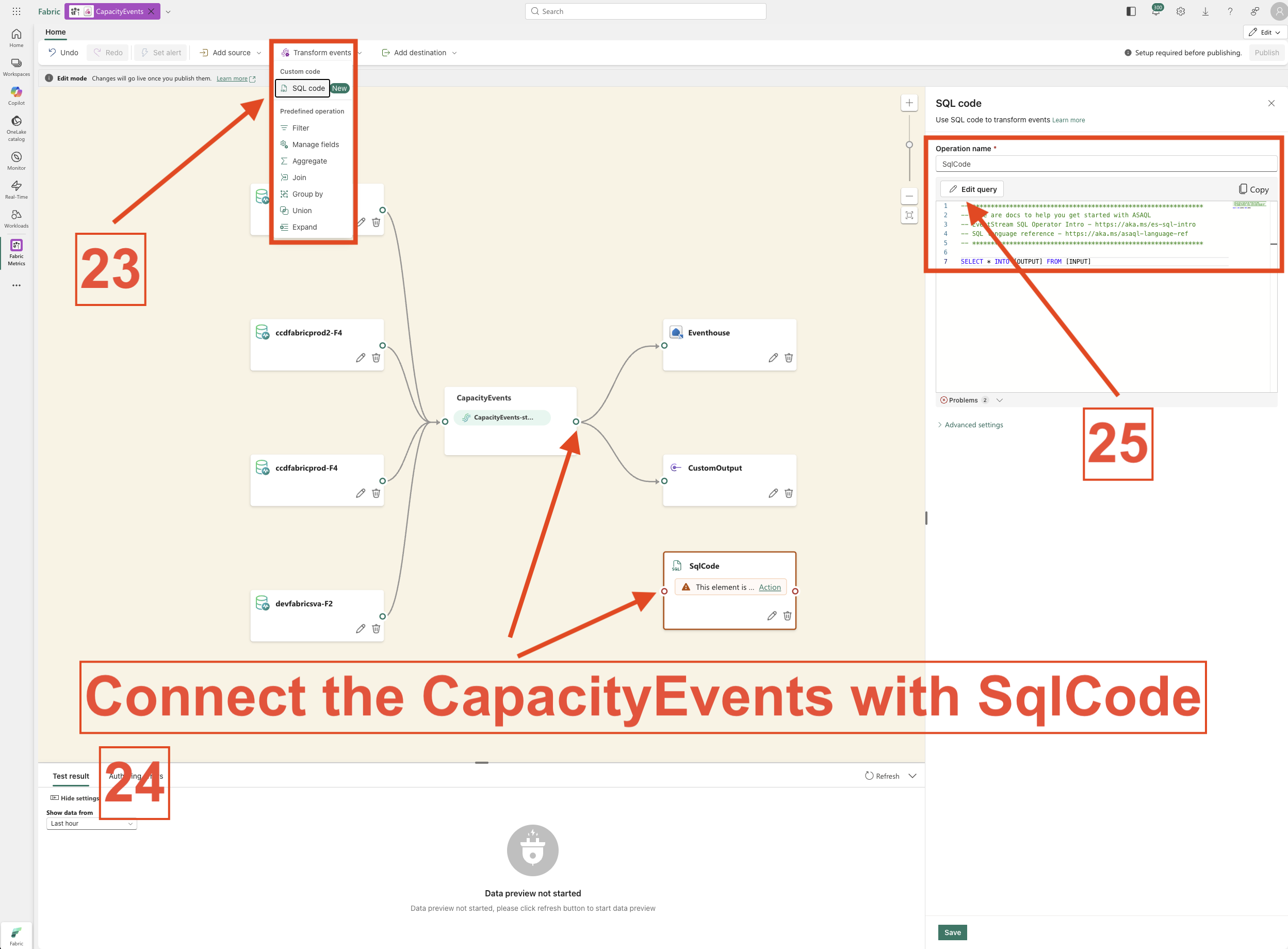
  5. Next, click Add destination and select SQL Query. Connect the CapacityEvents source to the SQL Query destination. Then click Edit query (Screenshot 16).
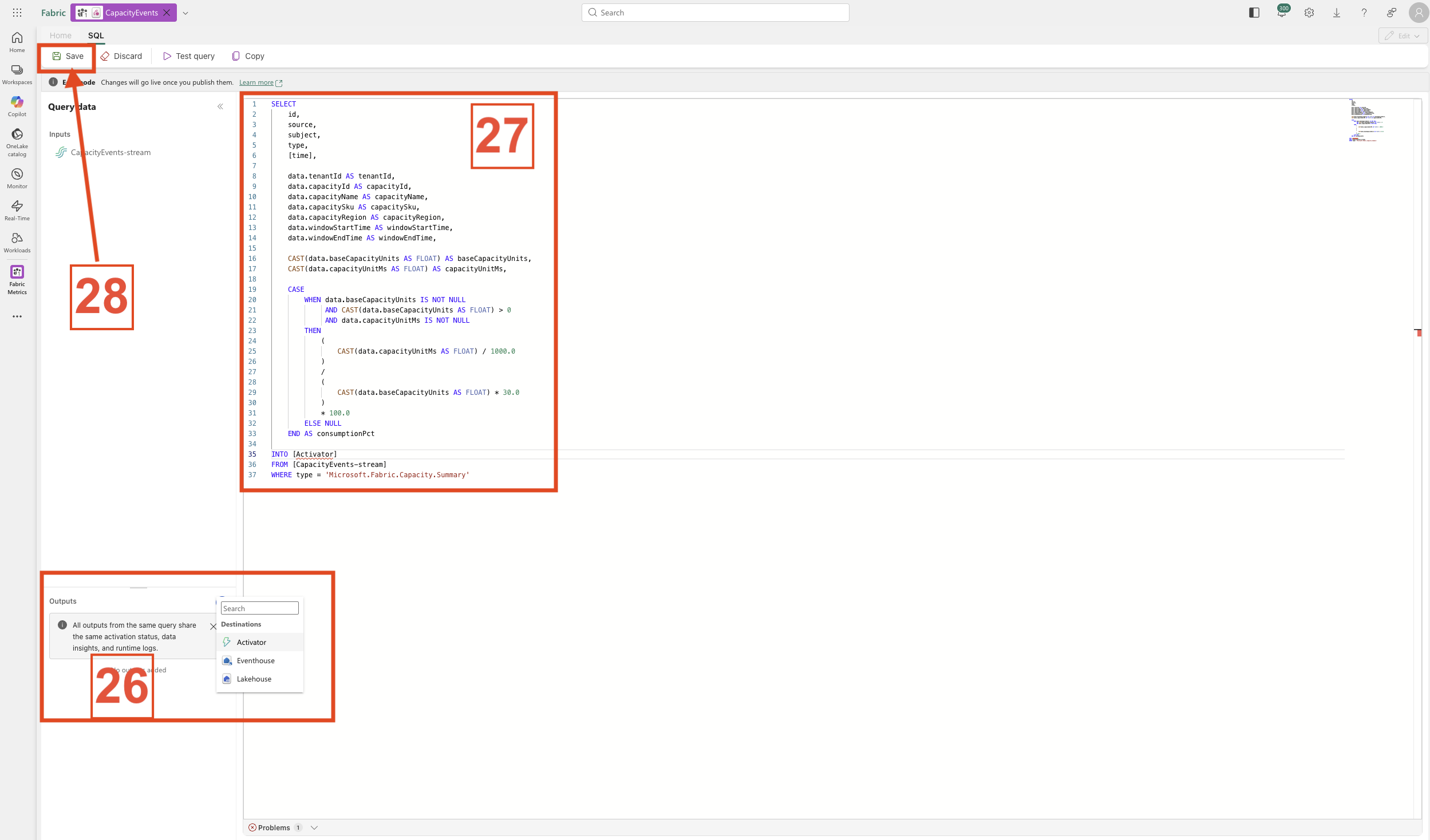
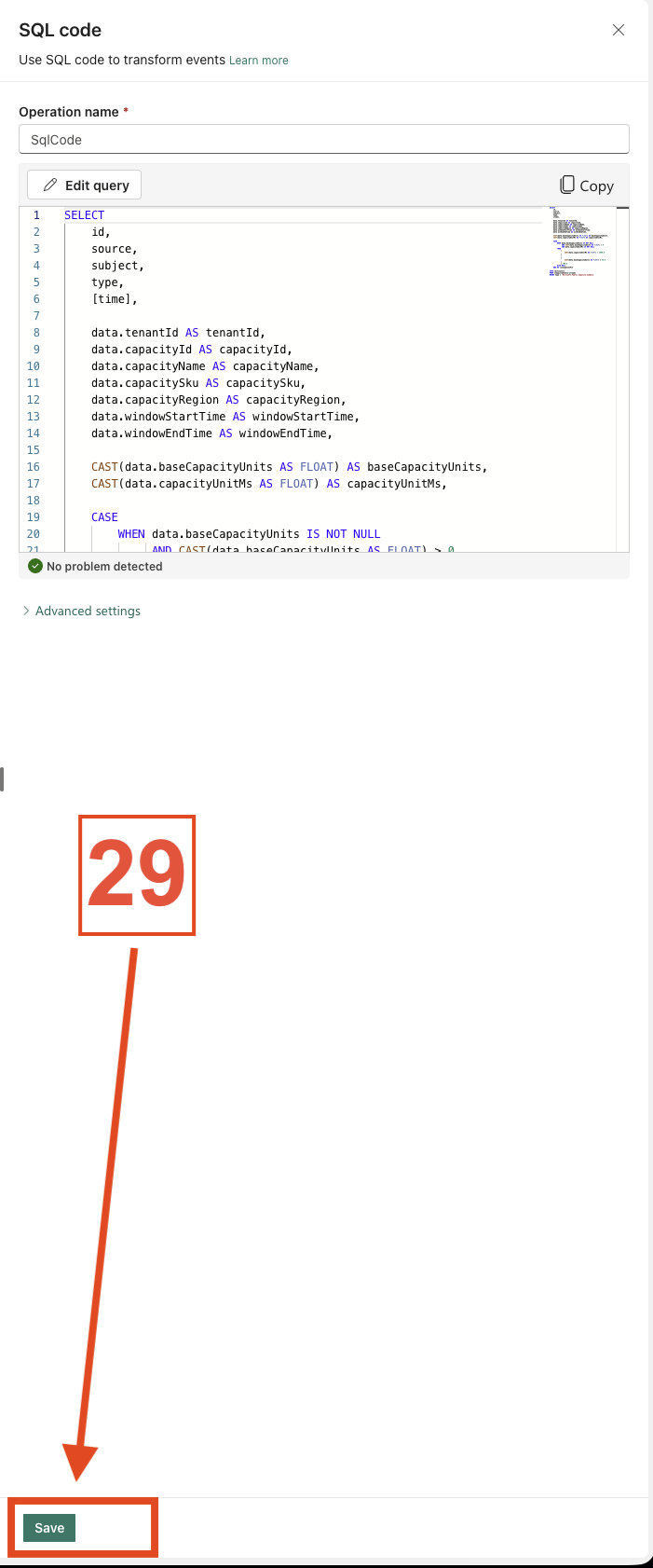
  6. Paste the SQL code into the query editor. The code block is provided below. Under Outputs, click the plus (+) icon and add an Activator destination.
    Important: In the script, you must update the input and output names so that they match your environment. Afterward, click Save and then Save again (Screenshots 17 and 18).
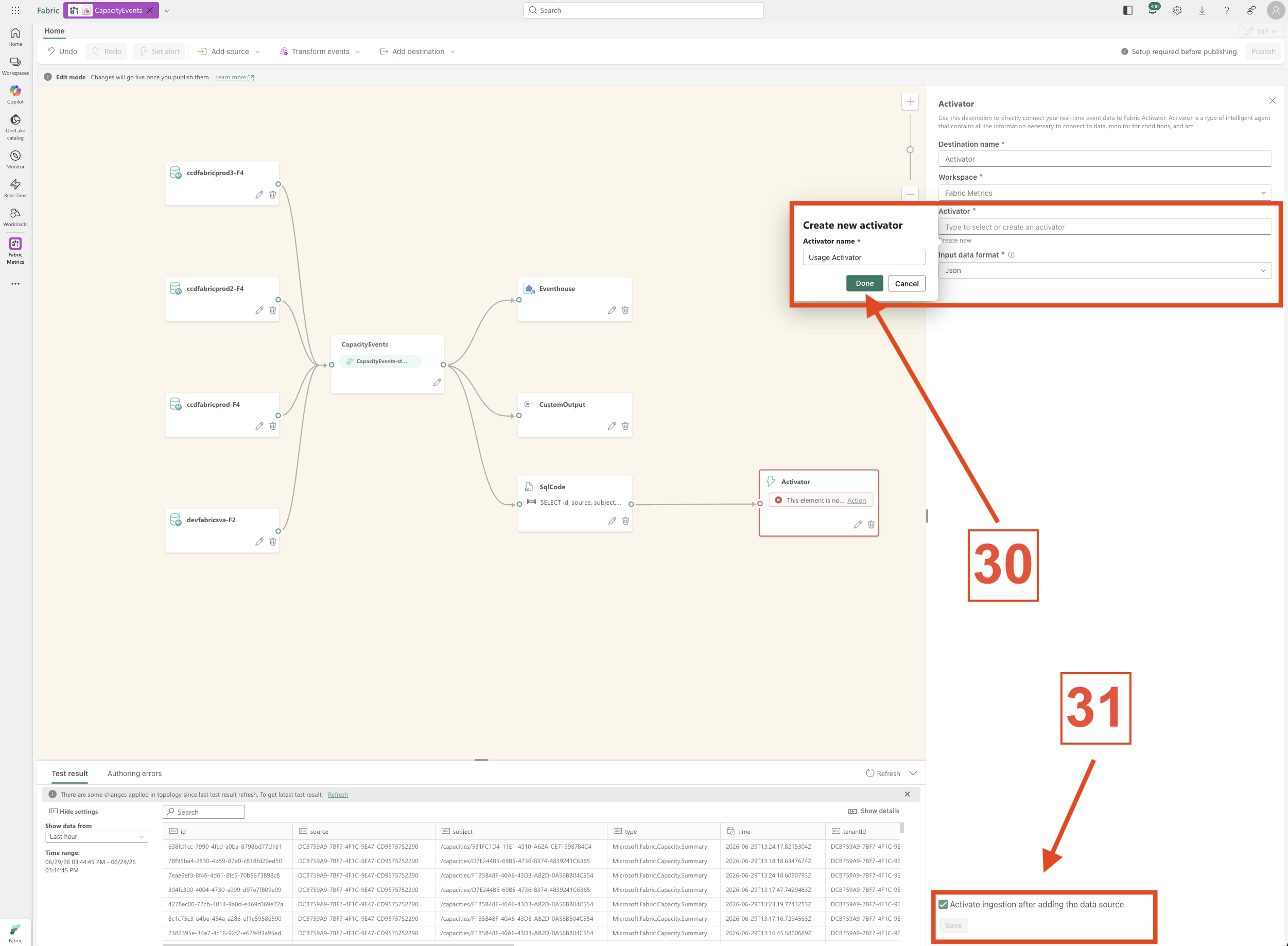
  7. Next, create the Activator. Click Create new, provide a name, and then click Done. Finally, click Save (Screenshot 19).
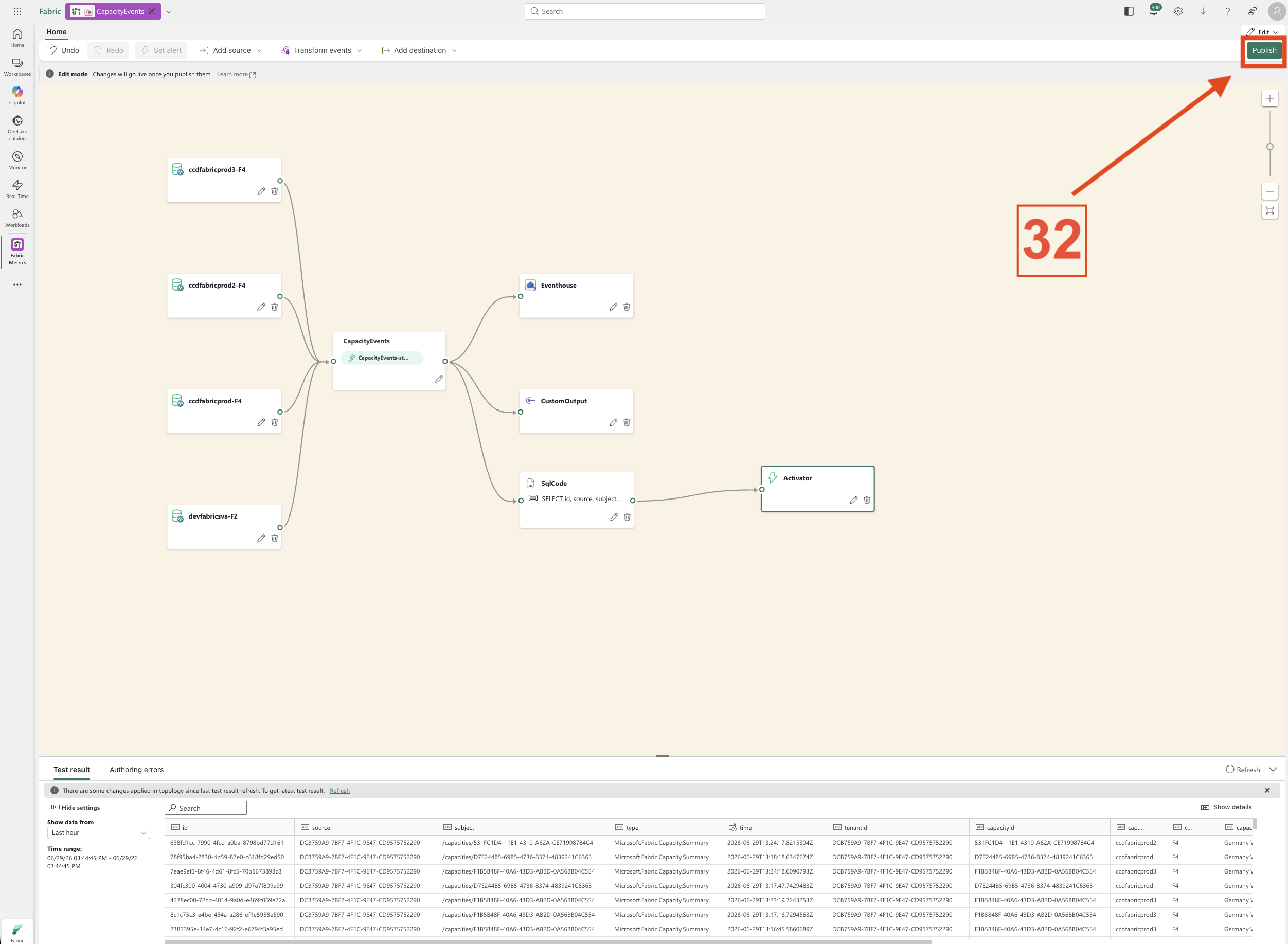
  8. To complete the configuration, click Publish (Screenshot 20).

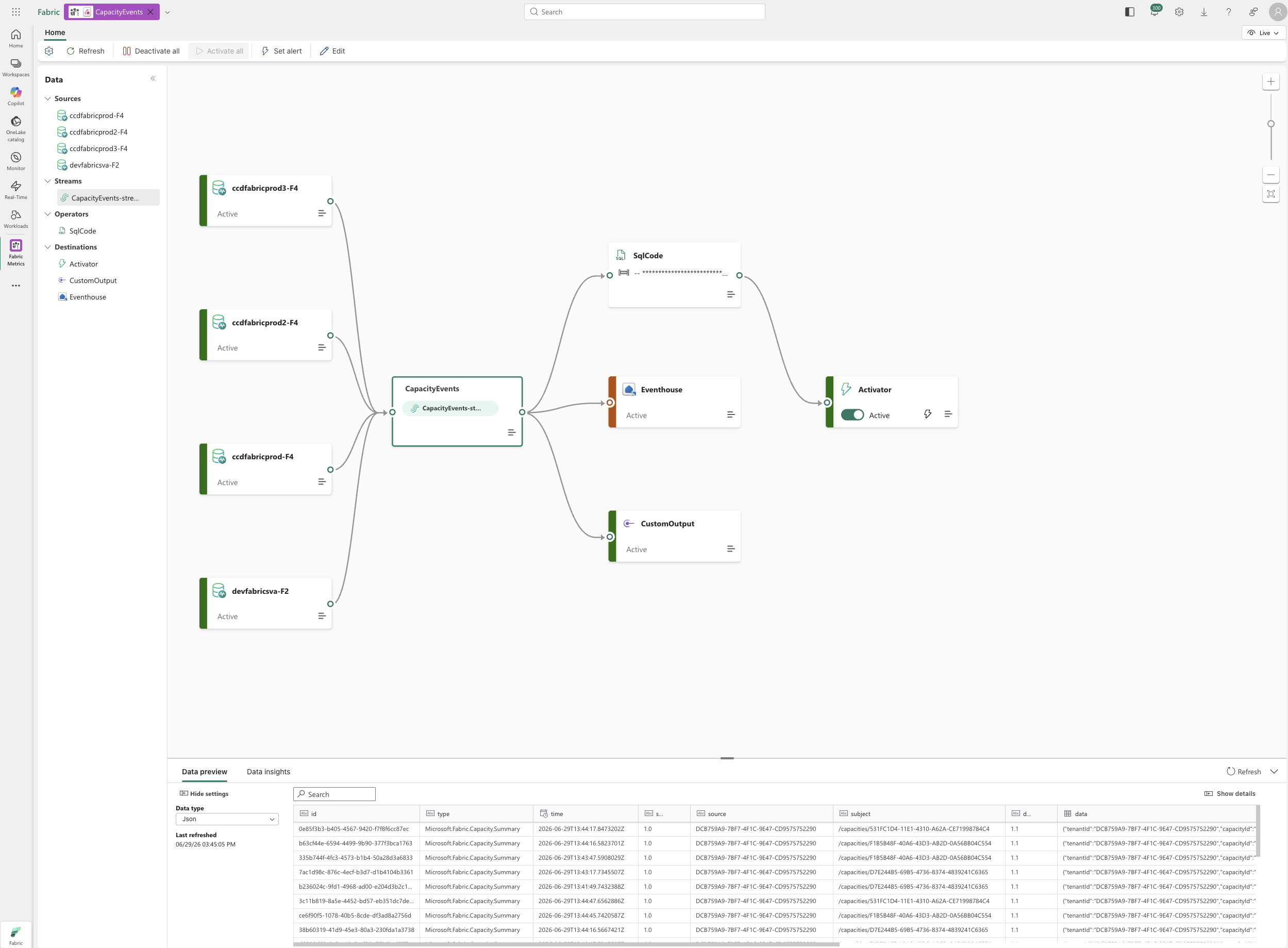
After a short time, a message should appear confirming that the Eventstream has been published successfully. Shortly afterward, you can open the Activator and select Data Preview. You should then see events arriving in Activator (Screenshot 21).

Awesome! We have now prepared the Eventstream and connected it to Activator. In the next step, we will configure the Activator rules and notifications.

Below is the T-SQL script used in Step 6.

SELECT
    id,
    source,
    subject,
    type,
    [time],

    data.tenantId AS tenantId,
    data.capacityId AS capacityId,
    data.capacityName AS capacityName,
    data.capacitySku AS capacitySku,
    data.capacityRegion AS capacityRegion,
    data.windowStartTime AS windowStartTime,
    data.windowEndTime AS windowEndTime,

    CAST(data.baseCapacityUnits AS FLOAT) AS baseCapacityUnits,
    CAST(data.capacityUnitMs AS FLOAT) AS capacityUnitMs,

    CASE
        WHEN data.baseCapacityUnits IS NOT NULL
             AND CAST(data.baseCapacityUnits AS FLOAT) > 0
             AND data.capacityUnitMs IS NOT NULL
        THEN
            (
                CAST(data.capacityUnitMs AS FLOAT) / 1000.0
            )
            /
            (
                CAST(data.baseCapacityUnits AS FLOAT) * 30.0
            )
            * 100.0
        ELSE NULL
    END AS consumptionPct

INTO [Activator]
FROM [CapacityEvents-stream]
WHERE type = 'Microsoft.Fabric.Capacity.Summary'

Configure the Activator

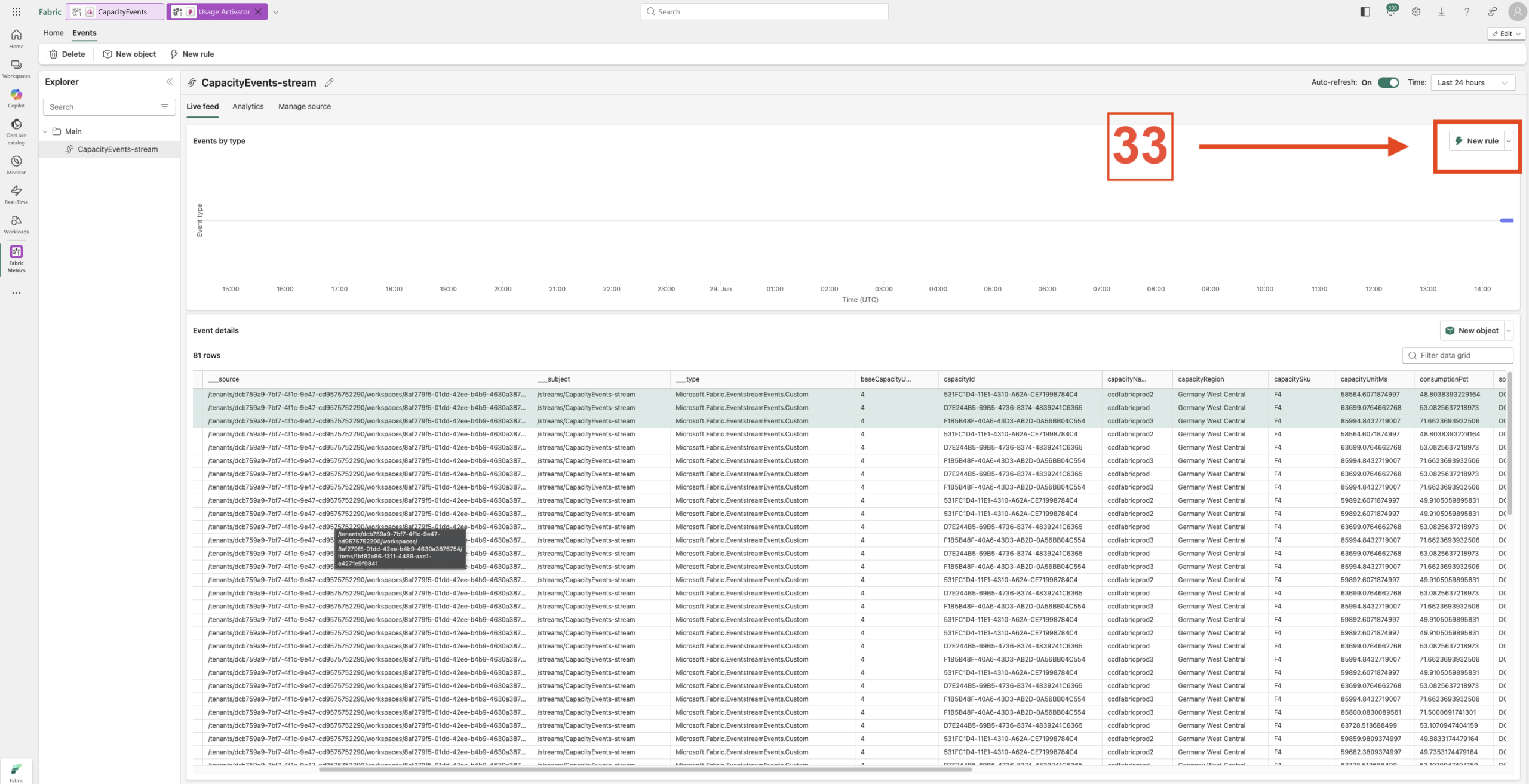
Okay, now we can configure the Activator and create a new rule. In my example, I want to keep things simple by creating a straightforward rule with two conditions.

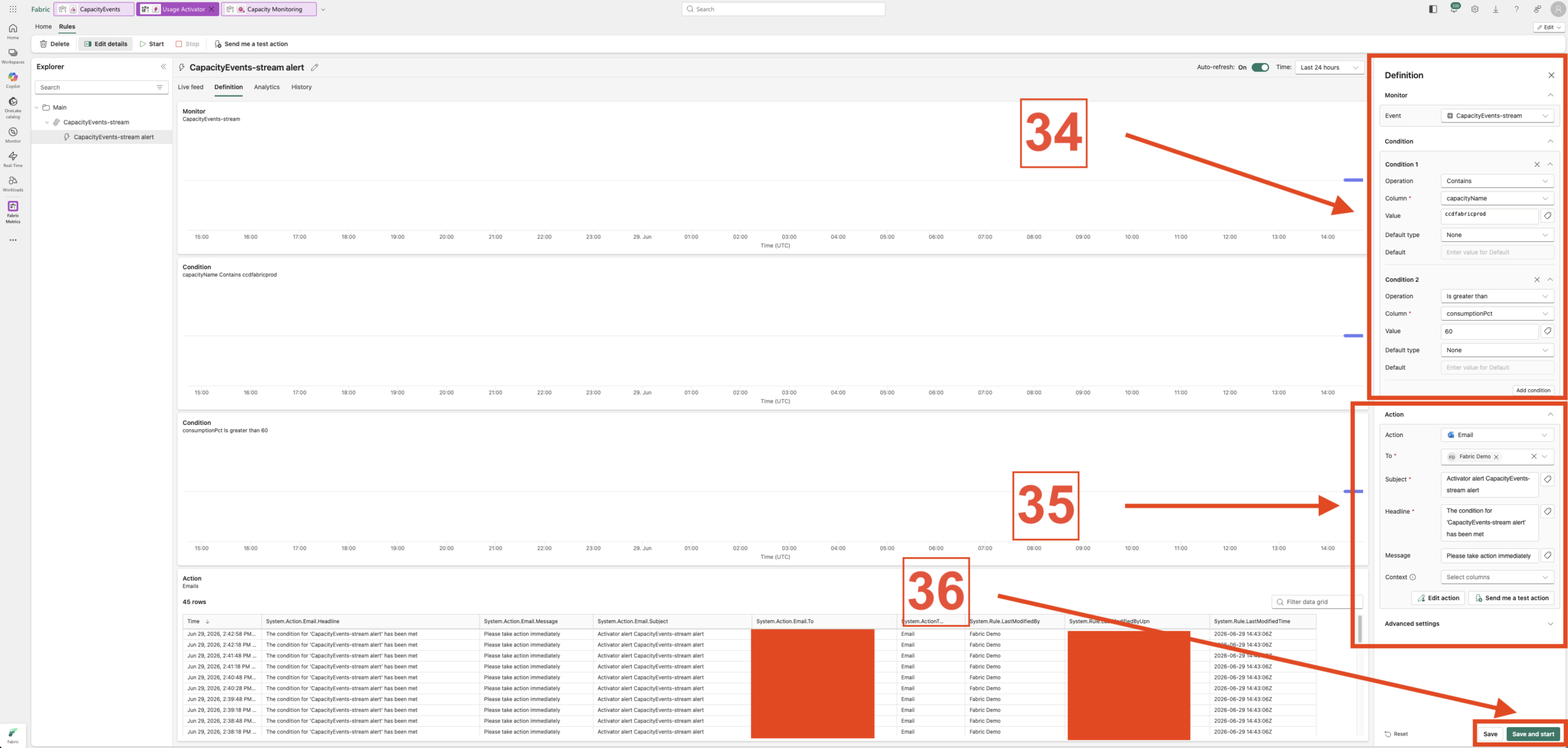
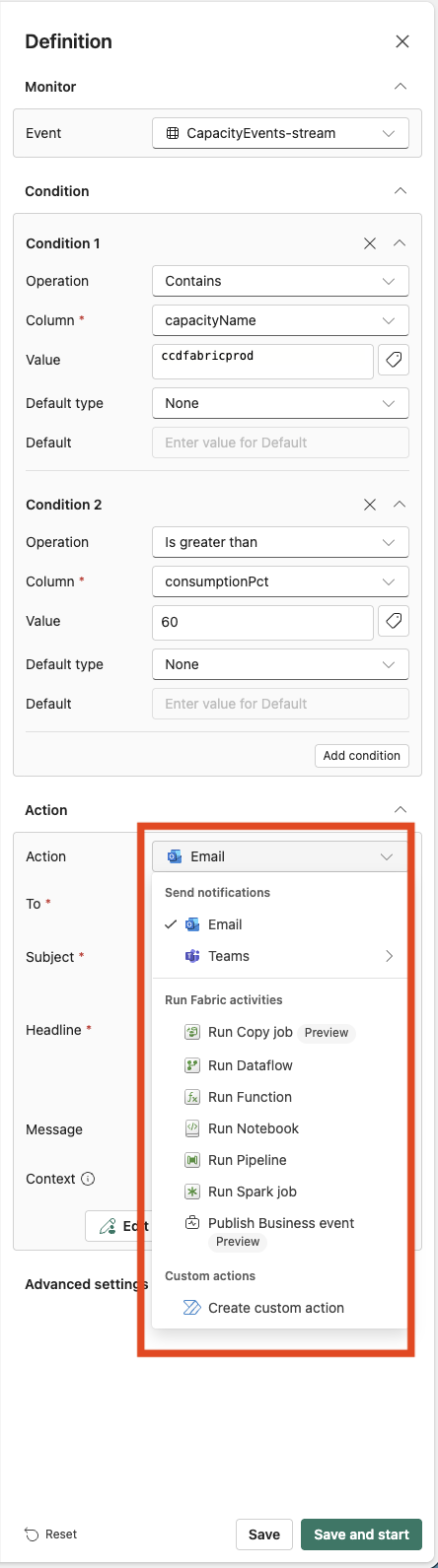
  1. Let’s configure the rule now. In my example, I use the Contains operator for Condition 1 because I want the action to be triggered only for a specific capacity. To do this, I first select the capacityName column, and then enter the name of the capacity as the value.
    This ensures that the rule only evaluates events related to the specified Fabric capacity.
  2. I then add a second condition that evaluates a numeric value using the Greater Than operator. For this condition, I select the consumptionPct column. This is a custom column that I calculated beforehand using my SQL code.
    The rule will only be triggered when the specified capacity is detected and the consumptionPct value exceeds the defined threshold.
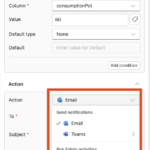
  3. As the final step, you can select the action that should be executed when the conditions are met. Available options include sending an email, posting a Microsoft Teams notification, or triggering other Fabric activities.
    It is also important to define the recipient and specify what information should be included in the notification. All of these settings can be customized to meet your specific requirements,

All steps you can see in the Screenshot 22, 23 and 24. To finish click on Save and start.

Yes, we have now extended the solution with notifications, and our implementation is complete. All that remains is the conclusion.

Conclusion

To summarize, we have explored Fabric Jumpstart and seen that it now provides a wide range of ready to use solutions for Microsoft Fabric. In my example, I deployed the Fabric Capacity Events solution and extended it with a notification capability using Fabric Activator.
This allows administrators to react proactively to capacity related events and potential issues. It is important to note that the solution can be extended even further to address specific monitoring and alerting requirements. The example shown in this article was intentionally kept simple, but it demonstrates the flexibility and potential of combining Capacity Events with Fabric Activator to build powerful real-time monitoring solutions.

Links: