1. Introduction
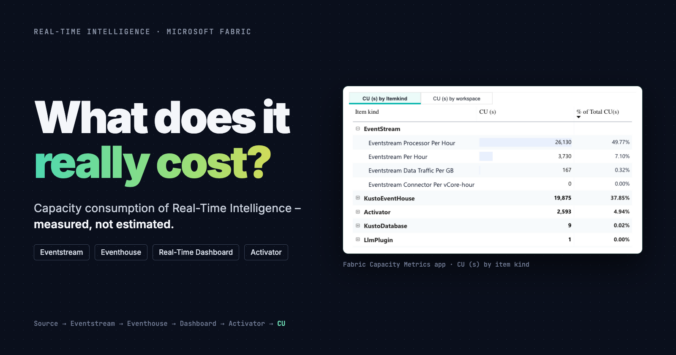
When you start with Real-Time Intelligence in Microsoft Fabric, the question of cost comes up sooner or later. Microsoft documents the billing meters, but it’s hard to tell what a complete solution with Eventstream, Eventhouse, a Real-Time Dashboard and Activator will cost in the end.
I also get asked one question a lot: does every transformation in an Eventstream use extra capacity?
I didn’t want to guess, so I measured it. My example is the power grid project from my last article. It uses all the typical parts of an RTI solution. Over several days, I tracked it in the Fabric Capacity Metrics app and checked how much each part uses.
What surprised me most was that the amount of data hardly matters. The architecture does. How many processing steps the Eventstream has and where it sends the data makes a much bigger difference than a few megabytes more or less per day.
In this article, I’ll show how Real-Time Intelligence is billed, how to read the numbers in the Capacity Metrics app, and what I would keep in mind for future projects.
2. The setup
My example is the power grid project. You’ll find the details in my last article, so here I’ll focus on the parts that matter for the cost.
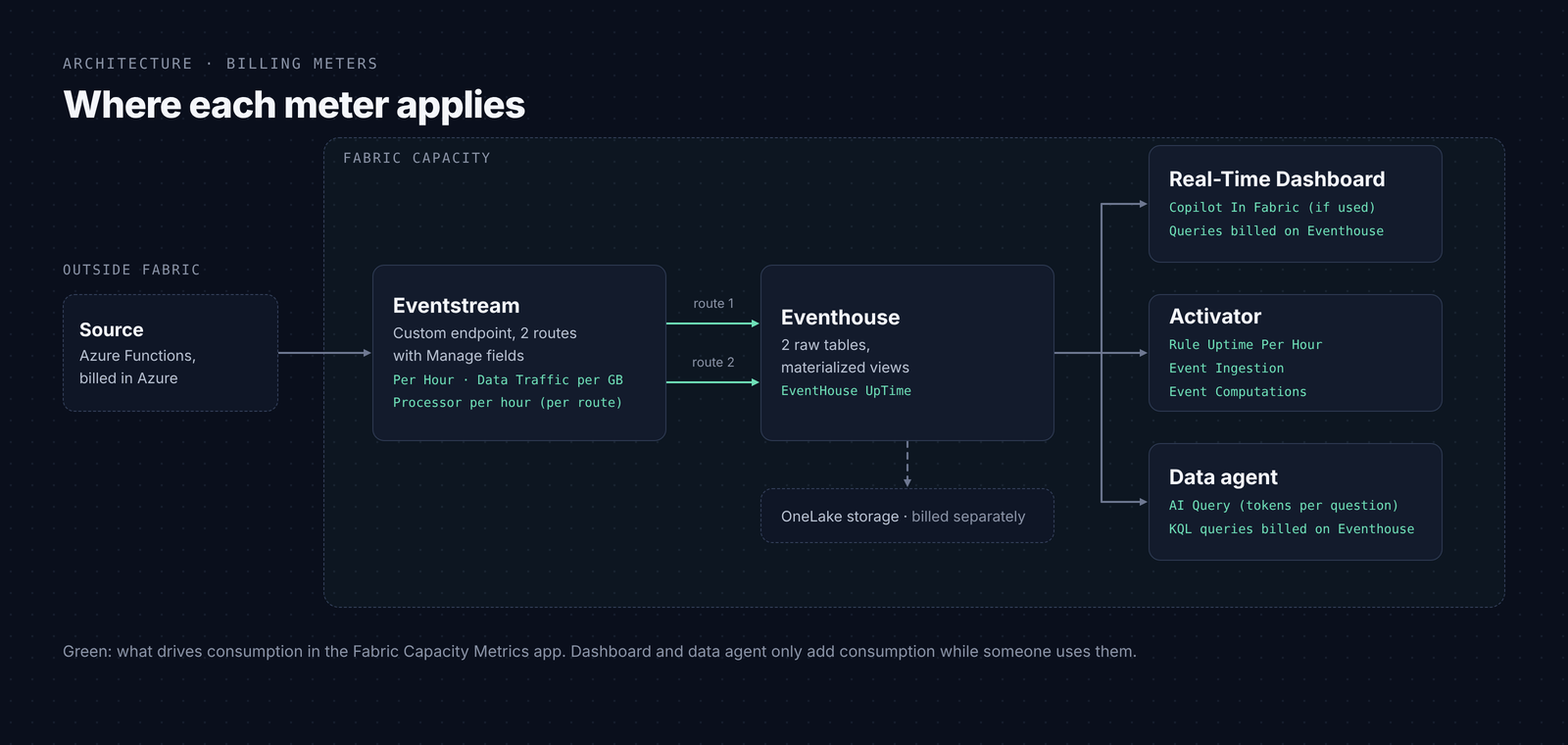
Four Azure Functions query the Energy-Charts API and send the data to a custom endpoint in the Eventstream over the Event Hubs protocol. Grid frequency arrives every minute with one value per second, power generation and prices every 5 and 15 minutes.
In the Eventstream, I split the data into two paths: grid frequency goes into its own table, everything else into a second one. On both paths, “Manage fields” converts timestamps and values to the right data types. Both paths end in the same Eventhouse. There, the raw data sits in two tables, and materialized views keep the latest version of each value.
Three things read from the Eventhouse: a Real-Time Dashboard with three pages, Activator with seven rules that run a KQL query at a fixed interval, and a data agent.
How I measured
All numbers in chapter 5 come from one day: October 22. The solution ran for 24 hours on a Fabric trial capacity, which is the same size as an F64, without pausing and without any changes. The Event throughput setting in the Eventstream was “Low”, and I had the dashboard open for about three and a half hours, like on a normal working day.
Before that, I ran the solution on an F2 for two days. What happened there gets its own chapter. I tested the data agent separately, more on that in chapter 7.
The Azure Functions are not included. They run in Azure and don’t show up on the Fabric capacity.
3. How Real-Time Intelligence is billed
Every part of Fabric uses Capacity Units (CU) from the same capacity. In the Capacity Metrics app, this shows up as operations for each item. For Real-Time Intelligence, these are the ones that matter. For each part, I’ve linked the Microsoft documentation the numbers come from, so you can check the details and the current rates yourself.
Eventstream
The Eventstream has the most billing meters (Microsoft Learn):
| Operation | What it bills | Rate |
|---|---|---|
| Eventstream Per Hour | flat charge while data is flowing | 0.222 CU hours per hour |
| Eventstream Data Traffic Per GB | data in and out, per stream | 0.342 CU hours per GB |
| Eventstream Processor Per Hour | processing, per route | from 0.778 CU hours per hour |
| Eventstream Connector Per vCore-hour | connector sources like Azure SQL CDC | 0.611 CU hours per vCore |
The processor is the one to watch. It’s billed per processing route, meaning each path from the source through the processing steps to a destination. The number of operators on a route doesn’t matter, but the number of routes does. 0.778 CU hours is the minimum with the throughput setting “Low”. Under more load, the processor scales up on its own.
The destination matters too. Lakehouse, Activator and an Eventhouse with transformations are push destinations: the Eventstream does the processing itself and pays for it with processor time. An Eventhouse with direct ingestion and a custom endpoint pull the data themselves. For those, the Eventstream has no processor cost.
If no data flows for more than two hours, the flat charge, traffic and processor all stop.
Eventhouse
The Eventhouse basically has one meter: EventHouse UpTime. It’s the time the Eventhouse is active, multiplied by the vCores it uses. Without load, the Eventhouse suspends. But when new data arrives every minute, like in my project, it never gets the chance.
All queries run on the Eventhouse too: the ones from the dashboard, from Activator and from the data agent. They don’t show up as separate operations. They only add to the uptime when the Eventhouse needs more compute for them.
Activator
Activator has three meters: Rule Uptime Per Hour as a base charge for every active rule, Event Ingestion for incoming events and Event Computations for evaluating the rules. One thing to keep in mind: an active rule costs something even when no data comes in. It’s worth stopping old test rules.
Real-Time Dashboard
The dashboard doesn’t have a meter of its own. Its tile queries run on the Eventhouse and are part of the uptime there. Only Copilot in the dashboard shows up separately, as “Copilot In Fabric” on the dashboard item.
Data agent
The data agent shows up as the item kind “LlmPlugin” with the operation “AI Query”. It’s billed by tokens: 100 CU seconds per 1,000 input tokens and 400 CU seconds per 1,000 output tokens. Input isn’t just the question. The agent instructions, example queries and chat history count too. The KQL queries the agent runs are executed on the Eventhouse and billed there.
Storage
Storage isn’t part of the capacity. Data in the Eventhouse and Eventstream retention beyond 24 hours are billed separately as OneLake storage.
Rates as of October 2026. Microsoft can change them at any time, so check the linked pages for the current values.
4. How to measure it
All numbers in this article come from the Fabric Capacity Metrics app. I used the new preview version. Here’s how I read it, and a few things I ran into along the way.
Smoothed or unsmoothed
The Compute page has three views: “Smoothed: Last 24 hours”, “Smoothed: Last 14 days” and “Unsmoothed: Last 14 days”. Fabric spreads background operations over 24 hours. That’s called smoothing, and it decides when your capacity throttles. If you look at a smoothed view right after starting a capacity, the usage looks like it’s slowly climbing. It isn’t. Fabric just hasn’t spread enough operations yet.
For totals, use the unsmoothed view. It shows the real CU seconds per item and day. Filter on your workspace, pick a date range, and expand each item under “CU (s) by Itemkind” to see its operations.
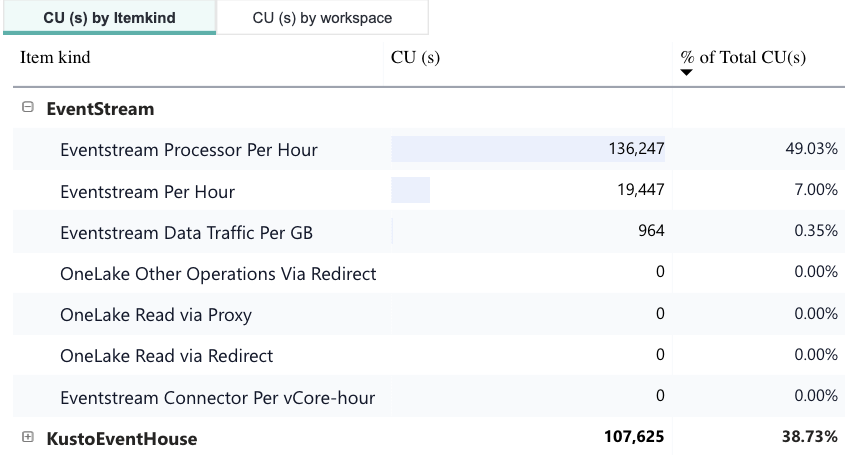
One catch: the app doesn’t update in real time. New numbers can take a while to show up, so don’t panic if today looks empty.
From CU seconds to something useful
The app shows CU seconds. Divided by 3,600, you get CU hours. Divided by the hours your capacity was running, you get the average CU per hour. That’s the number you can compare with a capacity: an F2 gives you 2 CU, which is 48 CU hours per day.
To find out how long the capacity was actually running, I use a small trick. The Eventstream flat charge is 0.222 CU hours for every hour data is flowing. So “Eventstream Per Hour” divided by 799.2 (0.222 × 3,600) gives you the number of active hours. The same works for the processor: divide it by 2,800.8 (0.778 × 3,600) and by the active hours, and you get the number of routes you’re billed for.
Things I ran into
- Numbers stay with the capacity. The app shows usage per capacity. If you move a workspace to a different capacity, the new numbers show up there, and the old ones stay where they were.
- You only see what you’re admin of. The app only lists capacities where you’re a capacity admin. With a trial capacity, that’s the person who started it.
- Pausing isn’t free. If your capacity is already over its limit, pausing clears the throttling right away. But Fabric bills everything it has carried forward at that moment. And while the capacity is paused, nothing gets ingested. Your Eventstream may have to be started again afterwards.
- Consumption doesn’t depend on the size of the capacity. An item uses the same number of CUs on an F2 as on an F64. The size only decides how much fits before Fabric starts throttling. That’s why I can compare the F2 days in chapter 6 with the reference day.
5. The results
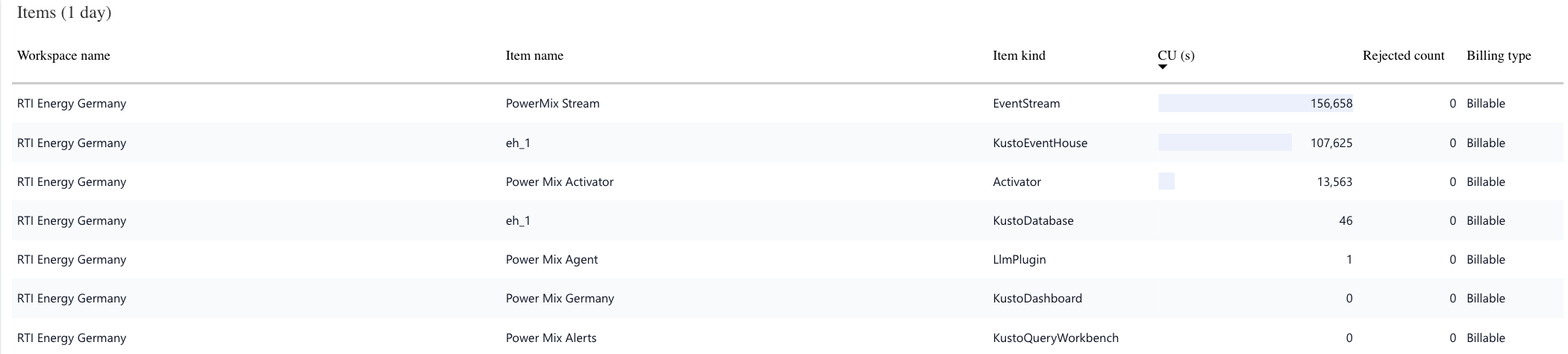
On October 22, the solution ran for 24 hours on the F64 trial capacity. All numbers come from the unsmoothed view, filtered on the project’s workspace.
The base load
| Component | CU (s) | CU per hour | CU hours per day | Share |
|---|---|---|---|---|
| Eventstream | 156,658 | 1.79 | 42.9 | 56% |
| Eventhouse | 107,625 | 1.23 | 29.5 | 39% |
| Activator | 13,563 | 0.15 | 3.7 | 5% |
| KQL database | 46 | 0.00 | 0.0 | 0% |
| Total | 277,892 | 3.17 | 76.1 |
The whole solution uses 3.17 CU per hour, or 76 CU hours per day. On the F64 trial, that’s only about 5% of the capacity.
Eventstream: theory vs. measurement
| Operation | CU (s) | per hour | documented rate |
|---|---|---|---|
| Processor Per Hour | 136,247 | 1.56 | 2 × 0.778 = 1.556 |
| Per Hour | 19,447 | 0.22 | 0.222 |
| Data Traffic Per GB | 964 | 0.01 | 0.342 per GB |
With the clock trick from chapter 4: 19,447 divided by 799.2 gives 24.3 active hours. The processor divided by 2,800.8 and by those hours gives exactly 2.00. So I’m billed for the two paths with “Manage fields”, each at the minimum rate.
That answers the question from the introduction. Not every transformation costs extra, but every route does. And these two routes make up almost half of the whole base load: 49%. The amount of data hardly matters. About 0.8 GB per day costs around 140 times less than the processing.
Eventhouse
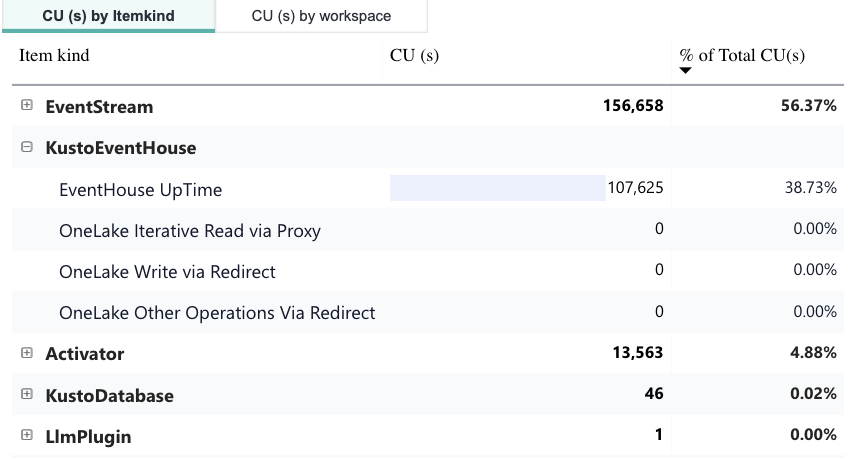
All 107,625 CU seconds of the Eventhouse are “EventHouse UpTime”. It ran the whole day because new data arrived every minute.
Activator
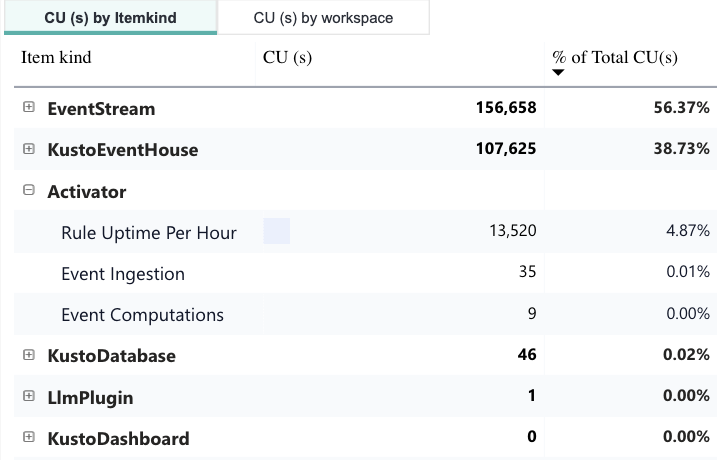
13,520 of the 13,563 CU seconds are “Rule Uptime Per Hour”. Ingestion and evaluation together cost 44. With seven rules, that’s about 0.02 CU per rule and hour. What counts is the number of active rules, not the number of events.
Dashboard
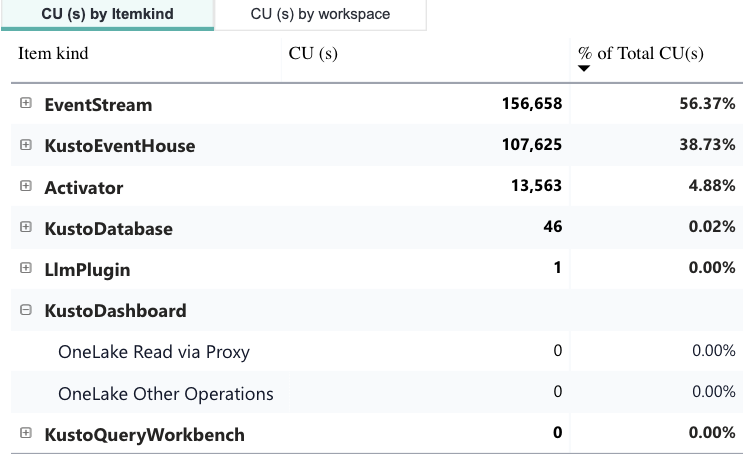
I had the dashboard open for about three and a half hours that day. The dashboard item shows 0 CU seconds. The queries run on an Eventhouse that’s active anyway, so I couldn’t see any additional consumption.
6. Special: what happens on an F2
The F2 is the smallest Fabric capacity, and it’s where many people start. I did too. Before the measurement on the trial, the solution ran on an F2 for two days.
The F2 gives you 2 CU, which is 48 CU hours per day. My solution needs 76. On paper, that’s about 160%. And that’s exactly what happened.
The consumption was the same
First, the good news for the measurement: on the F2, the solution used 3.22 CU per hour. On the F64 trial, it was 3.17. The items use the same, no matter the size of the capacity. The small difference comes from October 19, when I was still testing the agent and the dashboard, which also adds to the Eventhouse.
But the F2 couldn’t keep up
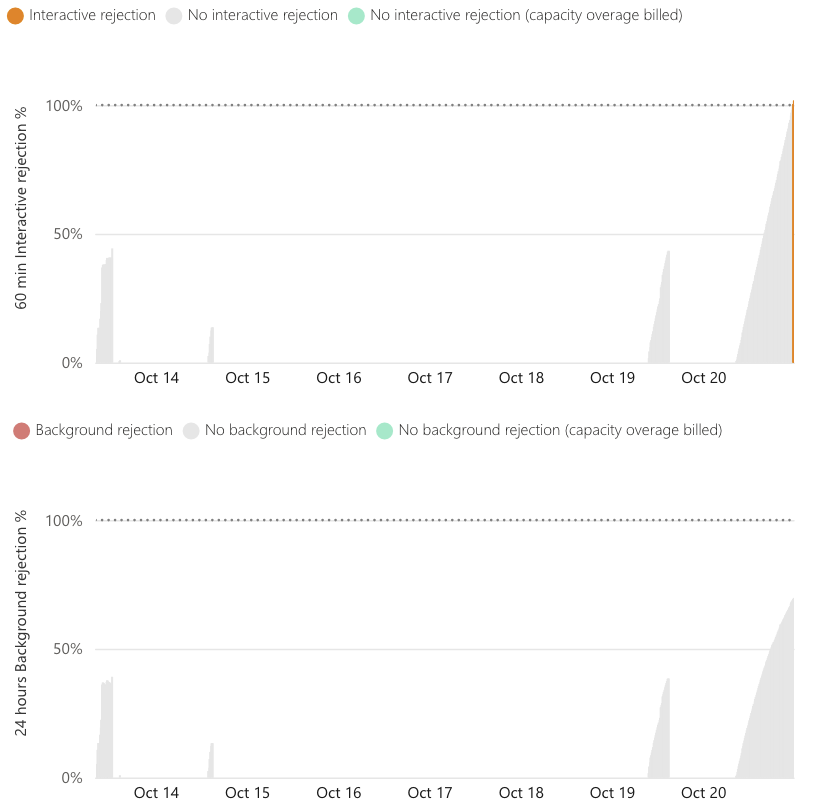
Fabric doesn’t stop right away when a capacity is over its limit. It pushes the extra usage into the future and catches up later. That works for a while. Late in the evening of October 20, it didn’t anymore: the capacity turned “At Risk”, and an hour later it started rejecting interactive queries.

The Throttling tab shows how close the next stage was. Interactive rejection was at 100%, background rejection had already reached about 70%. At 100%, Fabric would have rejected background operations too, which means ingestion and Activator.
Why you might not notice
Data kept flowing into the Eventhouse the whole time. You’d only notice the problem when someone opens the dashboard or asks the agent a question, because those are exactly the queries that get rejected first.
What size it needs
An F4 gives you 96 CU hours per day. With 76, the solution runs at about 80%, which leaves some room for the dashboard and the agent. So for this solution, an F4 is the smallest capacity that works.
7. The data agent
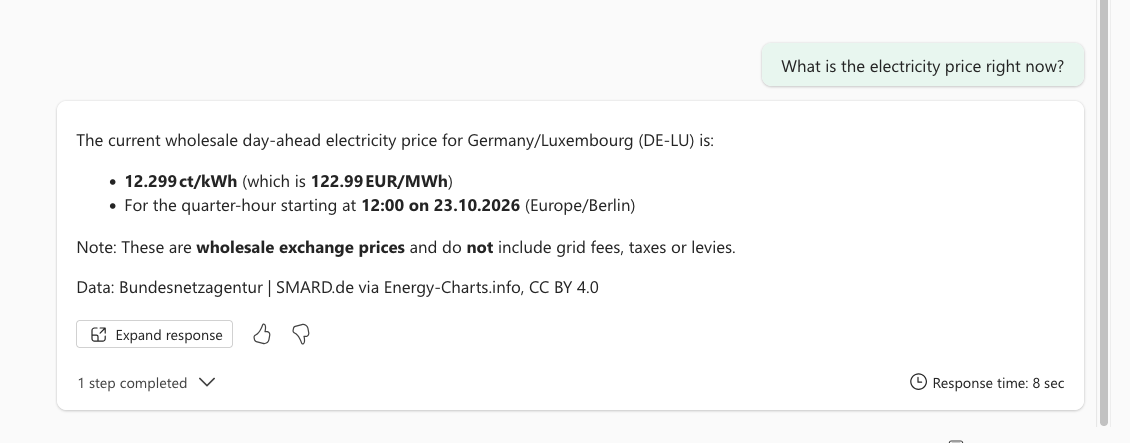
The data agent is the only part of the solution that’s billed per use. So I tested it separately: on October 23, I asked it six questions in one new chat, on an F2 capacity, with the dashboard closed. Each answer took between 8 and 13 seconds.
- What is the renewable share right now?
- What is the current renewable share and traffic light?
- What is the current power mix?
- How much solar power was generated yesterday?
- What is the electricity price right now?
- When is electricity cheapest today?
About 1,400 CU seconds per question
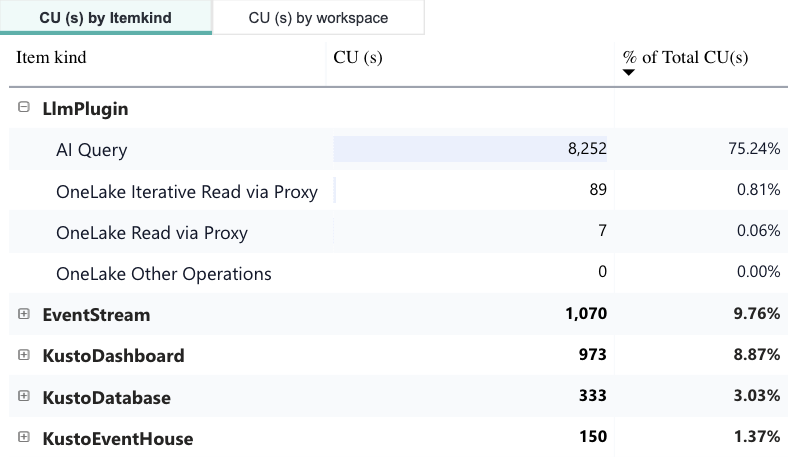
The six questions cost 8,252 CU seconds under “AI Query”. That’s about 1,400 CU seconds per question, or 0.38 CU hours. An F2 provides that much in about twelve minutes. Two days earlier, I had asked the same six questions on an F4, and the result was almost the same: 8,529 CU seconds.
With the rates from chapter 3, that’s roughly 10,000 input tokens and 1,000 output tokens per question. Most of it is input. The question itself is short, but the agent sends a lot along with it: the instructions, the example queries, the descriptions of the KQL functions and the chat history. The answers are short.
The KQL queries the agent runs aren’t in this number. They run on the Eventhouse and are billed there.
A cost you’d find somewhere else
One thing surprised me. On both test days, the dashboard item also showed “Copilot In Fabric” operations, run under my account, at exactly the time I asked the agent my questions. Together they came to about 970 CU seconds on each day. On the day I didn’t use the agent, it was 0. I don’t know why Fabric assigns this to the dashboard and not to the agent. But in practice, it’s part of what the agent costs.

Including it, the six questions cost about 9,300 CU seconds, or roughly 1,550 per question.
What that means in practice
Simple questions like these are cheap one at a time. But they add up:
| Questions per day | CU hours per day |
|---|---|
| 10 | 4 |
| 20 | 8 |
| 50 | 19 |
| 100 | 38 |
With a base load of 76 CU hours, my solution runs at about 80% on an F4. Fifty questions a day would bring it to almost 100%. So if a team uses the agent regularly, it’s worth planning for it when choosing the capacity.
Testing costs too
While I built the agent, I tested a lot: writing instructions, adding example queries, asking the same question again and again. Over those days, the agents in my project workspace used more than 35,000 CU seconds. That’s about as much as an F2 provides in five hours. If you’re building an agent on a small capacity, keep an eye on that.
8. What this means for your own projects
Your solution will look different from mine. But the rules behind the numbers are the same. Here’s what I would keep in mind.
1. Count routes, not transformations
In the Eventstream, every route costs at least 0.778 CU per hour, no matter how much data flows through it. That’s 18.7 CU hours per day, or almost 40% of an F2, for a single route. How many operators sit on that route doesn’t matter. So before you split a stream into several paths, ask yourself if you really need them.
2. Check where the Eventstream sends the data
Push destinations like a Lakehouse, Activator or an Eventhouse with transformations cost processor time. An Eventhouse with direct ingestion pulls the data itself and has no processor cost on the Eventstream side. If you only need to convert data types or split data into tables, you could also do that in the Eventhouse, for example with an update policy. I haven’t measured that yet, but it’s the first thing I would test.
3. An Eventhouse that gets data every minute never sleeps
The Eventhouse is billed by uptime. With continuous ingestion, that means 24 hours a day. In my solution, that’s almost 40% of the base load. Plan for it as a fixed cost.
4. Activator charges per rule
What counts is the number of active rules, not the number of events. In my case, that’s about 0.02 CU per rule and hour. Stop rules you don’t need, especially old test rules.
5. Looking at a dashboard is almost free, Copilot isn’t
Three and a half hours with the dashboard open didn’t add anything I could measure. The queries run on an Eventhouse that’s active anyway. Copilot is a different story: whenever I used the data agent, a Copilot operation of about 970 CU seconds showed up on the dashboard item.
6. The data agent is billed per question
About 1,400 CU seconds per question in my tests. That’s fine for a few questions a day, but with regular use, it adds up quickly. And building the agent costs too, because every test question sends the full instructions along.
7. The smallest capacity is often too small
My solution needs 76 CU hours per day. An F2 gives you 48. So for this project, an F2 isn’t enough. It ran for a while, but after a day and a half, Fabric started rejecting queries. An F4 with 96 CU hours runs at about 80%, which leaves some room for the dashboard and a few agent questions. With heavy agent use, even that gets tight.
And keep in mind: when a capacity is too small, ingestion keeps running for a long time. The first thing that fails are the queries from the dashboard and the agent. So the problem shows up when someone wants to look at the data, not when the data comes in.
8. Measure before you choose a size
Run your solution for 24 hours and look at the unsmoothed view in the Capacity Metrics app. Add up the CU hours per day and compare them with the capacity. Then add what users will do on top: dashboards, agent questions, Copilot. That gives you a much better answer than any estimate.
9. Conclusion
I started with a simple question: does every transformation in an Eventstream use extra capacity? The answer is no, but every route does. In my solution, two routes with “Manage fields” make up almost half of the whole base load. The amount of data hardly matters.
The measurement also showed how the rest adds up. The Eventhouse runs around the clock because data arrives every minute. Activator charges for every active rule. Looking at the dashboard costs practically nothing, while every question to the data agent does. All together, the solution needs 76 CU hours per day. That’s too much for an F2 and fits well on an F4.
What surprised me most was how precisely the numbers in the Capacity Metrics app match the Microsoft documentation. With a bit of math, you can trace almost every CU second back to a part of your architecture. That’s also my main tip: don’t estimate, measure. 24 hours in the unsmoothed view tell you more than any calculator.
There’s one thing I want to try next: what happens if the Eventstream only passes the data through and the Eventhouse does the splitting and type conversion with an update policy? On paper, that should save most of the processor cost. Whether the Eventhouse then needs more instead, I’ll find out in the next measurement.
If you want to try it yourself, you’ll find the project, all KQL queries and the Fabric items in my GitHub repo: real-time-intelligence-project-energy
Microsoft documentation
- Capacity consumption for Microsoft Fabric eventstreams
- Understanding Fabric Eventstream Pricing
- Eventhouse and KQL Database consumption
- Eventhouse overview
- Usage reporting for Activator
- Data agent consumption
- What is the Microsoft Fabric Capacity Metrics app?
- Understand the metrics app compute page
- How Fabric capacity throttling affects Activator